

If your iPhone’s address book is filling up with people you only ever talk to on WhatsApp, you are not alone. WhatsApp on iOS keeps no address book of its own — it borrows your iPhone’s contacts instead. That means every chat partner ends up living in your Phone and Contacts apps too. The good news: there is a reliable workaround that keeps your WhatsApp conversations exactly where they are while getting those contacts out of your iPhone’s address book.
It is a two-stage trick, and the order matters. You grant WhatsApp contact access first, start the chats you need, and only then cut off its access. Done right, your chats survive and the clutter disappears. If you juggle a lot of cross-device messaging, our guide on setting up message sync between iPhone and Mac is a useful companion read once your chats are in order.
Why WhatsApp borrows your iPhone contacts
WhatsApp for iPhone does not maintain a separate contact list. The first time you open it, the app asks for permission to access your iPhone’s contacts, and it needs that access to match phone numbers to the people you message. The WhatsApp Help Center documents this permission as part of the normal setup flow — without it, WhatsApp cannot show you who is who.
The catch is that everything WhatsApp reads lives in the shared iOS address book. So the contacts you add for WhatsApp also appear in the Phone app, in Spotlight search, and anywhere else iOS surfaces contacts. Revoking the permission later breaks that link — but only after your chats already exist, as you will see.
Step 1: Start every chat you need first
Before touching any setting, open WhatsApp and start a conversation with everyone you want to keep chatting with. This is the crucial part of the trick: leave Contacts access turned on while you do this. WhatsApp needs that access to find people and create the chats.
Send each person at least one message so the conversation is firmly established in your chat list. Think of this as registering your chats — once a conversation exists, WhatsApp remembers it on its own.
Step 2: Revoke WhatsApp’s access to your contacts
With your chats in place, it is time to cut the cord:
- Open the Settings app on your iPhone.
- On iOS 18 and later, go to Apps, then scroll down and tap WhatsApp. On older iOS versions, scroll the main Settings list and tap WhatsApp directly.
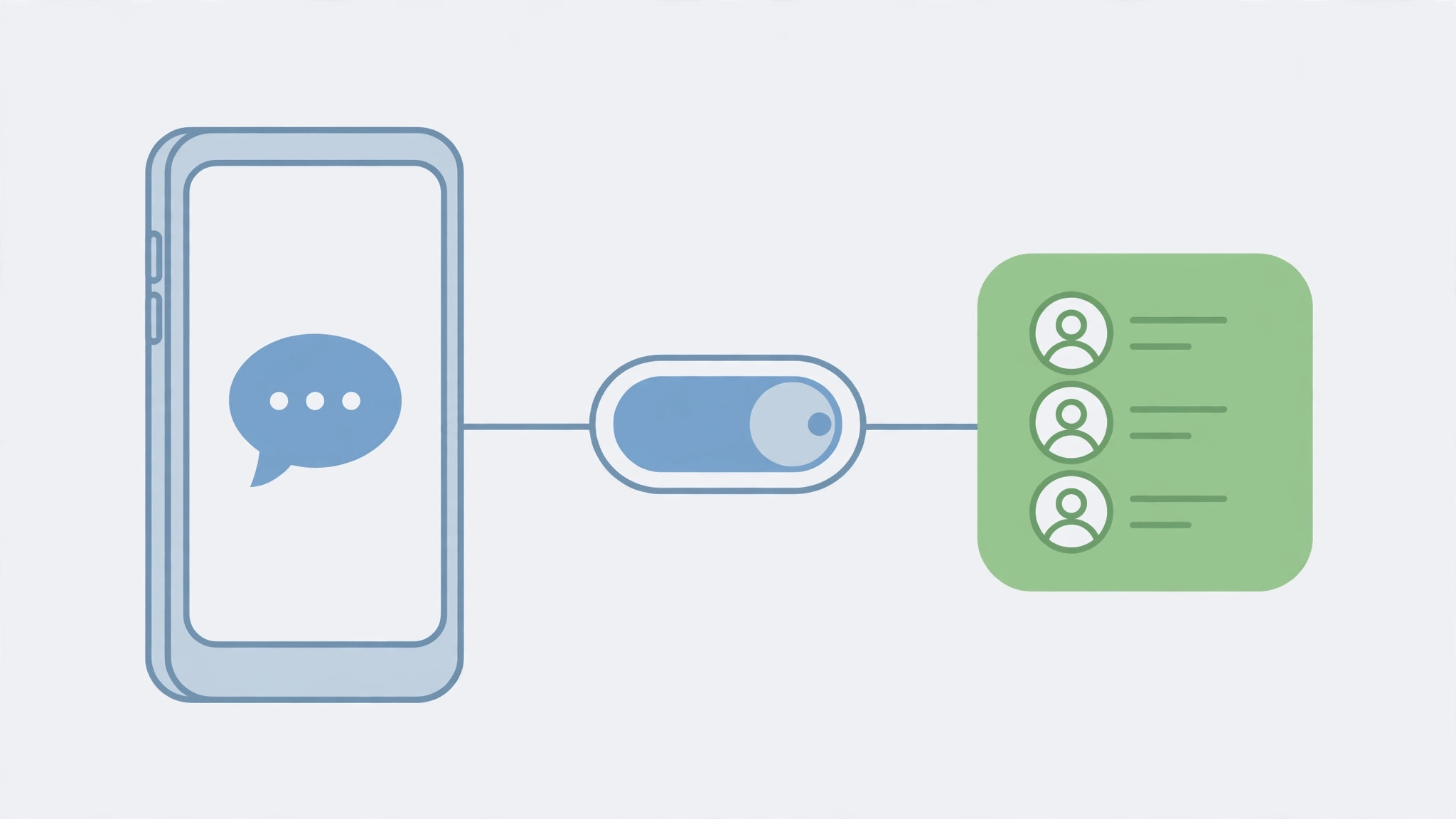
- Find the Contacts toggle and switch it off.
That is the entire separation step. Apple Support documents these per-app privacy toggles in its guides on controlling what information apps can access — the same screen governs location, photos, and microphone access for every app on your phone.
Step 3: Delete the contacts from your iPhone address book
Now open the Phone or Contacts app and delete the entries you no longer want in your address book. Because WhatsApp can no longer see your contacts, removing them here does not touch your WhatsApp conversations — your chats, including their full message history, stay intact inside WhatsApp.
Take your time with this step and double-check each entry before deleting, especially if the same person also exists in a synced account (iCloud, Gmail, or Outlook) whose contacts also feed the iPhone address book.
What changes after you do this
Be honest with yourself about the trade-offs, because there are a few:
- The Contacts tab inside WhatsApp disappears. With no contact access, WhatsApp has no address book to show you.
- Chats show phone numbers instead of names. Conversations with deleted contacts will display the raw number in the chat list.
- Starting new chats is manual. To message someone new, you will need to type their full phone number — WhatsApp can no longer look anyone up.
- Re-enabling access re-syncs everything. If you ever flip the Contacts toggle back on, WhatsApp will immediately read your address book again and the separation is undone.
And one important caveat: there is no way to add a brand-new WhatsApp contact without it ever touching the iPhone address book. This trick only works for chats that already exist — which is why Step 1 comes first. For a related cleanup, see our guide on turning off call duplication from iPhone on iPad, another case where one Apple ecosystem link creates noise on your other devices.
If it still doesn’t work
If contacts are still showing up inside WhatsApp, force-quit the app and reopen it — the permission change sometimes needs a fresh launch to take effect. If new chats still resolve names, double-check that the Contacts toggle is actually off and that the person is not still in a synced account (iCloud, Gmail, or Outlook) whose contacts also feed the iPhone address book. Deleting a contact from “All Contacts” while it still lives in a synced account will just bring it back.
Frequently asked questions
Will I lose my WhatsApp messages if I revoke Contacts access?
No. Revoking the permission only stops WhatsApp from reading your iPhone’s address book. Your conversations and their message history live inside WhatsApp itself and are completely unaffected — you will just see phone numbers where names used to be.
Can I add a new WhatsApp contact without ever touching the iPhone address book?
Not really. WhatsApp on iOS always reads new contacts from the iPhone address book, so a new person has to exist there at least briefly. The workaround is to add them, start the chat, then repeat this guide’s steps: revoke access again and delete the address-book entry.
Conclusion
Separating WhatsApp contacts from your iPhone contacts is a simple three-move play: start your chats with access enabled, revoke the Contacts permission in Settings, then delete the address-book entries. Your conversations stay, the clutter goes — just remember the trade-offs around names, the missing Contacts tab, and manual number entry for new chats.





