
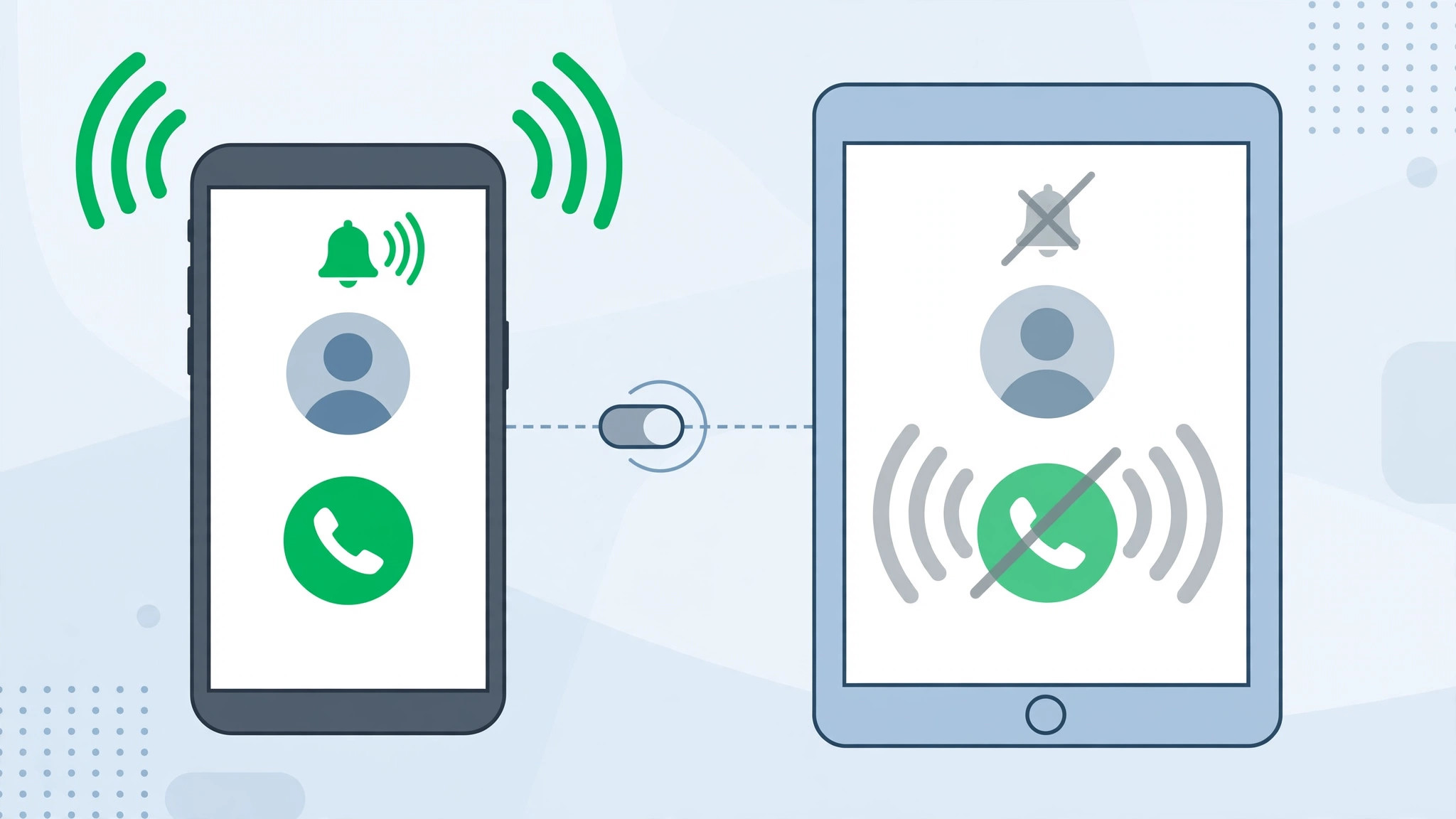
Picture this: your iPhone starts ringing in the living room, and a second later your iPad on the kitchen counter joins in — followed by the Mac on your desk. That is Apple’s Continuity feature, “Calls on Other Devices,” doing its job: any device signed in to the same Apple Account can answer your iPhone’s cellular calls. It sounds convenient, and it can be, but when every screen in the house chimes in stereo for a call you only meant to take on the phone, it gets old fast.
If that scene feels familiar, here is the detail most people miss: the fix is not on the iPad — the change is made on the iPhone. You have two options: switch off call sharing for every device at once, or pick and choose which devices are allowed to ring. Both take under a minute.
Option 1: Turn off call sharing on all devices
To silence every extra device in one go, disable the feature entirely on your iPhone:
- Open Settings on your iPhone.
- Tap your name at the very top to open your Apple Account.
- Tap iCloud, then tap “See All” to expand the full list of synced items.
- Find “Phone and FaceTime” in the list and toggle it off.
- Done — your iPad and other devices will no longer ring when someone calls your iPhone.
This is one of several iPhone-to-everything sharing tricks Apple builds in — for example, your Mac can also grab an internet connection from your iPhone automatically, as our guide to setting up automatic hotspot connection from iPhone on Mac explains.
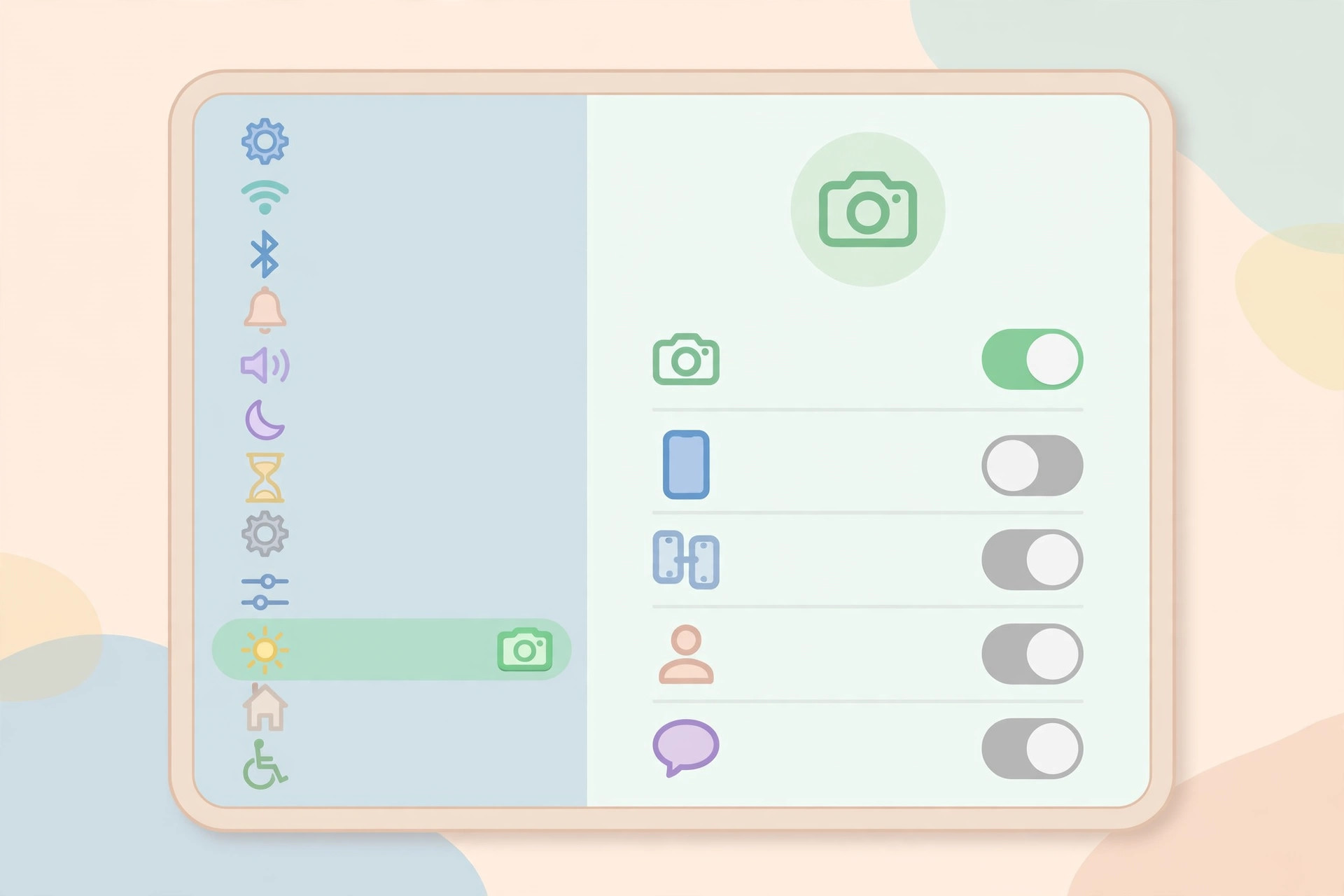
Option 2: Turn it off for just one device
Prefer to keep answering calls on your Mac but silence only the iPad? Fine-tune it per device:
- On the iPhone, open Settings.
- Go to Apps, then tap Phone.
- Tap “On Other Devices.”
- You will see a list of your signed-in devices — switch off the iPad, or any device you want to exclude.
Apple Support documents how Calls on Other Devices works, and video walkthroughs on YouTube show the same menus step by step if you prefer a visual guide.
If it still doesn’t work
- Make sure every device is signed in to the same Apple Account — these toggles only affect devices on your account.
- If a device keeps ringing, restart it and double-check the toggle; changes can take a moment to propagate.
- FaceTime Audio calls are separate: this setting stops cellular call duplication only. Manage FaceTime ringing under Settings > Apps > FaceTime.
- Still drowning in pings? Our guide to muting Mail notifications for specific contacts in macOS follows the same philosophy — silence the noise, not the feature.
Frequently asked questions
Will this also stop FaceTime calls from ringing on my iPad?
No. Turning off Phone and FaceTime sharing stops your iPhone’s cellular calls from duplicating on other devices. FaceTime calls placed directly to your Apple Account can still ring the iPad — control those separately under Settings > Apps > FaceTime.
Can I keep call sharing on but silence it at night?
Yes — use a Focus mode instead of the nuclear option. Set a Sleep or Do Not Disturb schedule on the iPad while leaving call sharing enabled, and your nights stay quiet without losing the feature during the day.
Conclusion
Two toggles, under a minute, and your home stops ringing in stereo. Disable sharing everywhere or curate it device by device — either way, the controls live on the iPhone, not the iPad. And if you ever want calls back on the big screen, just flip the same toggles back on. For more small iPhone annoyances worth fixing, see our guide on turning off the sent-mail sound in the iPhone Mail app.






[…] at fault and a service appointment is the next step. While tidying settings, you may also want to turn off call duplication between iPhone and iPad if location-based handoff features […]
[…] If the haptics die again the next time you open Skype, you are simply watching the bug re-trigger — restart once more and, if you make a lot of calls, consider Skype’s web version as a stopgap until updates land. But if feedback never returns after a restart, or vanishes without Skype in the picture, look elsewhere: make sure System Haptics is enabled under Settings → Sounds & Haptics, and if the Taptic Engine itself seems dead, have Apple diagnose it. Owners juggling calls across devices may also like our guide on turning off call duplication between iPhone and iPad. […]
[…] Your iPhone rings — and so does your iPad and your Mac, all at once. This is call duplication, an Apple ecosystem feature that forwards iPhone calls to your other devices. It can be handy when your phone is in another room, but in a quiet office or at home it is mostly annoying. The good news: the fix takes seconds and lives entirely on your iPhone. Note that this is the fuller guide to the feature — it covers both the iCloud-level switch and the per-device toggles. If you only need the quick per-device switch, see our earlier guide to turning off call duplication between iPhone and iPad. […]
[…] quirks cause other oddities too: if your calls ring on every Apple device you own, our guide on turning off call duplication on iPhone and iPad walks through the […]
[…] too many mystery calls in the first place? See our guide to turning off call duplication from iPhone on iPad so unknown numbers do not ring on every device you own, and allowing calls from only one SIM in […]
[…] isn’t saved with stray characters the Phone app can’t parse. And see our article on call duplication across devices if the call behaves oddly on a paired iPad or Mac instead of failing […]