
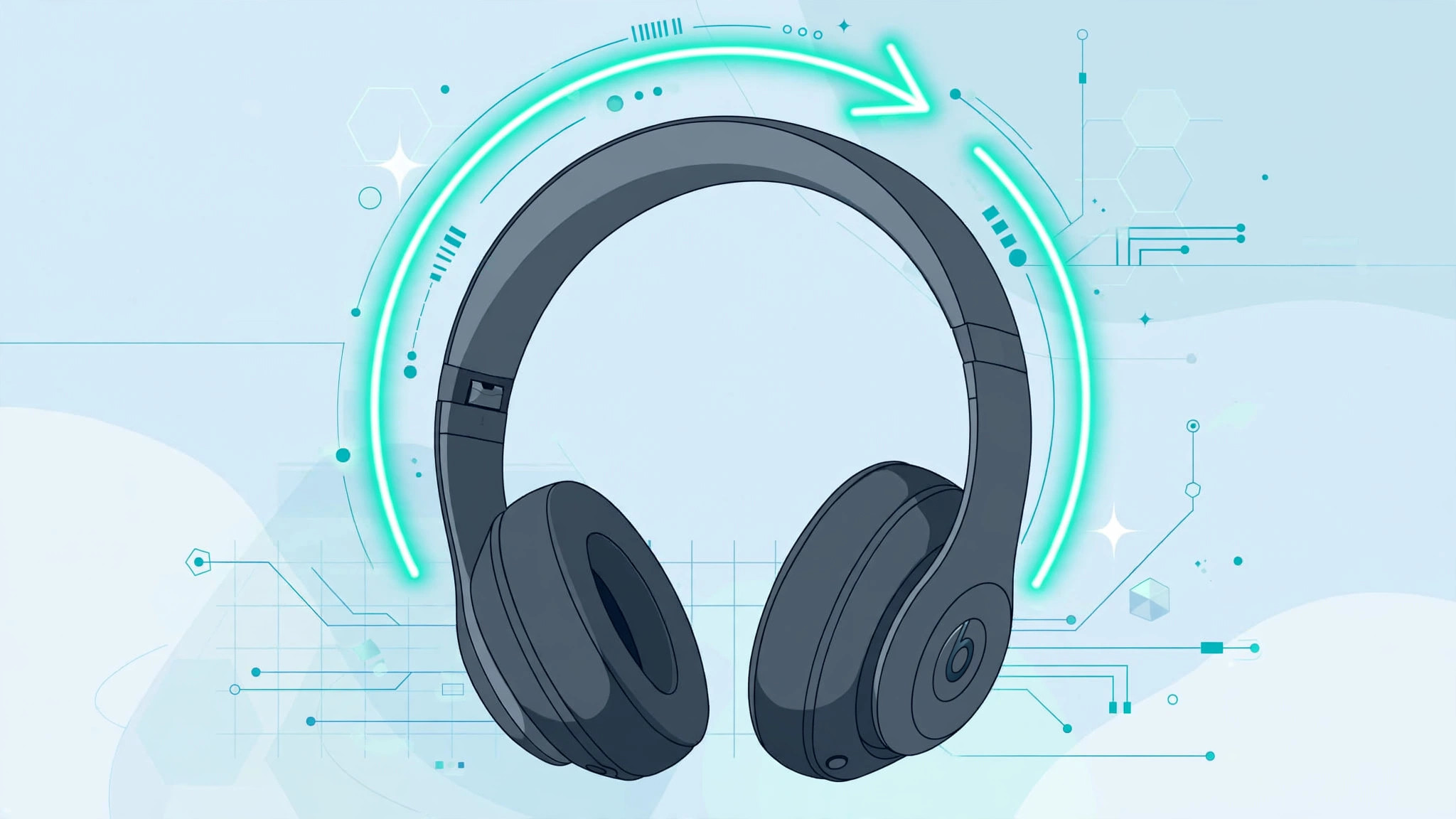
Searching for a button that updates your Beats headphones’ firmware? You will not find one — and that is completely normal. Beats wireless headphones offer no manual update option. Firmware updates are installed automatically in the background, as long as the headphones are paired, powered on and close to your device. Your job is simply to give the update the right conditions. Here is how it works and what to do if an update seems to be missing.
How Beats firmware updates work
Firmware is the small piece of software that runs on the chip inside your headphones. It handles pairing, battery management, button controls and audio processing, and Apple and Beats release new versions to fix bugs, improve connection stability or add features. On modern Beats models the update arrives over the air: your paired iPhone or iPad quietly downloads the firmware and installs it on the headphones while they are connected. You never see a prompt or a progress bar — it all happens silently.
Step 1: Pair your Beats and keep them close, powered and charged
Give the automatic update everything it needs:
- Make sure your Beats are paired to an iPhone or iPad and that Bluetooth is switched on.
- Keep the headphones near the paired device — within a few metres — and make sure they are charged.
- Leave them connected for a few hours while you are not actively listening. Updates install during idle connected time, not while music is playing.
If you just bought a new pair of Beats, this is all you need to do: leave them paired for a day or two and they will update themselves. If your iPhone keeps hopping between audio outputs meanwhile, our guide on how to stop the iPhone from auto-switching audio between headphones can calm that behaviour down.
Step 2: Check which firmware version you have
To see the firmware your Beats are running, open Settings > Bluetooth on the paired iPhone, find your Beats in the device list and tap the small (i) icon next to their name. The version number is shown there. Compare it with the latest version published on Apple Support or Beats support pages to check whether yours is current.
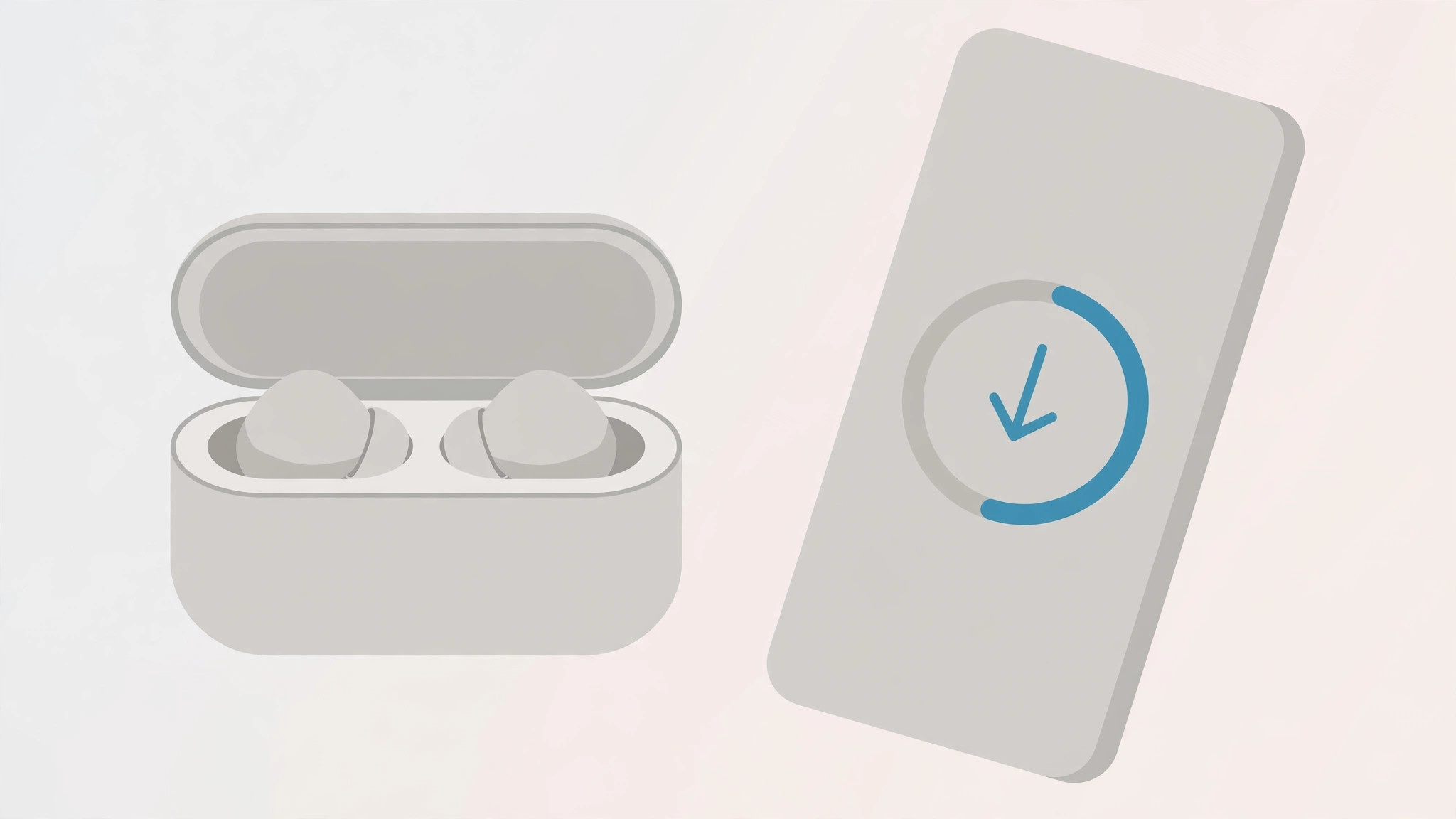
Step 3: If the update never arrives
Automatic updates normally take care of themselves, but if your version is clearly behind and nothing changes after a day or two, work through this checklist:
- Unpair and re-pair. On the iPhone, go to Settings > Bluetooth, tap the (i) next to your Beats, choose “Forget This Device”, then put the Beats into pairing mode and pair again.
- Stay connected and idle. Keep the Beats switched on and connected for several hours without playing audio — idle connected time is when updates install.
- Update iOS. Firmware delivery is handled by iOS, so make sure the paired iPhone runs a current version under Settings > General > Software Update.
Bluetooth headphones develop other quirks too — odd chimes and sounds, for example. If that sounds familiar, our guide on how to turn off AirPods charging case sounds covers the same kind of troubleshooting that works for Beats.
Step 4: Older models — use the Beats Updater on a computer
The over-the-air process above applies to newer Beats with the H1 or H2 chip. Owners of older W1-chip models — such as BeatsX, Solo3 Wireless or Studio3 Wireless — may never receive an automatic update. For those models, Beats provides a desktop Beats Updater tool for Mac and Windows PCs. Connect the headphones to the computer with a USB cable, run the updater, and it will check for and install any available firmware update.
What about Android users?
If you use your Beats with an Android phone, install the Beats app for Android. It checks for firmware updates and applies them, doing the same job iOS does for iPhone users. Keep it installed with Bluetooth on, and updates will come through.
If it still doesn’t work
If the version refuses to change after re-pairing, updating iOS and leaving the headphones connected overnight, reset them: hold the power button (or the mode button on some models) for about ten seconds until the LED flashes, then pair again. If the update still will not install, contact Apple Support or the Beats support team — it may be a hardware fault.
Frequently asked questions
Is there a manual “update” button for Beats headphones?
No. No button, menu or app screen forces a firmware update on Beats wireless headphones. The update triggers automatically when the headphones are paired to a compatible device and left connected — except for older W1 models, which use the Beats Updater tool on a computer.
Do I need an iPhone to update Beats firmware?
Not necessarily. Updates install automatically through a paired iPhone or iPad, but Android users can update through the Beats app for Android, and older W1 models can be updated over USB with the Beats Updater on a Mac or Windows PC.
Conclusion
Keeping your Beats firmware current is mostly a matter of letting the automatic process work: keep the headphones paired, charged and near your phone, check the version under Settings > Bluetooth, and be patient. For older W1 models, the Beats Updater tool fills the gap. Either way, you can stop hunting for an update button that was never there.





