
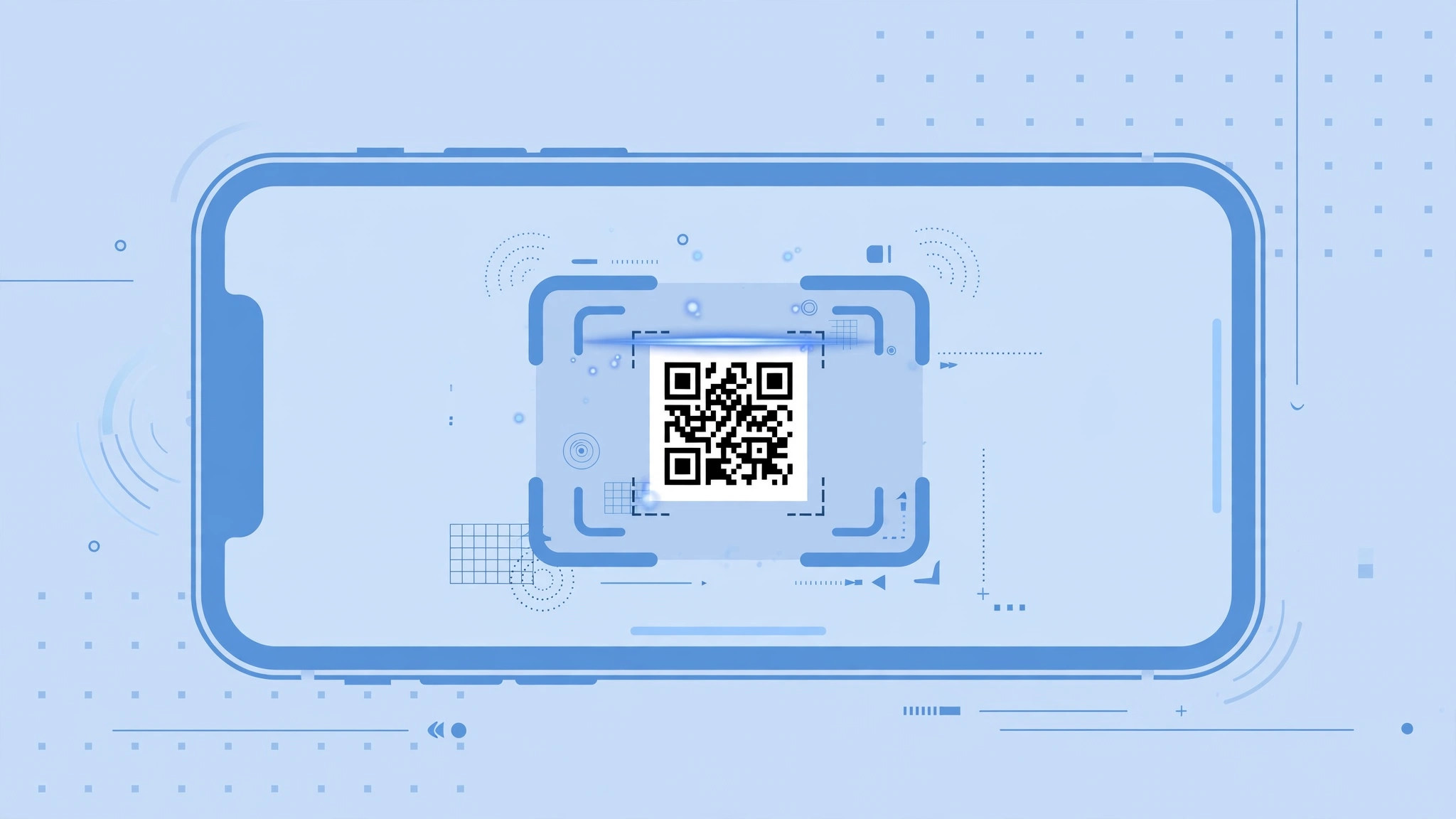
QR codes are everywhere now: restaurant menus, event tickets, the Wi-Fi details at a friend’s house, payment pages. The good news is that your iPhone has been a capable QR scanner for years, and you do not need to install a single third-party app to use it. Since iOS 11, the built-in Camera app recognizes QR codes on its own, and a dedicated Code Scanner control can be added to Control Center for even faster access.
Here are the two quickest ways to scan any QR code in seconds, plus what to do when scanning refuses to work.
Step 1: Point the Camera app at the code
The fastest way to scan a QR code is usually the app you already open every day:
- Open the Camera app on your iPhone.
- Point the rear camera at the QR code and hold the phone steady. The code does not have to fill the frame — just keep it clearly visible inside the viewfinder.
- After a moment, a notification banner appears at the top of the screen. Tap it to open the link, join the Wi-Fi network, add the contact, or complete whatever the code was made for.
That is all there is to it. The Camera app handles website links, Wi-Fi credentials, contact cards, and payment codes, and Apple’s Camera documentation confirms this banner behavior works without any extra software.
Step 2: Add the Code Scanner to Control Center
If you scan codes regularly, the dedicated Code Scanner saves you a tap or two compared with opening the Camera app:
- Open Settings and tap Control Center.
- Scroll to the list of controls, find Code Scanner, and tap the green + button to add it.
- Swipe down from the top-right corner of the screen to open Control Center, then tap the Code Scanner icon.
- Point your iPhone at the QR code. The scanner reads it and opens the result immediately.
Control Center is full of useful one-tap tools like this — it can even automatically identify songs playing nearby, so it is worth browsing the full list of controls. And if the Camera app keeps opening by accident when you pick up the phone, our guide on disabling the quick camera launch from the iPhone lock screen shows how to stop that.
If it still doesn’t work
If the Camera app ignores QR codes completely, check Settings → Camera and make sure Scan QR Codes is switched on — it is easy to disable this toggle without realizing what it does. Also try cleaning the camera lens, scanning in better light, and holding the phone a little farther away rather than pressing it close to the code. If the banner appears but tapping it does nothing, update to the latest iOS version, since Apple refines the scanner with each release. MacRumors regularly covers these Camera improvements when new iOS versions land.
Frequently asked questions
Do I need a separate app to scan QR codes on iPhone?
No. Any iPhone running iOS 11 or later scans QR codes natively through the Camera app, and the built-in Code Scanner in Control Center covers the rest. Third-party scanner apps are redundant unless you need extras like scan history.
Can I scan a QR code from a photo or screenshot?
Yes. Open the photo in the Photos app and long-press the QR code — Live Text recognizes it and offers the same actions as the camera banner, such as opening the link or joining the network.
Conclusion
Scanning QR codes on iPhone takes seconds: point the Camera app at the code and tap the banner, or add the Code Scanner to Control Center for one-tap access. No extra apps, no setup headaches — just point, tap, and go.





