

You recorded a perfect Slo-Mo video on your iPhone, sent it to a friend via iMessage — and they received it playing at regular speed. No slow motion at all. Before you assume the recording is broken, know this: the problem is not your video. It’s iMessage.
Why iMessage removes the slow-motion effect
A Slo-Mo clip on iPhone is really a normal video file with extra timing metadata that tells the Photos app which sections to play slowly. When you send that clip through iMessage, the video is re-encoded for delivery, and the slow-motion timing metadata is stripped along the way. The recipient gets a plain video that plays at normal frame rate from start to finish.
This is a limitation of how iMessage transfers video, not a fault in your recording — play the same clip in your own Photos library and the slow-motion effect is still there.
How to share a Slo-Mo video with slow motion intact
1. Send it via AirDrop instead. AirDrop transfers the original file with its timing metadata preserved, so the recipient’s iPhone plays back the slow-motion sections exactly as you recorded them. MacRumors’ guide to using AirDrop between Apple devices walks through the share-sheet steps if you haven’t used it before.
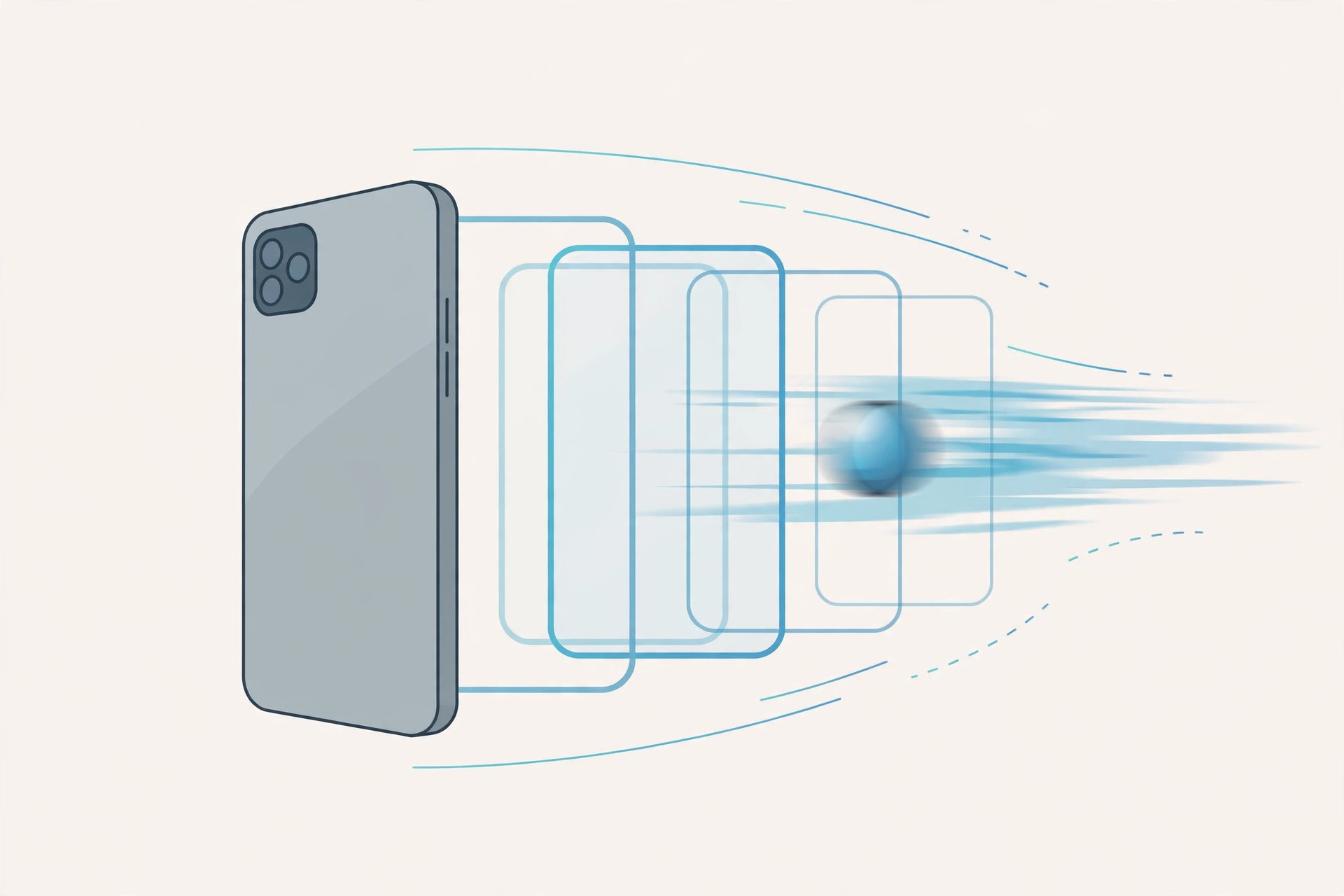
2. Share a link from iCloud Drive or a shared album. Upload the clip to iCloud Drive (or add it to a shared album in Photos) and send your friend the link. Because the original file is what gets downloaded, the slow-motion effect survives the trip.
3. Confirm the slow motion exists in your copy first. Open the clip in Photos and check that the slow sections still play correctly on your phone. Apple’s own guide to recording Slo-mo video on iPhone documents how the mode works, including how to adjust which part of the clip plays slowly.
4. Use iMessage only as a fallback. If you have no other option, you can at least warn your friend that the slow-motion effect won’t survive the transfer — and syncing Messages between iPhone and Mac means you can also re-send the clip from a Mac over another channel.
5. Try a third-party app that preserves metadata. Some video-sharing apps keep the timing data intact where iMessage doesn’t. Results vary by app, so test with a short clip before sending anything important.
If it still doesn’t work
If the recipient’s phone plays your AirDropped or linked clip at normal speed even though the effect is intact on your device, ask them to open it in the Photos app rather than a browser preview — browser players often ignore the timing metadata. Also check that you’re sharing the original clip from Photos, not a version saved by another app, which may have stripped the effect already. If other iPhone camera features like spatial photo mode are misbehaving too, the issue may be broader than Messages.
FAQ
Does WhatsApp keep the slow-motion effect?
Like iMessage, most messaging apps re-encode video on send and lose the timing metadata. The reliable channels are AirDrop, a direct file transfer, or a cloud link to the original file.
Can I convert a Slo-Mo video to a permanently slowed file?
Yes — editing apps that export the video with the slowed sections “baked in” produce a regular video file that plays slowly everywhere, including in iMessage. You lose the ability to adjust the slow sections afterward, but the effect survives any transfer.
Conclusion
iMessage strips the slow-motion effect from Slo-Mo videos because it discards the timing metadata during transfer. For a clip that keeps its dramatic slow sections, send it via AirDrop or share a link to the original file — the recording you made was fine all along.





