
Why iPhone update errors happen
Seeing an error when you tap Software Update? The most common culprit is a message like “Unable to check for update because iPhone is not connected to the internet” — even when your Wi-Fi looks fine. This usually means a temporary network glitch, not enough battery or storage, or a corrupted update file. The good news: these errors are almost always fixable at home in a few minutes. Apple walks through the same fixes in its official guide “If you can’t update iOS”, and 9to5Mac regularly covers iOS update hiccups with similar advice.
Step-by-step: fixing the iPhone update error
- Restart the iPhone and try again. A simple restart clears temporary glitches that block the update check. Hold the side button and either volume button, slide to power off, wait a few seconds, then power back on and retry Settings > General > Software Update.
- Disconnect and reconnect Wi-Fi. Go to Settings > Wi-Fi, tap the toggle to turn Wi-Fi off, wait 10 seconds, turn it back on, and make sure you’re connected to your network before retrying the update.
- Charge the battery above 50%. iOS won’t install an update on a nearly empty battery. Plug the iPhone into power — being connected to a charger bypasses the battery requirement entirely — and try again.
- Free up storage. If the update downloads but stalls, you may be out of room. Check Settings > General > iPhone Storage and delete unused apps, large videos or old message attachments to make space.
- Delete and re-download the update. Sometimes the update file itself is corrupted. Go to Settings > General > iPhone Storage, find the iOS update in the list, tap it and choose Delete Update. Then return to Software Update and download it fresh.
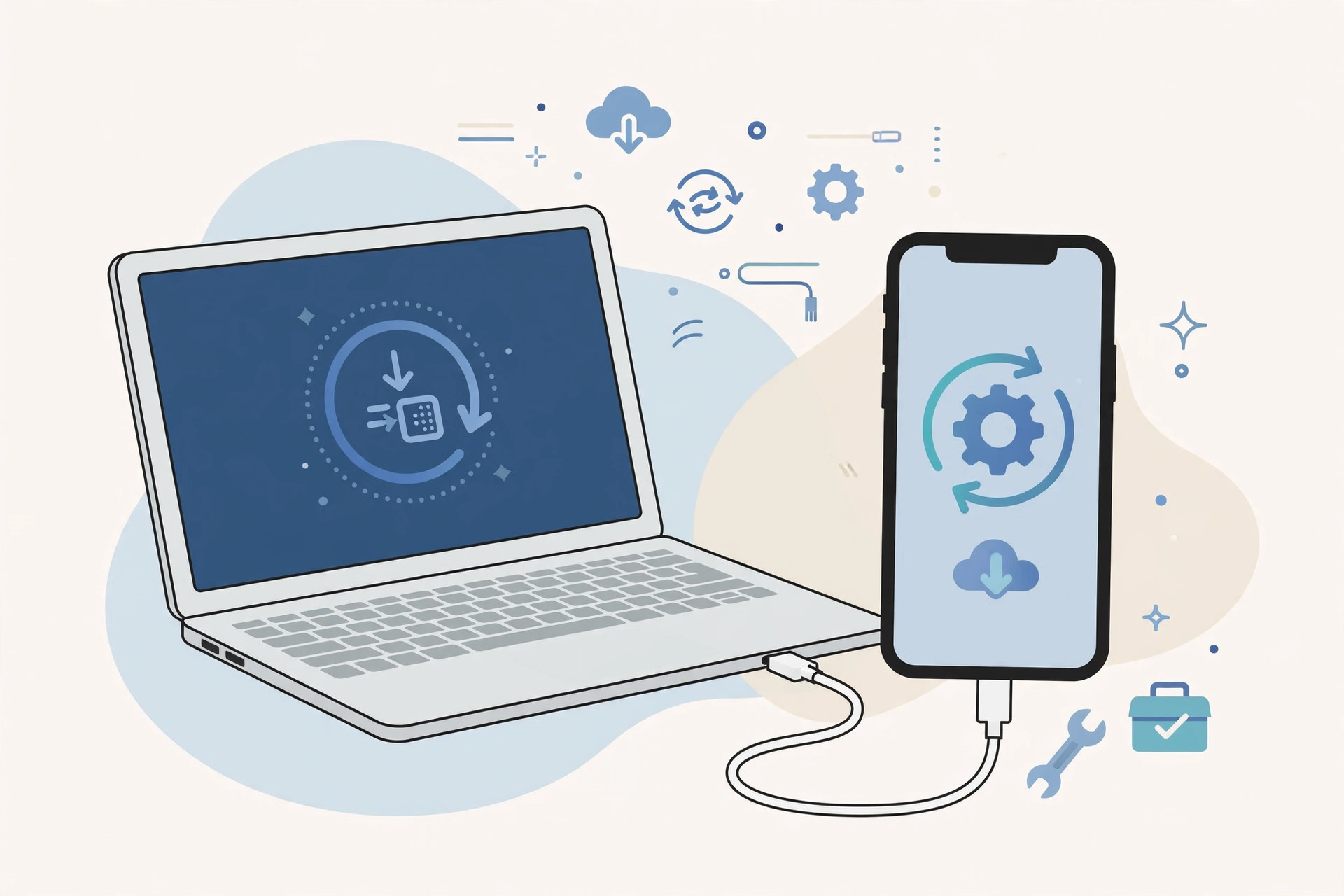
- Update via a computer instead. If over-the-air updating keeps failing, connect the iPhone to a Mac or PC with a cable. On a Mac, open Finder and select your iPhone in the sidebar; on Windows, open iTunes (or Apple Devices). Click Check for Update and install from there — this method bypasses most of the problems that plague wireless updates. It’s also handy for checking data transfer speeds over cable, and if you’ve been tempted to block iOS updates, updating via computer sidesteps those blocks too.
If it still doesn’t work
If the error persists after all the steps above — especially errors about verification or the update “failing to be verified” — the problem may be deeper: a beta profile conflicting with the release, a VPN interfering with Apple’s servers, or, rarely, failing storage. Remove any beta profiles under Settings > General > VPN & Device Management, disable VPNs, and try the computer method once more. If even the computer update fails, contact Apple Support with the exact error text.
FAQ
Why does my iPhone say it’s not connected to the internet during an update?
Usually because Apple’s update servers can’t be reached reliably — a router hiccup, DNS issue or a VPN in the way. Reconnecting Wi-Fi and restarting the phone fixes it in most cases; updating via a computer is the reliable fallback.
Is it safe to delete the downloaded update and start over?
Yes, completely safe. Deleting the update file from iPhone Storage only removes the installer — your data, apps and settings stay untouched. The phone will simply download a fresh copy next time.
Conclusion
Most iPhone update errors come down to a restart, a Wi-Fi reconnect, enough charge, or a fresh download. Work through the steps in order, and if the airwaves keep failing you, let a computer do the heavy lifting. You’ll be on the latest iOS without a trip to the Apple Store.





