
Why filter your Apple Music library to downloads only?
If you download music for offline listening — on flights, in the metro, or anywhere with patchy signal — your library quickly mixes downloaded tracks with everything you’ve added from Apple Music’s streaming catalog. The streaming entries can’t play offline, which makes browsing frustrating. Luckily, Apple Music has a built-in filter that shows only the tracks stored on your device. Apple’s own guide explains the “Downloaded” library view, and MacRumors has walked readers through it as well.
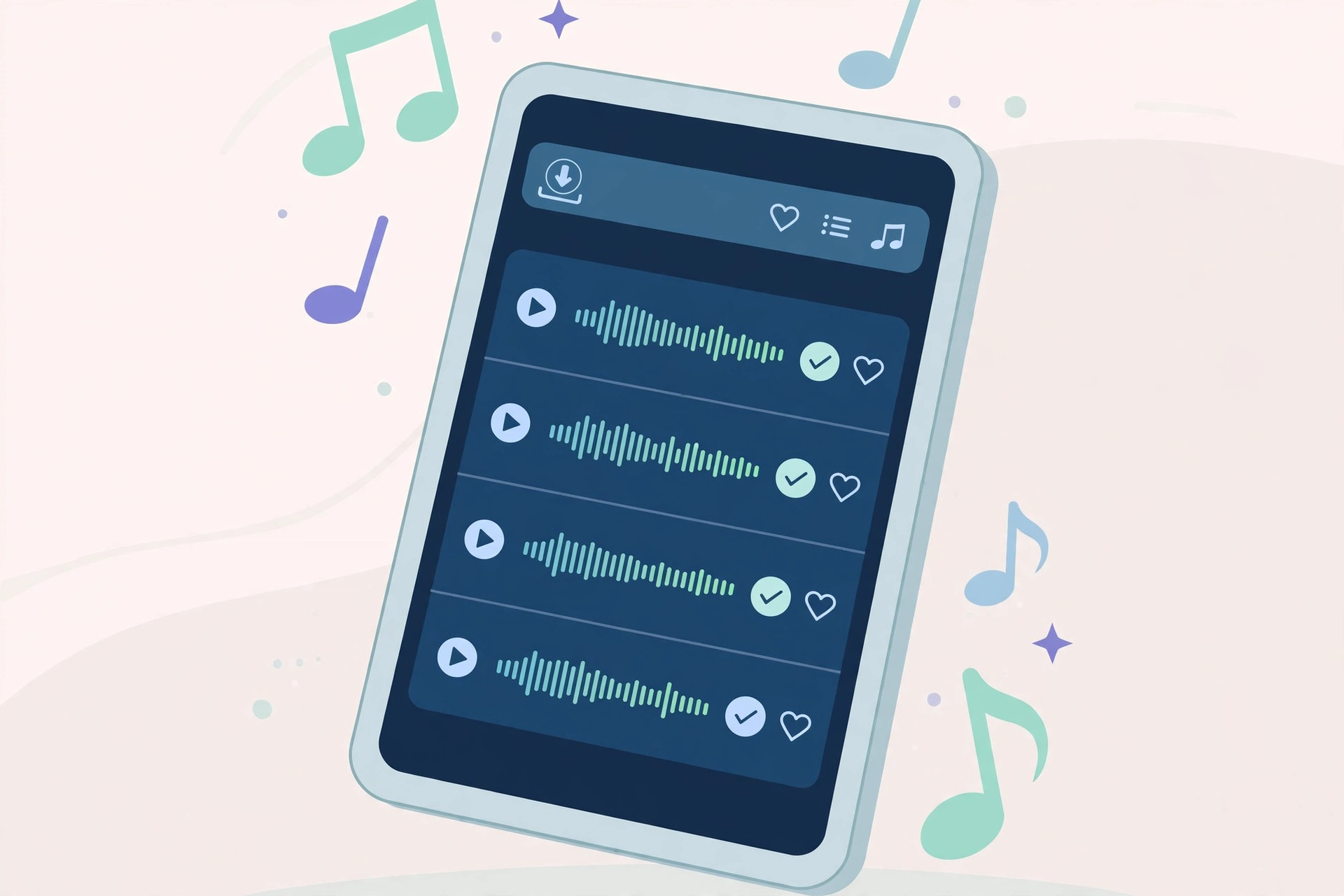
How to show only downloaded tracks on modern iOS
- Open the Music app. This is Apple’s own Music app with the pink-red icon — not a third-party player.
- Tap the Library tab. It’s at the bottom of the screen. Your library categories appear: Playlists, Artists, Albums, Songs and more.
- Tap “Downloaded.” You’ll see a Downloaded entry in the Library list. Tapping it filters everything — playlists, artists, albums, songs — to only what’s physically stored on your iPhone. That’s it: your library now shows only tracks that will play without an internet connection.
- Understand what you’re seeing. The Downloaded view shows music you’ve downloaded for offline playback: tracks you tapped the download arrow on, plus any music synced from your computer. Nothing here needs a network to play.
- Going back to the full library. Tap the back button (or the Library tab again) to return to the complete library, streaming entries included.
- A little history: this question dates back to iOS 10, when Apple moved the toggle around and users couldn’t find it. On current iOS the Library > Downloaded path is the working method — no hidden setting, no workaround needed. If you use automatic song identification to discover new tracks, the Downloaded filter pairs nicely with silencing your AirPods case for distraction-free offline listening.
Bonus tip: keep your offline music fresh
Pair the Downloaded filter with Automatic Downloads so new purchases always land on your phone: open Settings > Music and switch on Automatic Downloads. Now anything you buy on another device appears in your Downloaded view without extra taps. Also keep an eye on space — check Settings > General > iPhone Storage > Music, where iOS lets you cap how much room downloaded music can use, so your offline collection never eats the whole phone.
If it still doesn’t work
If you don’t see a “Downloaded” entry in Library, first make sure you’ve actually downloaded something: find a song, tap the ••• menu and choose Download. The Downloaded section only appears when there’s downloaded content. If tracks you downloaded aren’t showing, check Settings > Music and make sure Sync Library is on, then restart the Music app.
FAQ
Do I need Apple Music subscription for this?
The Downloaded filter works with any music stored on the device, including songs you own and synced from a computer. Apple Music downloads need an active subscription to keep playing, but the filter itself is free for everyone.
Will the Downloaded view hide my playlists?
No — playlists still appear in the Downloaded view, but each playlist shows only its downloaded tracks. Non-downloaded tracks inside a playlist are hidden while the filter is active.
Conclusion
Filtering Apple Music to downloaded tracks takes three taps: Library > Downloaded. It’s the fastest way to see exactly what will play when you’re offline — no streaming entries, no grayed-out songs, just your music.





