
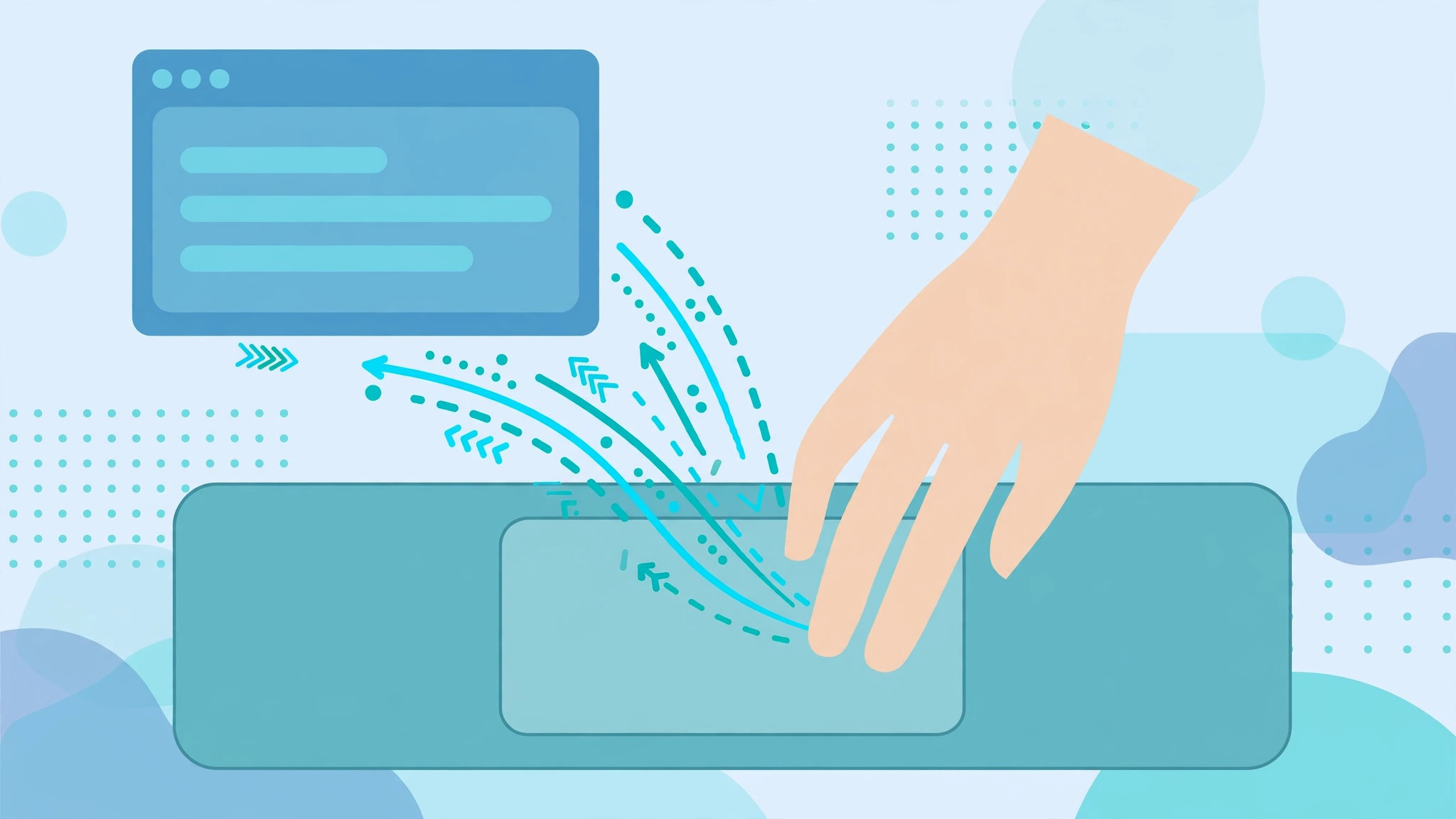
You updated to macOS Sierra, opened the trackpad settings — and your favorite three-finger drag gesture is nowhere to be found. Before you panic: Apple didn’t remove it. The option was simply moved to a different corner of Settings. Here’s where it went and how to switch it back on.
Where the gesture went
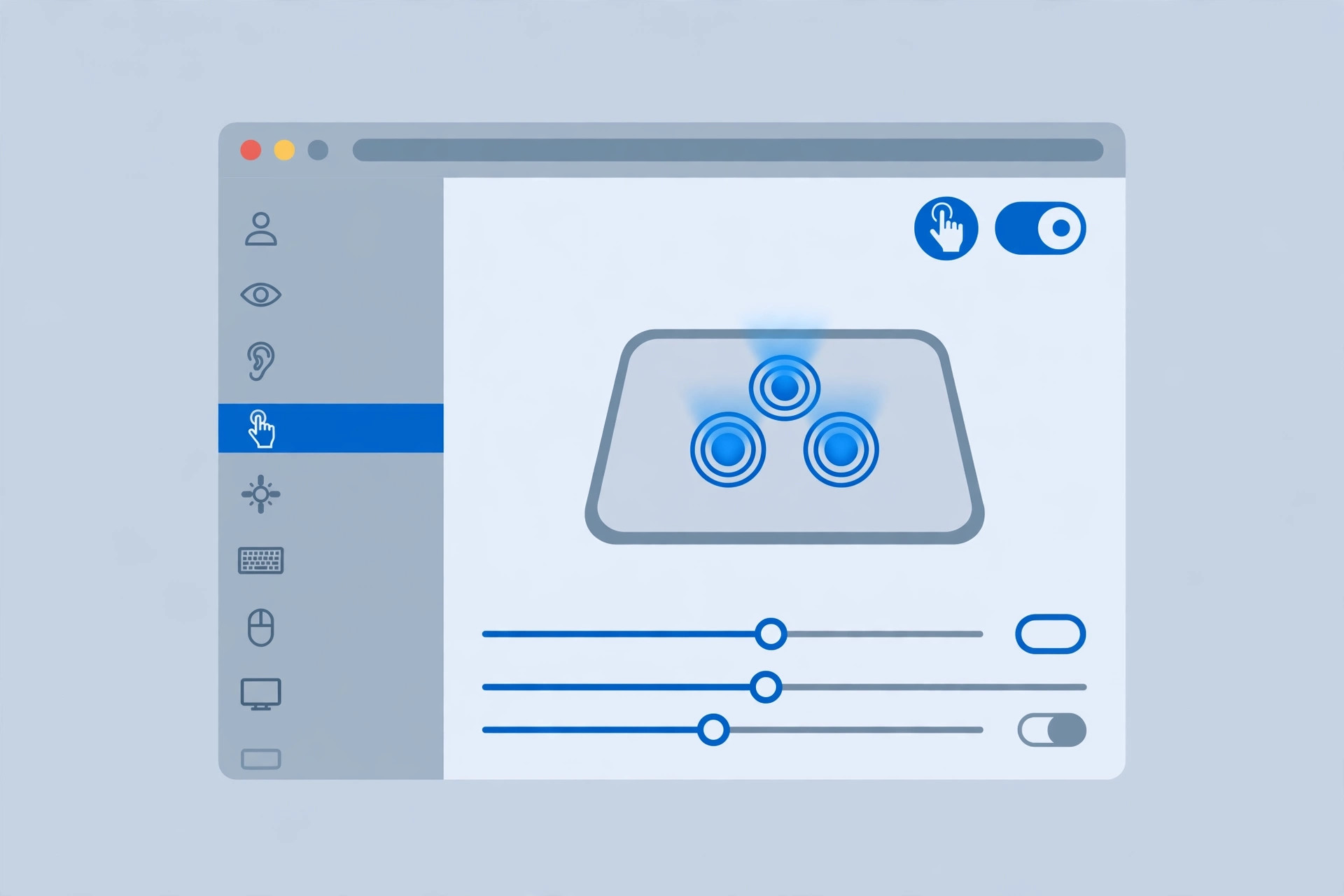
Up to El Capitan, the three-finger drag lived inside the regular trackpad settings panel. In Sierra, Apple quietly relocated it to Accessibility, alongside other motor-assistance options for pointer control. The gesture itself still works exactly as before — it just has a new home. Apple Support documents the new location in its trackpad gestures guide.
How to bring back three-finger drag
- Open System Settings from the Apple menu and choose Accessibility in the sidebar.
- Under the Motor section, open Mouse & Trackpad, then click Trackpad Options.
- Turn on “Enable dragging”.
- In the dropdown menu that appears, choose “Three finger drag”.
- Close Settings and test the gesture: place three fingers on the trackpad and drag a window — it should move as it used to.
On newer versions of macOS
The path has shifted slightly over the years. On recent macOS releases, go to System Settings → Accessibility → Pointer Control → Trackpad Options and flip the same “Enable dragging” switch to the three-finger option. MacRumors forum threads confirm the Accessibility location is the same on Sierra and later.
Dragging alternatives worth knowing
The very same Trackpad Options dialog offers two other ways to drag if three fingers isn’t your style:
- Without drag lock: double-tap an item to grab it, then drag without lifting your finger. Release to drop.
- With drag lock: double-tap to grab, then drag freely — the item stays “held” until you tap once to release. This is handy for long drags across a large display.
Whichever option you choose, set the tracking speed in the main Trackpad pane first so drags feel right, and give yourself a few minutes to adjust before deciding. Apple’s own support pages illustrate each dragging style in detail.
If it still doesn’t work
Restart your Mac after enabling the option — some users report the gesture only kicks in after a reboot. Also check that no other app is claiming the three-finger gesture for a custom shortcut. If you’re exploring what else your system can do, our guide on how to quickly open the installed apps list in macOS 26 and how to change folder color and add emoji in macOS 26 are worth a look.
FAQ
Did Apple remove three-finger drag in macOS Sierra?
No — it was only moved to Accessibility → Mouse & Trackpad → Trackpad Options (or Pointer Control on newer versions). Enable dragging and choose the three-finger option to restore it.
Why can’t I find “Enable dragging” under Trackpad settings?
Because the main Trackpad pane no longer hosts it. Apple relocated all dragging options to the Accessibility section, so you must look under System Settings → Accessibility instead.
Wrapping up
Three-finger drag didn’t disappear — Apple just hid it in Accessibility. Switch it on under Mouse & Trackpad → Trackpad Options (or Pointer Control → Trackpad Options on newer macOS), and your favorite gesture is back where your muscle memory expects it.





