
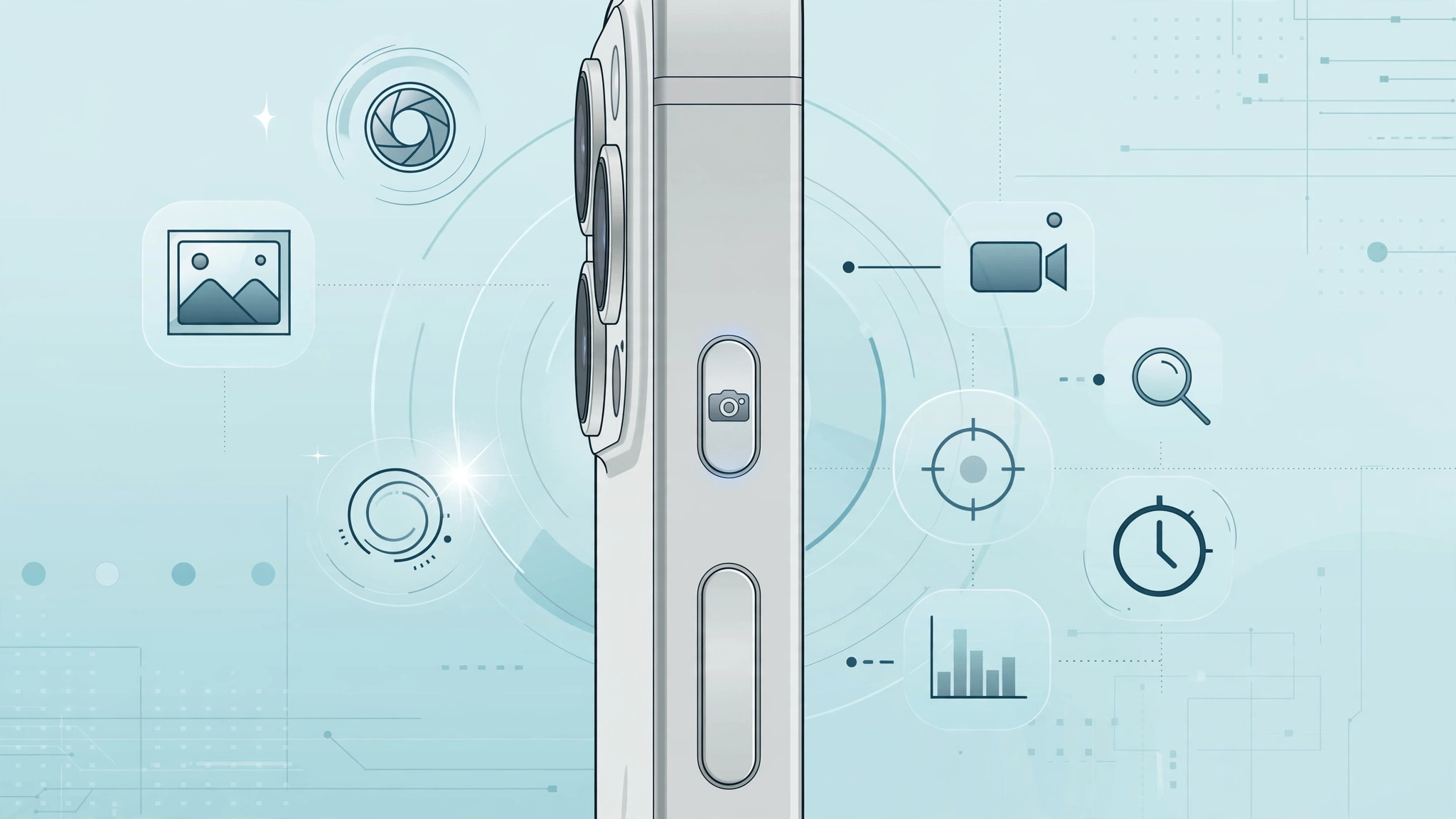
The Camera Control button on the iPhone 16 lineup is one of the most useful hardware additions Apple has made in years. A firm press launches the camera, a lighter press opens controls like zoom and exposure, and swiping across it adjusts settings without touching the screen. By default, it opens Apple’s own Camera app — but you are not stuck with it. If you prefer a third-party camera app, you can make the button launch that app instead, as long as its developer has added support for Camera Control.
That last condition matters. Apple does not let you force just any app onto the button. The app has to be installed on your iPhone and its developer must have built in Camera Control support. Well-known examples include Blackmagic Camera and Final Cut Camera, both of which embraced the feature early. If your favorite camera app hasn’t added support yet, the button will not list it, and there is no workaround to make it appear.
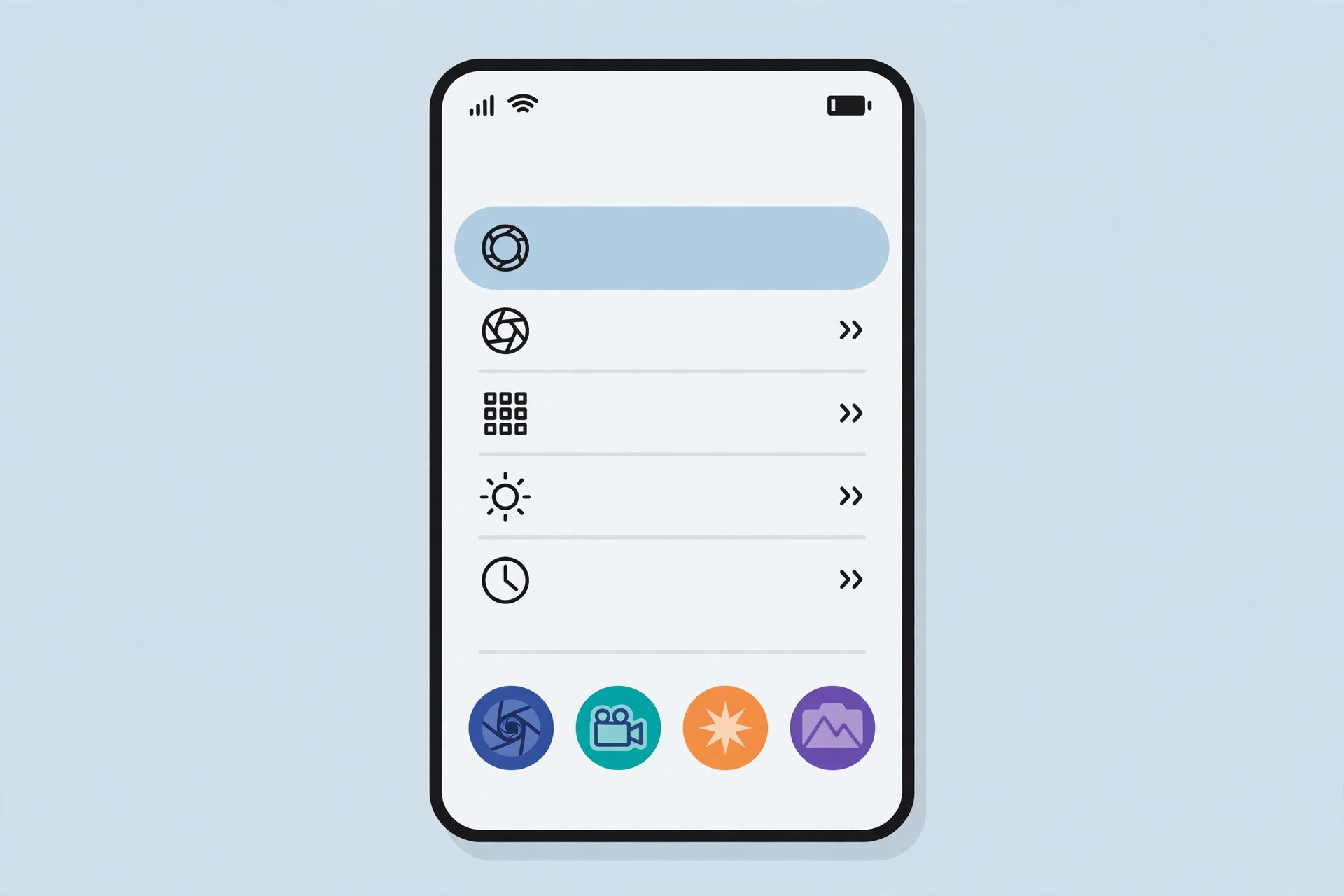
How to choose which app opens with Camera Control
- Install a supported camera app. Download an app with Camera Control support from the App Store, such as Blackmagic Camera or Final Cut Camera, and open it once so iOS registers it.
- Open Settings. Tap the Settings app on your Home Screen.
- Go to Camera settings. Scroll down and tap Camera.
- Open Camera Control. Tap Camera Control near the top of the Camera settings screen.
- Tap Launch Camera. This row controls what a press of the Camera Control button launches.
- Pick your app. Choose from the list: the stock Camera app, Magnifier, the built-in QR code scanner, or any installed third-party app that supports Camera Control. Tap the one you want.
- Test the button. Press the Camera Control button on the side of your iPhone 16. Your chosen app should open immediately.
Your choice applies to the physical button only. Tapping the Camera app icon on your Home Screen still opens Apple’s Camera, and the Lock Screen camera shortcut is a separate setting — if you want to tame that one too, see our guide on how to disable quick camera launch from the iPhone Lock Screen. And if you shoot with the newer formats, you may also want to read why spatial photo mode isn’t working in iOS 26.
If it still doesn’t work
If your third-party app does not appear in the Launch Camera list, first make sure it is actually installed and updated to its latest version — Camera Control support may have arrived in a recent update. Open the app once after updating, then check Settings again. If the app still isn’t listed, its developer simply hasn’t added support yet; no setting on your iPhone can force it. You can learn more about Camera Control on Apple’s support pages, and MacRumors keeps a running list of apps that adopt new iPhone features.
Frequently asked questions
Can I assign any app to the Camera Control button?
No. Only camera-type apps whose developers have added Camera Control support appear in the Launch Camera list. Unsupported apps cannot be forced onto the button.
Does this work on older iPhones?
No. Camera Control is hardware found only on the iPhone 16, iPhone 16 Plus, iPhone 16 Pro, and iPhone 16 Pro Max. Older models do not have the button at all.
Conclusion
Setting a third-party camera app as your Camera Control default takes less than a minute: Settings > Camera > Camera Control > Launch Camera, then pick your app. Just remember the golden rule — the app must support Camera Control, or it will never appear in the list. For supported apps like Blackmagic Camera and Final Cut Camera, though, the button becomes a one-press shortcut to the exact shooting experience you prefer.





