
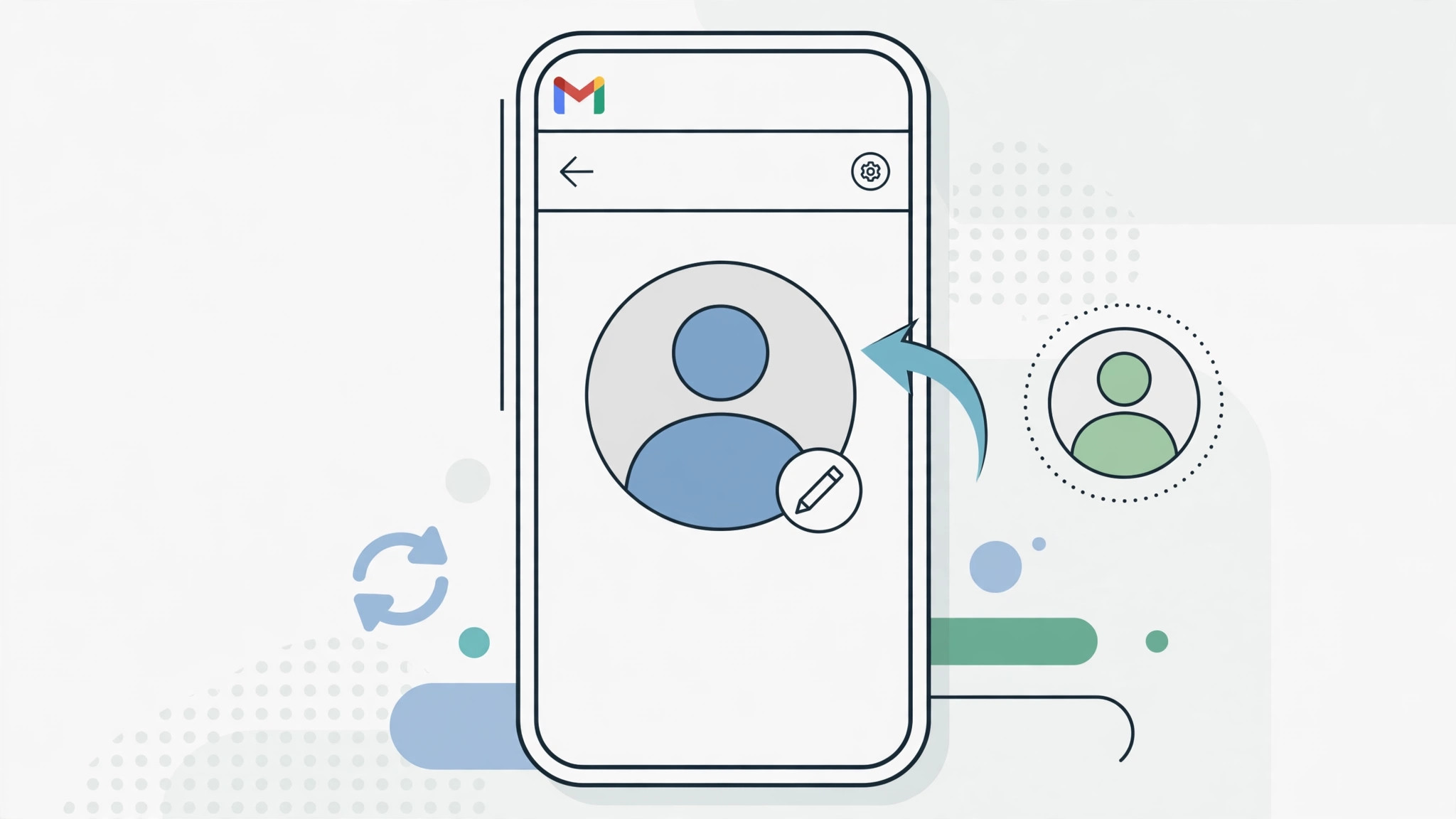
If you have ever tried to update your Gmail profile picture from your iPhone’s Contacts app, you may have run into a maddening loop: you set a new photo, and a few hours later the old one is back. It feels like a bug, but it is actually sync working exactly as designed.
Here is the key insight: when your iPhone syncs contacts with Gmail, the contact photo is always pulled from your Google Account. Anything you change locally on the phone gets quietly overwritten at the next sync. So the only fix that sticks is changing the picture at the source – your Google profile. Do that once, and the new avatar flows everywhere: Gmail, Google Meet, and back to your iPhone.
Change your avatar in the Gmail app
The fastest route is inside the Gmail app itself:
- Open the Gmail app on your iPhone.
- Tap your profile picture in the top-right corner.
- Tap Manage your Google Account.
- Switch to the Personal info tab.
- Tap your current photo (or the small change icon on it).
- Choose Take photo to snap a new picture, or Choose from photos to use an existing image.
- Crop the image the way you like, then tap Save as profile picture.
Change it from Safari instead
No Gmail app handy? Open Safari, go to myaccount.google.com, sign in, then open Personal info and tap Photo. You land in the same photo editor, and Google documents both routes in its help article on changing your Gmail profile picture.
Give it time to sync back
Do not be surprised if your iPhone still shows the old picture right after the change. The new avatar needs a little while to propagate across Google’s services and sync back down to your phone – usually a few hours at most. Make sure contact sync is enabled for your Gmail account in the iPhone Settings app, then just wait.
While you are tidying things up, you may also want to set up message sync between iPhone and Mac so your conversations follow you, or learn how to mute mail notifications for specific contacts in macOS to silence noisy threads.
If it still doesn’t work
First, check that you edited the right Google Account – if several are signed in on the phone, each one has its own avatar. Next, open the Gmail app and pull down to refresh, or remove and re-add the Google account in the iPhone Settings app to force a fresh sync. If the steps ever stop matching what you see on screen, skim 9to5Google or MacRumors – both regularly cover Google’s account and app changes.
Frequently asked questions
Why does my iPhone contact photo keep reverting?
Because for a synced Gmail contact, the photo always comes from your Google Account. Any picture you set locally on the iPhone is overwritten at the next sync. Change the photo in your Google Account instead, and it will stick.
Will the new avatar show up in other Google apps too?
Yes. Your Google Account photo is shared across Gmail, Meet, Drive, and anywhere else your Google identity appears. One change updates them all.
The bottom line
Your Gmail avatar is not really an iPhone setting at all – it is your Google Account photo. Change it once at the source, either in the Gmail app or at myaccount.google.com, and let sync do the rest. Your iPhone will catch up on its own.





