

Your Mac speaks your language — but does its keyboard? Whether you write in two languages, type code full of special symbols, or simply prefer a Windows-style key arrangement, macOS lets you add, remove, and switch keyboard layouts in seconds — and even build your own. Here is how to do it.
How to change the keyboard layout on Mac
- Open the Text Input settings. Click the Apple menu → System Settings → Keyboard. Under “Text Input,” click Edit. This is the control center for every input source on your Mac — a layout list Apple Support documents in its guide to macOS keyboard settings.
- Add a layout. Click the “+” button, browse or search the list (for example, “Russian”), and pick a variant — try “Russian — PC” first if you are coming from Windows, since it matches Windows symbol placement. Click Add. Related: if you ever need to quickly open your installed apps list on macOS 26, the same Settings app is where you will land.
- Remove a layout you do not use. Select a layout in the list and click “−”. Keep at least one you can type with — removing every input source can lock you out of typing your password at the login screen.
- Build a custom layout with Ukelele. Need symbols the built-in layouts lack? The free Ukelele app — a favorite in MacRumors Mac software roundups — lets you design one: open Ukelele → File → New From Current Input Source → double-click any key to reassign its symbol, including the Shift and Option layers → save the file into ~/Library/Keyboard Layouts/ → then add it in System Settings like any built-in layout.
- Switch layouts fast. Tap the Globe (Fn) key or press Ctrl+Space to cycle through input sources; the menu bar shows the active layout as a flag or abbreviation. As 9to5Mac notes, this shortcut works system-wide, including at the login screen.
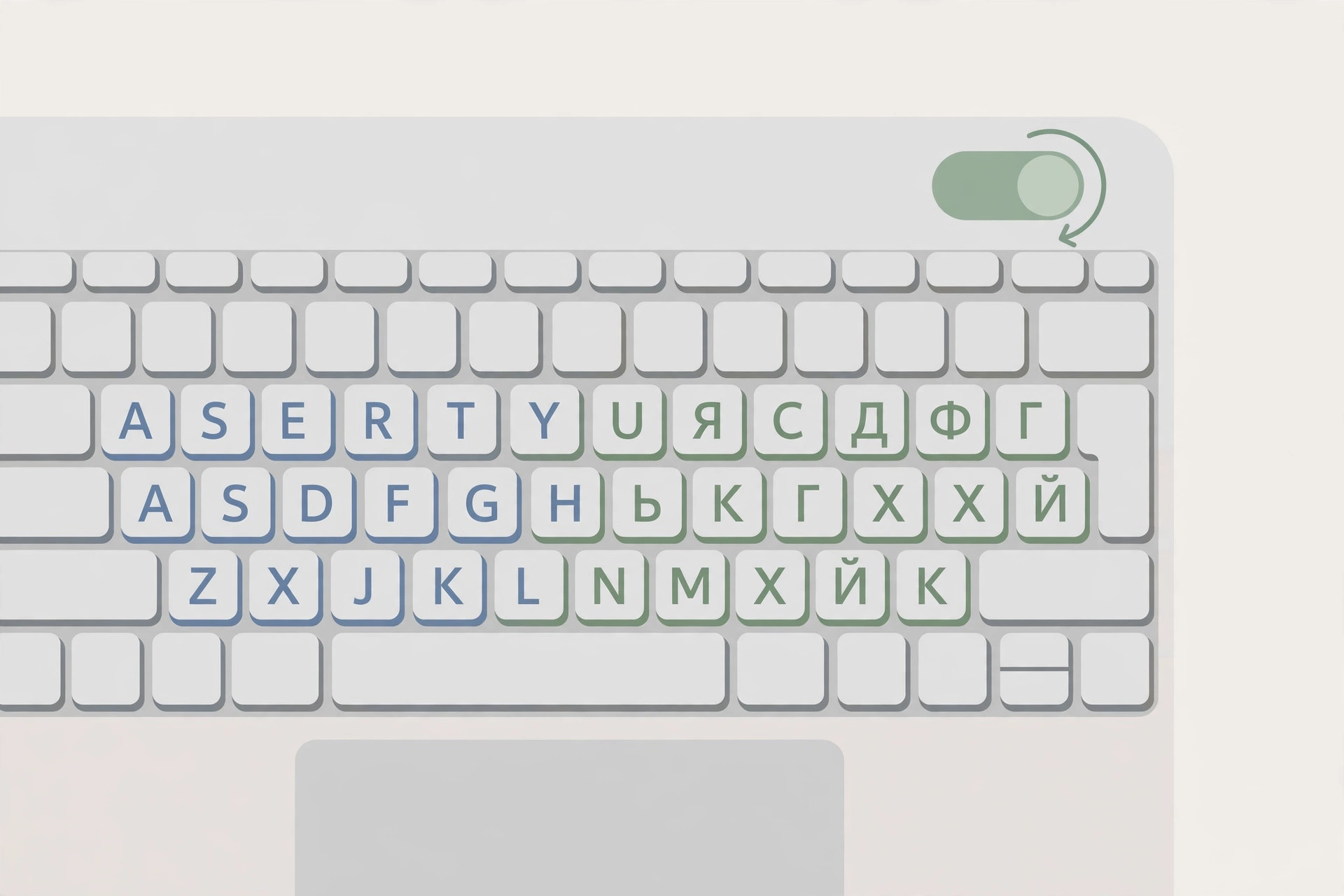
If it still doesn’t work
Layout not appearing after you built it? Log out and back in after saving to ~/Library/Keyboard Layouts/ — macOS scans that folder at login. Globe key not switching? Check System Settings → Keyboard → “Press Fn key to…” and set it to “Change Input Source.” Still stuck? Remove and re-add the layout to reset it. And if you enjoy tailoring your Mac, our guide to changing folder colors and adding emoji on macOS 26 shows how deep personalization goes.
Frequently asked questions
Will changing the layout change my physical keys?
No. A layout remaps what each keystroke produces; the labels printed on your keys stay the same. Open Keyboard Viewer (Input menu → Show Keyboard Viewer) to see the live map of whatever layout is active.
Why does my Mac keep switching back to the wrong layout?
Check System Settings → Keyboard → Text Input → “Automatically switch to a document’s input source.” When enabled, macOS remembers a layout per application. Turn it off if you want one global layout everywhere.
Conclusion
Adding a second layout takes a minute; building a custom one with Ukelele takes an afternoon you will never regret. Either way, your Mac’s keyboard can finally match the way you actually type.





