

You get an email from someone you will work with again — a vendor, a recruiter, a new neighbor — and a week later you cannot find their details. Copying the address into Contacts by hand is slow and error-prone. The iPhone Mail app has a built-in shortcut: tap any sender’s address to open a contact card, then save it as a new contact or attach it to an existing one. It takes seconds and works for email addresses and phone numbers alike.
How to create contacts from the Mail app on iPhone
- Open the email. In the Mail app, open a message from the person you want to save. The sender’s name or address appears at the top of the message header.
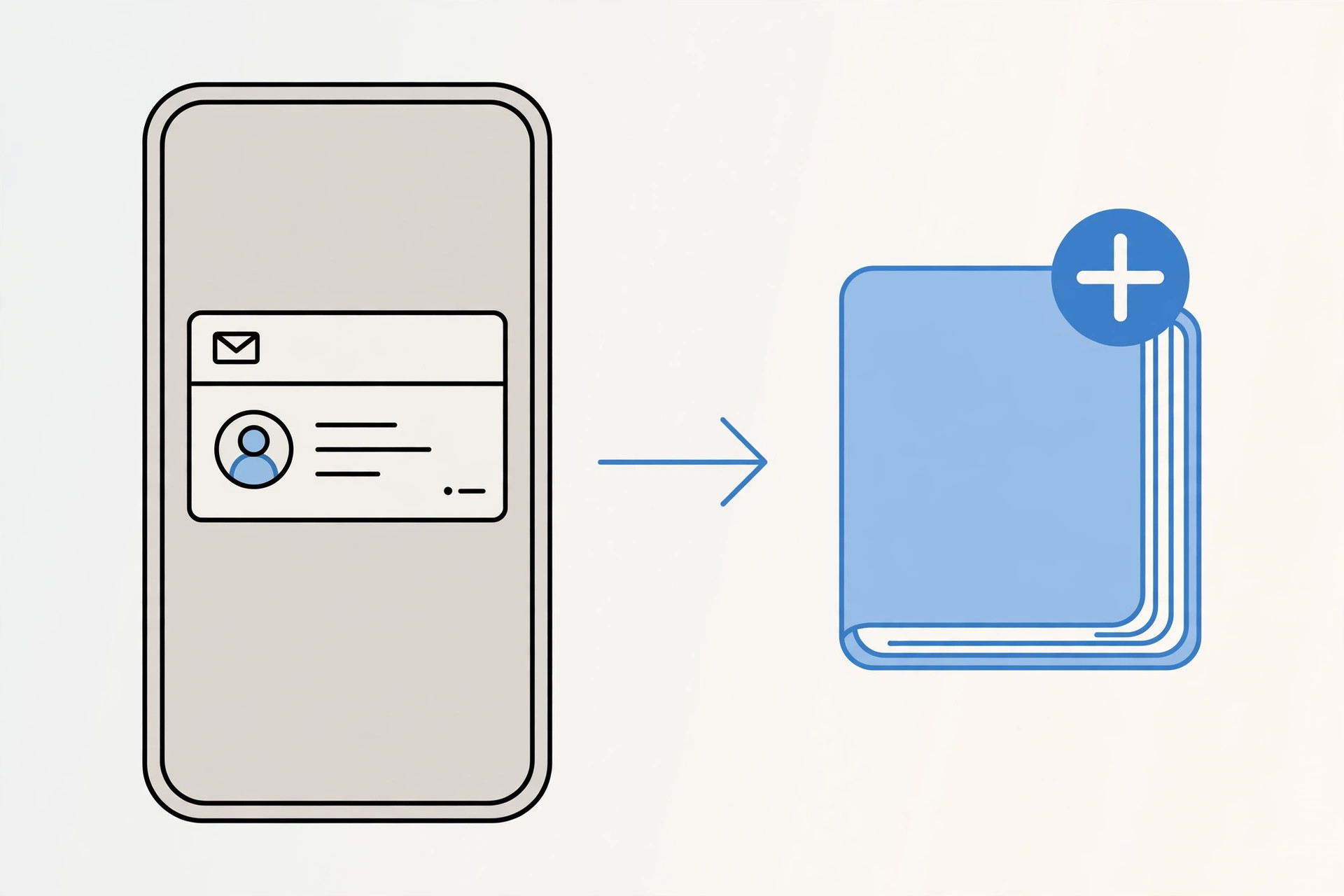
- Tap the sender’s address. Tap the name or email address to open the contact card preview. Apple Support documents this quick action in its iPhone Mail guide — tapping an address is the gateway to calling, emailing, or saving the person.
- Save as a new contact. Tap “Create New Contact”. iOS fills in the email address automatically; add the person’s name, phone number, company, and any notes, then tap Done. The entry lands in your default contacts account.
- Or add to an existing contact. If the person is already in your address book — say you met them at a conference and only had their phone number — tap “Add to Existing Contact”, pick them from the list, and the email address is appended to their card. As AppleInsider has noted, this is the fastest way to enrich contacts you only half-remember.
- Check where it was saved. Open the Contacts app and search the name. If you use multiple accounts (iCloud, Google, work Exchange), iOS saves to your default account — change it in Settings > Contacts > Default Account if entries keep landing in the wrong place.
Once your address book grows, keep it tidy: if repeated saves create doubles, see our guide to removing duplicate contacts on iPhone. And if a contact’s threads get noisy on your Mac, you can mute Mail notifications for specific contacts in macOS.
If it still doesn’t work
No “Create New Contact” option appearing? Make sure you are tapping the actual address in the message header, not the preview in the message list. If the contact card opens but the buttons are missing, force-quit Mail and reopen it. Contacts not syncing after you save? Check that the right account is selected in Settings > Contacts > Default Account, and that Contacts sync is enabled for it. As 9to5Mac points out, a wrong default account is the most common reason new contacts “disappear” — they are sitting in the other account.
Frequently asked questions
Can I create a contact from a phone number in an email?
Yes. Tap any phone number in the message body and iOS offers the same “Create New Contact” and “Add to Existing Contact” options — it works for numbers in the message text too.
Where does the new contact get saved?
In the default account set in Settings > Contacts > Default Account. If you save to the wrong account, move the entry later or change the default — your contacts then appear wherever that account syncs.
Conclusion
Creating contacts from the Mail app turns every email into a two-tap address book entry. Tap the sender, choose Create New Contact or Add to Existing Contact, and fill in the rest. Combine it with turning off the sent-mail sound in the iPhone Mail app for a calmer inbox, and your email-to-contacts workflow is complete.





