
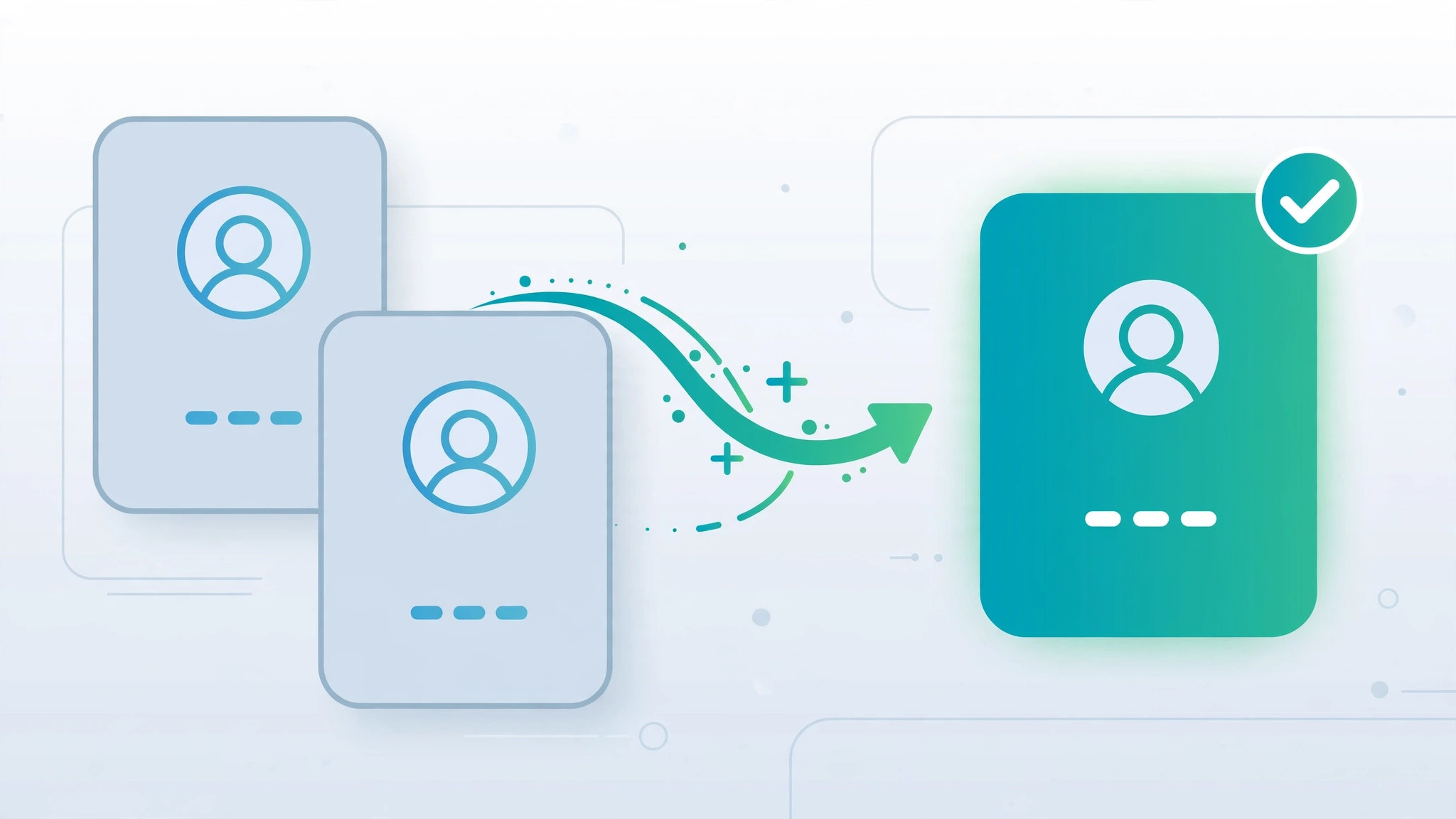
Nothing clutters your address book faster than duplicate contacts. You tap a name to call a friend and find three nearly identical entries — one from iCloud, one from Google, and one that came off an old SIM card. Duplicates like these usually appear when the same contacts live in several accounts synced to your iPhone at once. The good news is that you rarely need a third-party app to fix the mess. Starting with iOS 16, the iPhone can find and merge duplicates all by itself, and for stubborn cases there are solid cleanup options on Mac and iCloud.com.
Why duplicates appear in the first place
In almost every case, duplicates come from syncing more than one contact source. When your iPhone pulls contacts from iCloud, a Google account, Outlook, and an old SIM card at the same time, each source keeps its own copy of the same person — and the phone lists every copy. Syncing quirks cause other oddities too: if your calls ring on every Apple device you own, our guide on turning off call duplication on iPhone and iPad walks through the fix.
Method 1: Merge duplicates right on your iPhone (iOS 16 and later)
Apple added a built-in duplicate detector in iOS 16, and it is the fastest fix for most people — no computer required.
- Open the Contacts app.
- Tap Lists at the top left, then tap the Duplicates entry that appears.
- Review the suggested matches and tap Merge All, or merge entries one by one if you want to check each pair.
- The merged contacts sync everywhere you are signed in with the same Apple Account.

Method 2: Merge duplicates on a Mac
If you use a Mac signed in to the same Apple Account, you can do the same cleanup on a bigger screen. Apple Support’s guide to managing contacts documents the Contacts app in detail.
- Open the Contacts app on your Mac.
- In the menu bar, choose Card > Look for Duplicates.
- Confirm the merge. The cleanup syncs back to your iPhone through iCloud within minutes.
Method 3: The nuclear option — back up and re-import a VCF file
When the address book is a total wreck, rebuilding it from a clean file is sometimes the fastest path. One rule is absolute: back up BEFORE any delete-all, or you risk losing contacts permanently.
- Install My Contacts Backup from the App Store and create a full backup of your contacts.
- Email the generated VCF file to yourself so you keep a copy outside the phone.
- On a computer, open iCloud.com, go to Contacts, click the gear icon at the bottom left, choose Select All, then Delete, and confirm.
- Check your iPhone — the contacts should be gone (or nearly gone) once the deletion syncs.
- Re-import your clean VCF backup to restore a single, tidy copy of every contact.
Stop duplicates from coming back
After the cleanup, reduce the number of synced contact sources so the mess does not rebuild itself: go to Settings > Contacts > Accounts and turn off the Contacts toggle for accounts you do not need. One canonical source — usually iCloud — plus the phone itself is enough for most people. MacRumors regularly covers this kind of iOS housekeeping as well.
If it still doesn’t work
If duplicates keep reappearing, one of your accounts is re-pushing them: check each account on iCloud.com and in Google Contacts for hidden copies, including archived or “other contacts” sections. Also make sure every device runs a current iOS or macOS version, since older software sometimes merges poorly. As a last resort, repeat the VCF backup cycle and keep only one account’s Contacts toggle enabled while you verify.
Frequently asked questions
Will merging duplicates delete any of my information?
No. Merging combines the fields of both entries into a single card, so phone numbers, emails, and addresses from each copy are preserved — nothing is thrown away.
Can I undo a merge?
Not directly, which is exactly why the VCF backup step matters. With a backup in hand you can always restore the original state. And if your digital cleanup extends beyond contacts, see our guide on how to permanently delete text messages on iPhone and iCloud.
Conclusion
Duplicate contacts look scary but take only minutes to fix: use the iPhone’s built-in Duplicates view on iOS 16 or later, merge on a Mac, or rebuild from a VCF backup for the worst cases. Keep only the contact sources you truly need synced, and your address book will stay clean.






[…] your address book grows, keep it tidy: if repeated saves create doubles, see our guide to removing duplicate contacts on iPhone. And if a contact’s threads get noisy on your Mac, you can mute Mail notifications for […]