
iOS never installs a software update without your permission, but it can be remarkably persistent about asking. The red badge on the Settings app, the pop-up reminders, the overnight download attempts while your iPhone charges — if you prefer to update on your own schedule or skip a version entirely, those nudges get old fast. The fix has two parts: stop iOS from downloading updates automatically, and delete the update file if one is already sitting on your device. Here is the general method that works on any iOS or iPadOS version, on both iPhone and iPad.
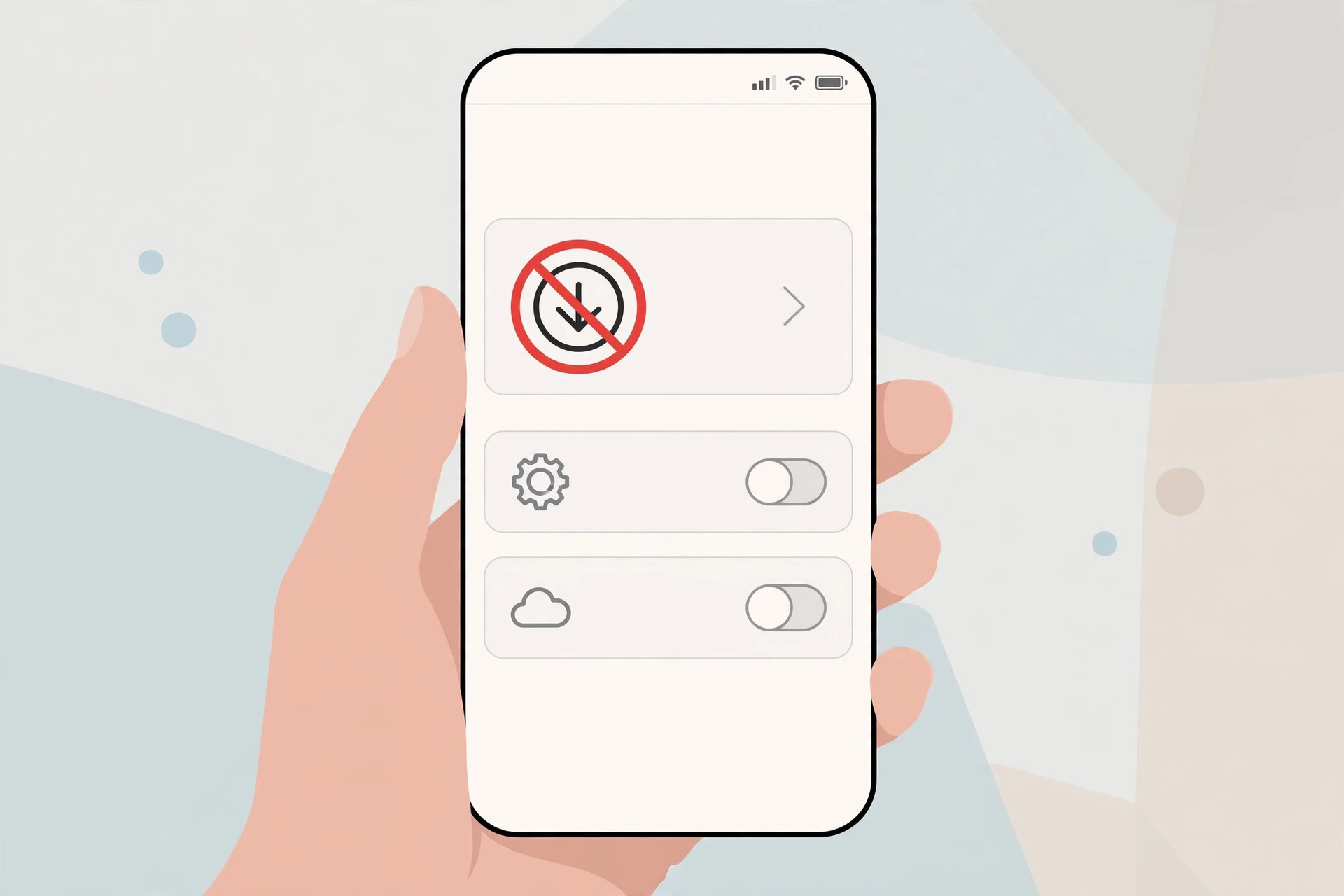
Step 1: Turn off automatic updates
First, prevent new update files from arriving on their own:
- Open Settings > General > Software Update.
- Tap Automatic Updates.
- Turn off Download iOS Updates (or Download iPadOS Updates on iPad) — the system will no longer fetch update files in the background.
- Turn off Install iOS Updates — your iPhone won’t apply an already-downloaded update overnight even if one is present.
- Consider leaving Security Responses & System Files switched on. These are tiny, safe fixes that patch urgent vulnerabilities without changing your iOS version.
Apple’s guide to updating your iPhone or iPad describes these switches in its automatic-updates section, and outlets like 9to5Mac and MacRumors regularly cover the trade-offs of delaying major iOS releases.
Step 2: Delete the update file that’s already downloaded
If an update file is already on the device, the reminders won’t stop until it’s gone:
- Open Settings > General > iPhone Storage (on iPad: iPad Storage).
- Wait for the list to finish calculating, then find the entry named iOS update (or iPadOS update). It is usually several gigabytes and sits near the top.
- Tap it, then tap Delete Update and confirm.
- That’s it — the badge and pop-ups stop. When you’re ready to update, return to Settings > General > Software Update to download it again.
Need something stronger for iOS 26?
This post covers the general method for any version. If you’re specifically on iOS 26 and want to block its updates more aggressively, read our dedicated deep dive: How to completely block iOS 26 updates on iPhone. And while you’re taming iOS 26 quirks, here’s how to bring back the alarm Stop button in iOS 26 too.
Don’t ignore updates forever
One caveat: skipping updates indefinitely leaves known security holes open, so the safest approach is to install major updates a few weeks after release — once early bugs are fixed — rather than never.
If it still doesn’t work
Still seeing a red badge after deleting the file? Restart the device — the badge can stick until a reboot clears it. If the toggles keep turning themselves back on, check whether your iPhone is supervised by a workplace or school: a management profile can enforce update settings, and only your IT administrator can relax them. An “Update Requested” message that never finishes usually means a download is stuck; connect to Wi-Fi, let it complete, then delete it.
Frequently asked questions
Will turning off automatic updates stop the red Settings badge?
Mostly. With auto-download off and no update file stored, the constant nagging stops — you may still see an occasional notice when a brand-new update is released, but nothing like the daily prompts.
Does deleting the update file free up storage?
Yes. iOS update files typically run five to eight gigabytes, so removing one hands you back a useful chunk of space as a bonus.
The bottom line
Turn off automatic download and install under Software Update, then delete any update file already in storage — that’s all it takes to update iOS on your own terms. Just remember to circle back for important security fixes so your iPhone stays protected.





