
Squinting at tiny text on your iPhone is nobody’s idea of fun — and you don’t have to live with it. iOS gives you two levels of text-size control: a quick system-wide slider for a moderate bump, and an Accessibility section that unlocks genuinely large print. Here is how to use both, plus a handy trick for enlarging text in just one app.
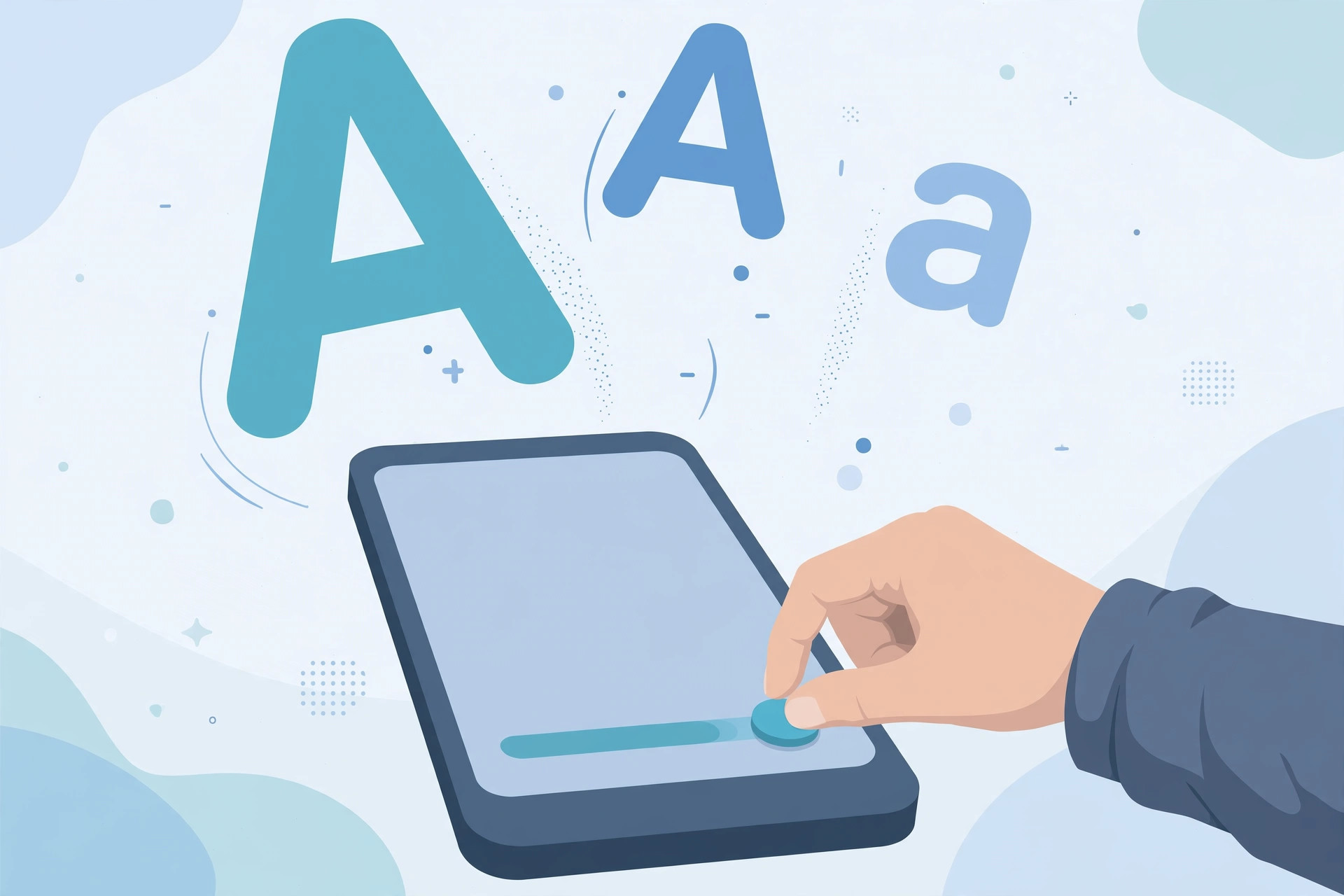
Step 1: Make system text bigger with one slider
For a moderate, everyday increase:
- Open Settings, then tap Appearance. (On older iOS versions this section is called Display & Brightness.)
- Tap Text Size.
- Drag the slider to the right to enlarge the text, or left to shrink it.
This change applies to system text and every app that supports Dynamic Type. Apple’s guide to adjusting display and text settings walks through the exact options, and outlets like MacRumors and 9to5Mac regularly cover how these settings change across iOS versions.
Step 2: Unlock much larger text in Accessibility
If the regular slider doesn’t go far enough:
- Open Settings and go to Accessibility.
- Tap Display & Text Size, then Larger Text.
- Switch on Larger Accessibility Sizes.
- Drag the slider further to the right — you now get access to dramatically bigger sizes.
Optional but useful: in the same Display & Text Size section, turn on Bold Text. Your screen may refresh briefly while the change applies. Many readers pair larger text with customizing the Liquid Glass clock on the iOS 26 lock screen so everything stays easy to read at a glance — or, if the glass look itself is hard on the eyes, they turn off the Liquid Glass effect entirely.
Bonus: Adjust text size for just one app
- Swipe down from the top-right corner to open Control Center.
- Add the Text Size control if it isn’t there yet: long-press or edit Control Center and add it.
- Open the app you want to adjust, then open Control Center and tap Text Size.
- Tap the app name at the bottom of the control instead of All Apps, then drag the slider.
This is handy when, say, you want big text in Messages but prefer to keep the rest of the system at standard size.
If it still doesn’t work
Some third-party apps ignore the iOS text-size settings entirely and offer their own font controls inside the app — check that app’s own settings screen. And if text is still hard to read, Accessibility also offers a full-screen Zoom feature that can magnify any part of the screen.
Frequently asked questions
Will making text bigger change my Home Screen icons or layout?
No — the text-size slider affects text, not icons. In a few spots, such as widgets or notification previews, very large text may wrap onto extra lines, but the layout adapts rather than breaking.
How do I get back to the default text size?
Simply return to Settings > Appearance > Text Size (or the Larger Text screen) and drag the slider back to the middle marker. The Larger Accessibility Sizes toggle can be switched off to restore the standard slider range.
The bottom line
Start with the quick Text Size slider for a modest boost, flip on Larger Accessibility Sizes when you need more, and add Bold Text for extra legibility. With the per-app Control Center control on top, there is no reason to keep squinting at your iPhone.





