
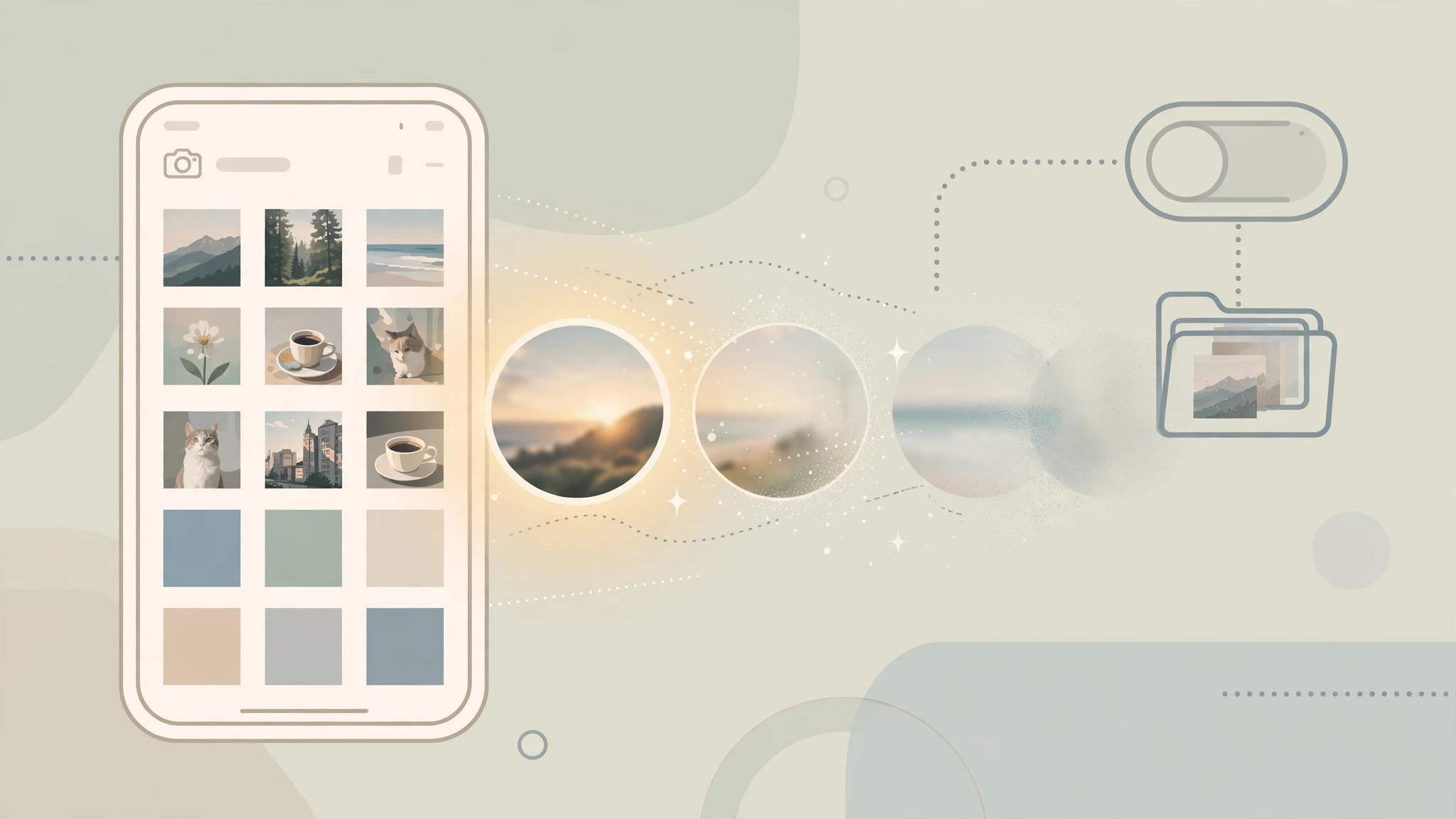
The Photos app loves to surprise you: a cheerful slideshow of a trip you’d rather forget, or a featured-photo collection you never asked for, popping up on your lock screen or in a notification. These auto-generated Memories are meant to delight, but not everyone wants their camera roll curated for them.
The good news is you can switch all of it off without losing a single photo. Disabling Memories only hides the automatic creations — your library, albums, and the People & Pets groupings stay exactly as they are.

How to turn off Memories and featured content
- Turn off Featured Content in Settings. Open Settings, tap Photos, and switch off Show Featured Content. On older iOS versions you’ll find this toggle inside a section labeled “Memories & Featured Photos”; on newer versions it sits directly in the Photos settings list. This single switch stops the automatic Memories slideshows and the featured-photo collections the system builds for you.
- Disable Memories inside the Photos app. Open the Photos app and tap your profile or account icon in the top corner, then choose Featured Content. Turn off Show Memories and Show Holiday Events. The exact wording and path vary slightly between iOS versions, so if one label looks different on your phone, look for the closest match — the toggles serve the same purpose. Apple’s iPhone User Guide page on Memories and Macworld’s guide to stopping Memories both walk through these screens.
- Silence Memory notifications. To stop the “You have a new Memory” alerts, go to Settings → Notifications → Photos and turn off the Memories notification category. Your other Photos notifications, like shared album activity, are unaffected.
- Confirm what stays untouched. This is worth repeating: turning these switches off hides auto-curated content only. Your full library, your albums, and your People & Pets groupings remain intact — nothing is deleted, moved, or merged.
Photos is one of the most personalizable apps on the iPhone. If you ran into camera quirks while exploring it, our troubleshooting guide for spatial photo mode in iOS 26 may help, and if you’re restyling iOS more broadly, our tutorial on changing Safari’s design on iPhone covers another easy visual refresh.
If it still doesn’t work
If Memories keep appearing after you’ve flipped every switch, double-check both locations — the Settings toggle and the in-app Featured Content switches are independent, and missing one is the most common cause. Also confirm you’re on a recent iOS version, since Apple occasionally renames these options; updating the phone aligns your menus with current guides. A quick restart of the Photos app (swipe it away from the app switcher) ensures the new settings take hold.
Frequently asked questions
Will turning off Memories delete any of my photos or videos?
No. Disabling Memories and featured content only stops the Photos app from generating automatic slideshows and collections. Every photo and video in your library stays exactly where it is.
Can I keep Memories but see fewer of a specific person?
Yes. Open the People & Pets album, open that person’s collection, and choose the option to feature them less often. It’s a middle ground between all-on and all-off curation.
Conclusion
Your photo library should feel like yours, not like a highlight reel assembled without your input. With Show Featured Content off, Memories disabled in the app, and their notifications silenced, the Photos app goes back to being a simple, quiet home for your pictures.





