
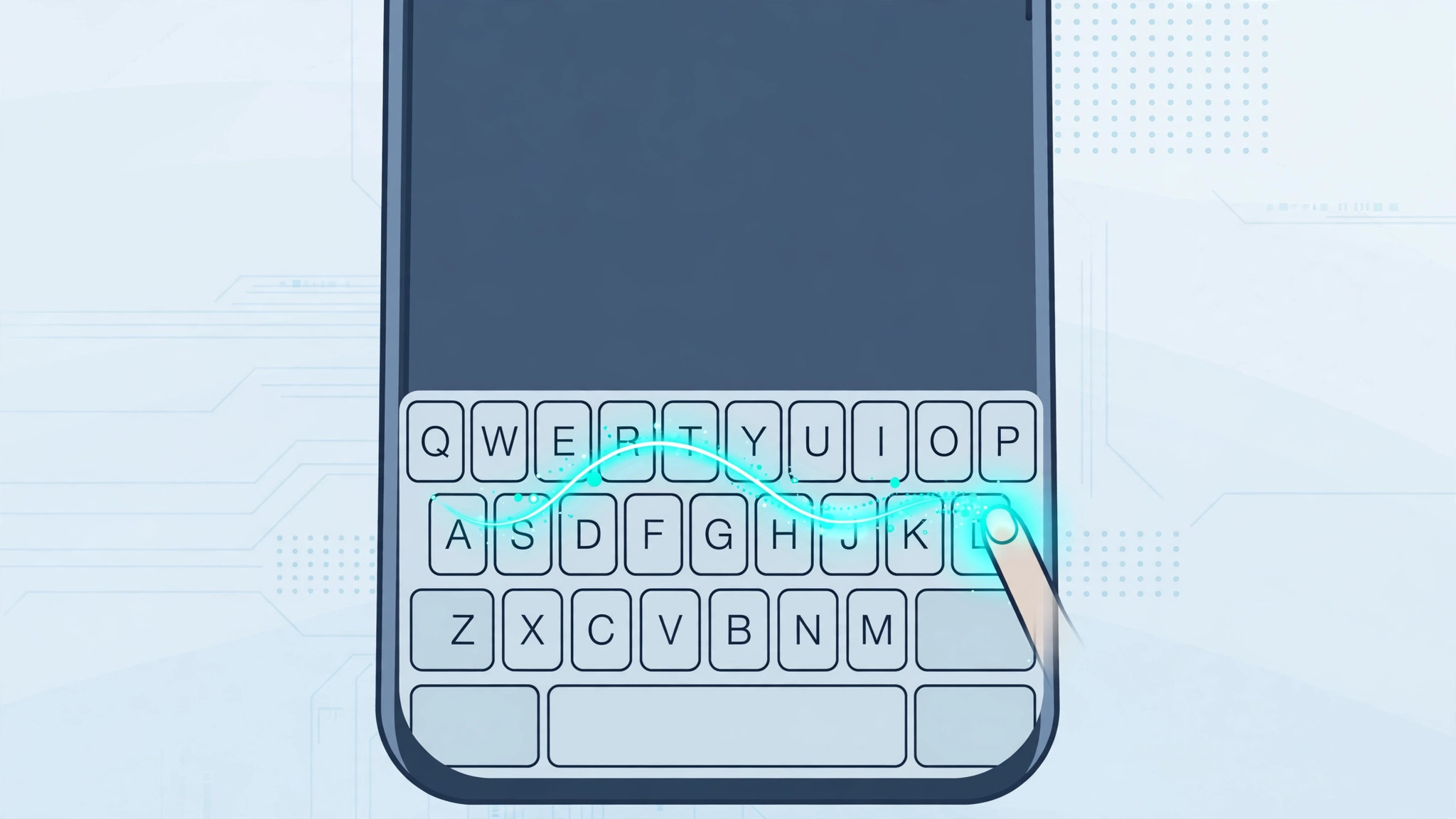
There is a faster way to type on your iPhone that most people discover by accident: instead of tapping each letter, you glide one finger across the keyboard and words appear as if by magic. Apple calls it QuickPath, everyone else calls it swipe typing or glide typing, and it has been built into the stock iOS keyboard since iOS 13. If it is not working for you, the fix is usually a single toggle buried in Settings.
On current iOS versions swipe typing is switched on by default, so you may simply need to start swiping. But if your keyboard only registers taps, or you want the handy delete-by-word option, follow the steps below. And if you enjoy tweaking how iOS responds to gestures, our guide to bringing back the alarm stop button in iOS 26 covers another swipe-related setting worth knowing.
How to turn on swipe typing on iPhone
- Check your iOS version. QuickPath, labeled “Slide to Type” in Settings, is part of the stock keyboard since iOS 13. On a reasonably current iPhone it is enabled out of the box — open Notes and try gliding your finger across the letters of a word.
- Enable it manually if needed. Open Settings, go to General, then Keyboard, and turn on “Slide to Type”. That is the master switch — with it off, the keyboard only registers taps no matter how you glide.
- Turn on delete-by-word (optional but great). On the same Keyboard screen, enable “Delete Slide-to-Type by Word”. Now the delete key erases a whole swiped word at once instead of one letter — a small change that makes fixing swiped text much faster.
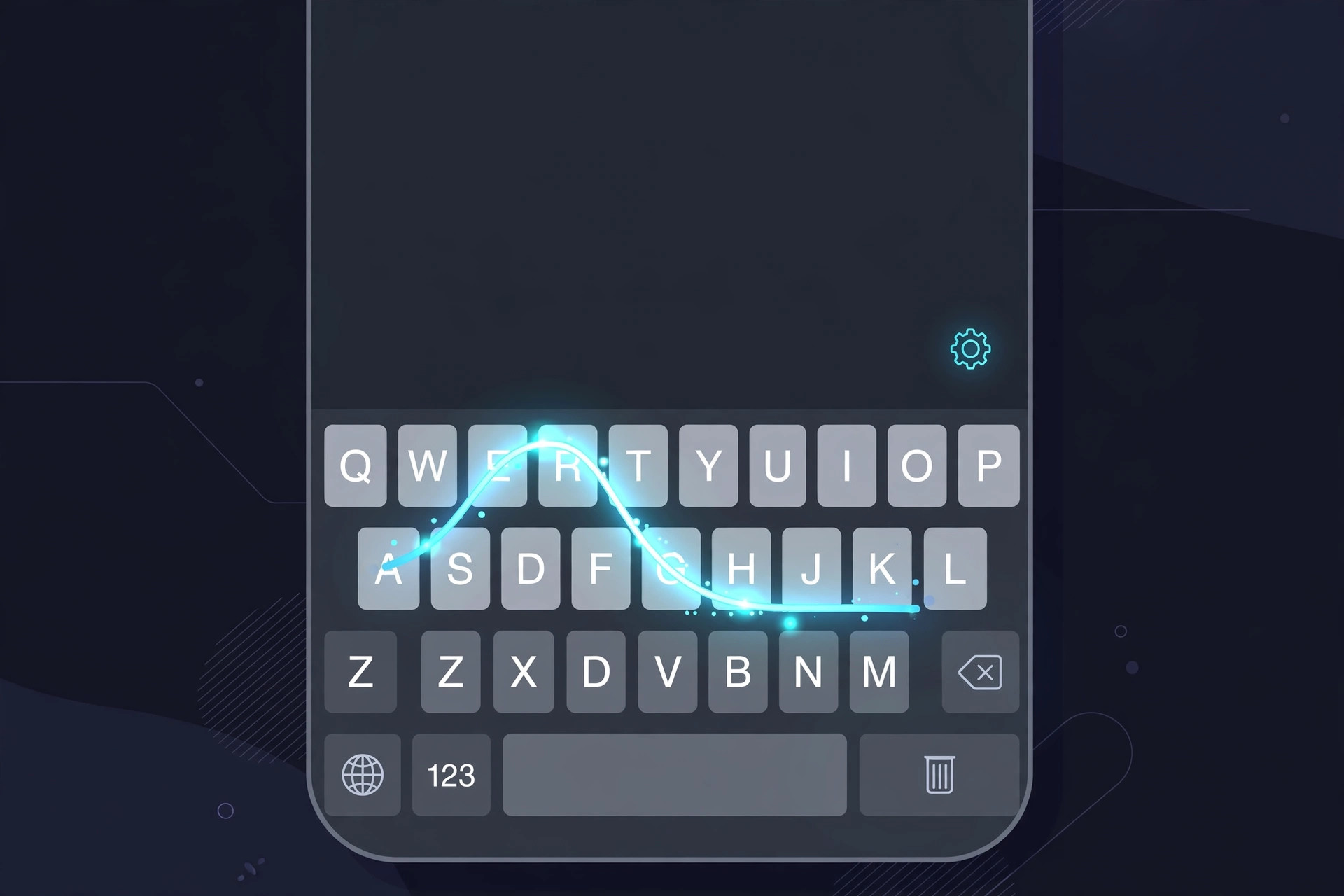
- Learn the gesture. Place a finger on the keyboard and glide across the letters of the word without lifting; lift at the end and iOS inserts its best prediction. You can mix swiping and tapping freely in the same sentence. Apple’s iPhone User Guide includes a walkthrough of the onscreen keyboard gestures.
- Try an alternative keyboard if you prefer. On older iOS versions, or if you simply like a different swipe engine, install Gboard or SwiftKey from the App Store, then add it via Settings → General → Keyboard → Keyboards → Add New Keyboard. Both offer excellent glide typing, as AppleInsider has covered in its keyboard roundups.
One more keyboard annoyance worth fixing while you are here: overeager suggestions. If autofill keeps getting in your way, see how to stop Safari from suggesting passwords for another input-related fix.
If it still doesn’t work
If Slide to Type is on but swiping does nothing, confirm you are using the stock Apple keyboard — third-party keyboards have their own separate toggles. Try removing and re-adding the keyboard via Settings → General → Keyboard → Keyboards, then restart the iPhone. On very old devices, updating iOS is the real fix, since QuickPath requires iOS 13 or later.
Frequently asked questions
Is swipe typing the same as QuickPath?
Yes. QuickPath is Apple’s name for the feature, and iOS Settings labels it “Slide to Type”. Third-party apps and Android call the same gesture swipe typing or glide typing.
Does swipe typing work in every app?
It works anywhere the stock iOS keyboard appears — Messages, Notes, Safari, Mail, and third-party apps that use the system keyboard. Apps with fully custom keyboards, such as some games, may not support it.
Conclusion
Swipe typing feels strange for a day and then indispensable forever. Flip the Slide to Type toggle, enable delete-by-word, and give your thumbs a rest — your typing speed will thank you.





