
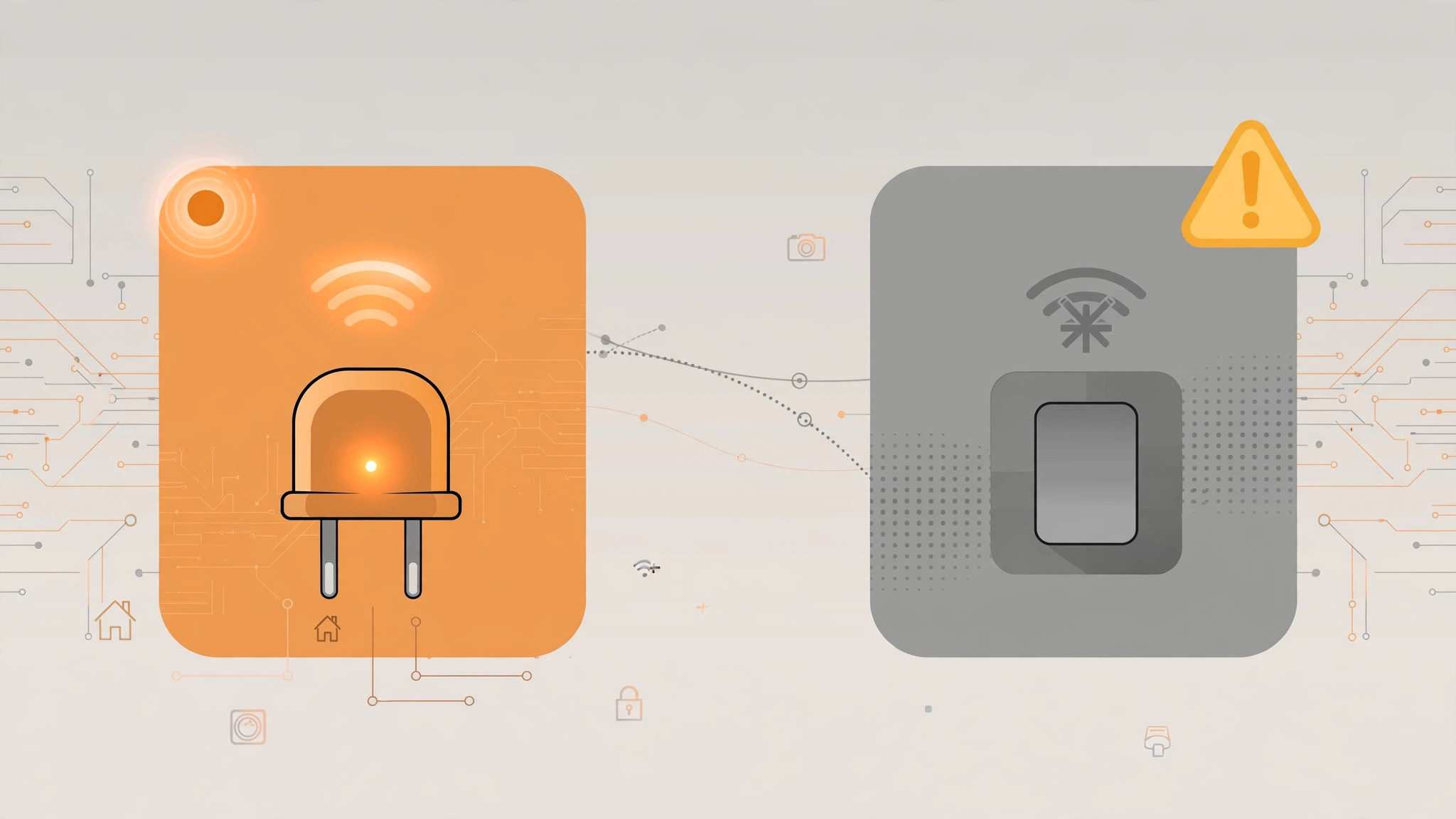
Opening the Home app, tapping a smart plug — and seeing “Unavailable” or “No Response” — is one of the more annoying smart-home moments. The plug still works when you press its button and your Wi-Fi seems fine, yet your iPhone insists it can’t reach it. Before you buy a replacement, know this: “unavailable” usually means a network problem, not a dead accessory.
1. Make sure your iPhone is on the same Wi-Fi as your accessories
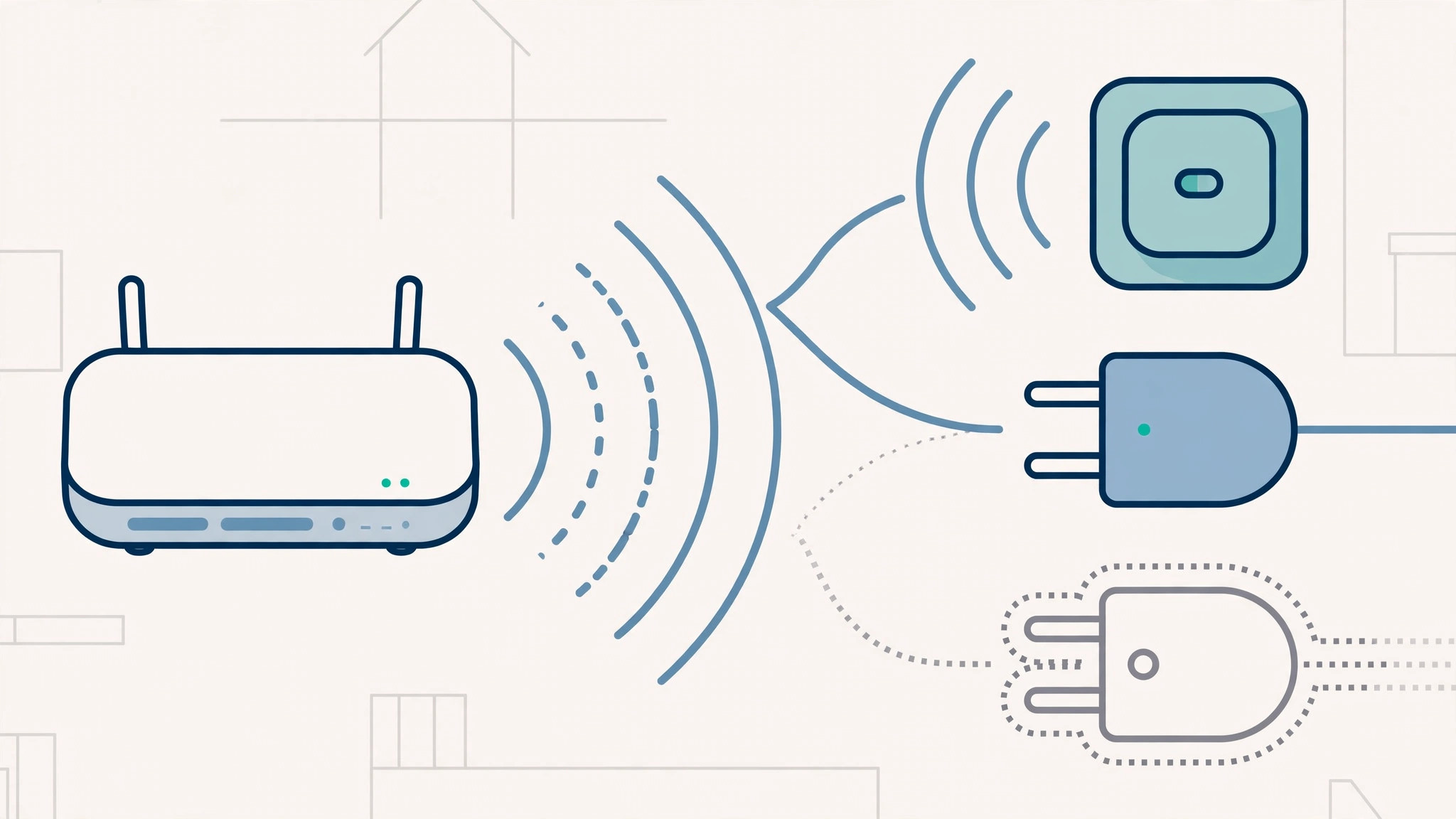
HomeKit controls most plugs and switches over your local Wi-Fi, so your iPhone and the accessories must be on the same network. If the iPhone is on a guest SSID, a neighbor’s network, or cellular data, the Home app can’t see the devices — even though nothing is wrong with them.
- Open Settings > Wi-Fi and confirm you’re on your main home network.
- Open the Home app and wait a few seconds — statuses often refresh once the phone is on the right network. Connectivity can be fragile across devices, as seen with the automatic network connections between your Mac and iPhone.
- If a plug sits far from the router, weak signal can drop it intermittently; move the router or the accessory closer.
2. Check your home hub for remote control
Away from home? Accessories respond remotely only if you have a home hub — an iPad, Apple TV (4th generation or later), or HomePod — powered on and signed in to the same Apple ID. Without one, everything shows as unavailable once you leave Wi-Fi range, though the plugs still work at home. Apple covers the requirements in its home hub setup guide.
- In the Home app, open Home Settings > Home Hubs & Bridges and confirm a hub is connected.
- If you own an iPad, you can use it as a smart home hub.
- Keep the hub powered on and on your home network — a sleeping or unplugged hub is the same as no hub.
3. Turn off Wi-Fi Assist to stop weak-signal dropouts
Sometimes the iPhone is the culprit. When home Wi-Fi gets weak, iOS quietly switches to cellular data through Wi-Fi Assist — and the Home app loses sight of local accessories. If plugs flicker between available and unavailable as you move around the house, turn it off:
- Go to Settings > Cellular.
- Scroll down and switch off Wi-Fi Assist.
- Return to good Wi-Fi coverage and check the Home app.
4. Check your router’s device limits
Modern homes pile dozens of devices onto one router, and some routers cap simultaneous connections. Once that ceiling is hit, accessories fail to connect and show as unavailable.
- Log in to your router’s admin page and check its maximum device count.
- Disconnect gadgets you no longer use to free up slots.
- If you’re regularly near the limit, consider a mesh system or second access point.
If it still doesn’t work
Power-cycle the accessory: unplug it for ten seconds, plug it back in, and give the Home app a minute. If that fails, remove the accessory from the Home app and add it again. Widespread “No Response” errors usually point to a struggling router — reboot it and check for firmware updates. MacRumors also tracks HomeKit reliability quirks as Apple updates iOS, so check their coverage before buying replacements.
Frequently asked questions
Why do only some of my plugs show as unavailable?
Usually distance or interference: plugs far from the router, behind thick walls, or on a crowded 2.4 GHz band drop first. Moving the plug or router often fixes it.
Will buying a new plug fix it?
Probably not. “Unavailable” is almost always about the network — the wrong Wi-Fi band, a missing home hub, or a router at its device limit. Fix the network first.
Conclusion
“Unavailable” in the Home app rarely means your smart plug is dead. It’s nearly always one of four things: the iPhone on the wrong network, a missing or sleeping home hub, Wi-Fi Assist kicking you to cellular, or a router overloaded with devices. Work through the steps above, and your plugs and switches should respond on the first tap.





