
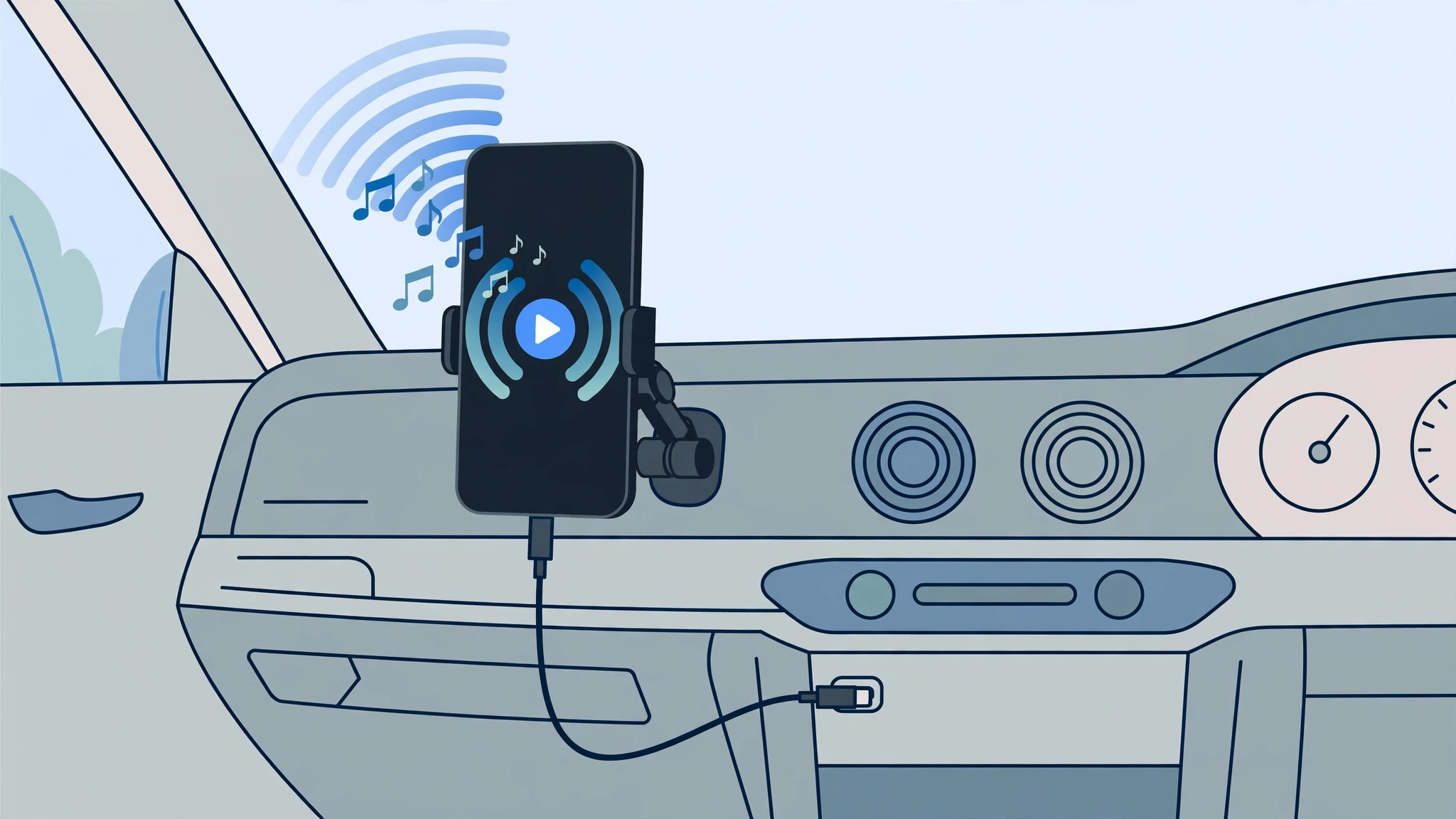
You hop in the car, tap Apple Music or Spotify on your iPhone, and … silence from the speakers. Playing music from an iPhone in the car is easy once you know which connection your vehicle supports. Here is every reliable way to get your playlists through your car speakers.
Step 1: Check what your car supports
Newer cars (roughly 2016 and later) often include Apple CarPlay, which mirrors a simplified iPhone interface on your dashboard screen. Older cars may offer Bluetooth audio, a USB port, or a 3.5 mm AUX jack. Check your car manual or look at the stereo’s input list before choosing a method.
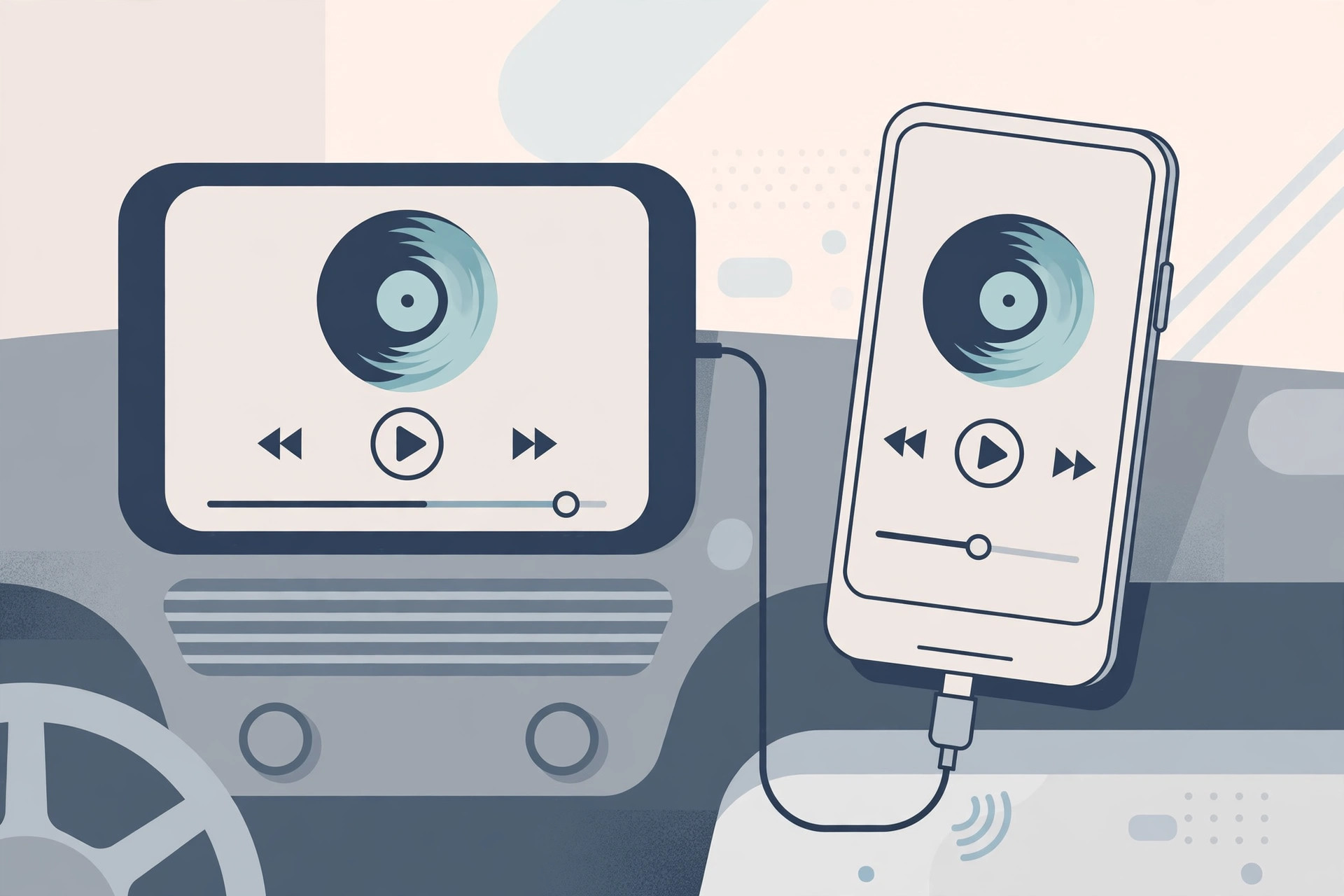
Step 2: Use Apple CarPlay (best experience)
- Plug in your iPhone. Connect it to the car’s USB port with a Lightning or USB-C cable. Many cars only enable CarPlay on specific ports marked with a smartphone or CarPlay icon.
- Allow CarPlay. On the first connection, your iPhone asks for permission — tap Allow. If CarPlay doesn’t start automatically, open Settings > General > CarPlay on your iPhone and select your car. If your iPhone keeps asking for a passcode when connecting, our guide on iOS asking for a passcode with CarPlay explains the fix.
- Play music. Open Apple Music, Spotify, or any audio app on the CarPlay screen and start your playlist.
Step 3: Try Bluetooth pairing
- On your iPhone, go to Settings > Bluetooth and make sure it’s on.
- Put your car stereo into Bluetooth pairing mode (usually in the phone or Bluetooth menu).
- Select your car from the iPhone’s device list and confirm the pairing code if asked.
- Set the stereo’s source to Bluetooth and play anything on your iPhone.
Step 4: Use a USB cable or AUX jack
If your car has no Bluetooth or CarPlay, a plain wired connection still works. Plug a Lightning-to-USB cable into the stereo’s USB port — the car treats your iPhone as a music source. For older head units with a 3.5 mm input, use Apple’s Lightning to 3.5 mm headphone jack adapter and select AUX as the source. For alternative playback apps, see our roundup of third-party music players for iPhone.
Step 5: Try wireless CarPlay
Some cars support wireless CarPlay. Make sure Wi-Fi and Bluetooth are both on, then go to Settings > General > CarPlay on your iPhone, tap Available Cars, and choose your vehicle. Apple documents the setup in detail on its Apple Support pages.
If it still doesn’t work
Try a different cable — cheap third-party cables are the most common cause of CarPlay failures, so use a genuine or MFi-certified cable. Restart both your iPhone and the car stereo, forget the car in your iPhone’s Bluetooth list, and pair again. If an app is missing from the CarPlay screen, read our fix for apps not appearing in CarPlay. Outlets like MacRumors and 9to5Mac regularly report on CarPlay compatibility changes in new iOS releases, and video walkthroughs on MKBHD’s YouTube channel show the latest in-car tech in action.
FAQ
Can I use CarPlay without a cable?
Yes, if your car supports wireless CarPlay. Enable Wi-Fi and Bluetooth on your iPhone, then pair through Settings > General > CarPlay. Wired CarPlay still gives the most stable connection for long drives.
Why does my car not recognize my iPhone at all?
Most often it’s the cable or the wrong USB port — many cars have multiple USB ports but only one supports CarPlay. A low-quality adapter can also cause the “accessory not supported” warning.
Conclusion
CarPlay gives the smoothest way to play iPhone music in the car, Bluetooth is the easiest wireless fallback, and a simple cable or AUX adapter covers older vehicles. Pick the method your car supports, use a certified cable, and your road-trip playlist will never be silenced again.





