
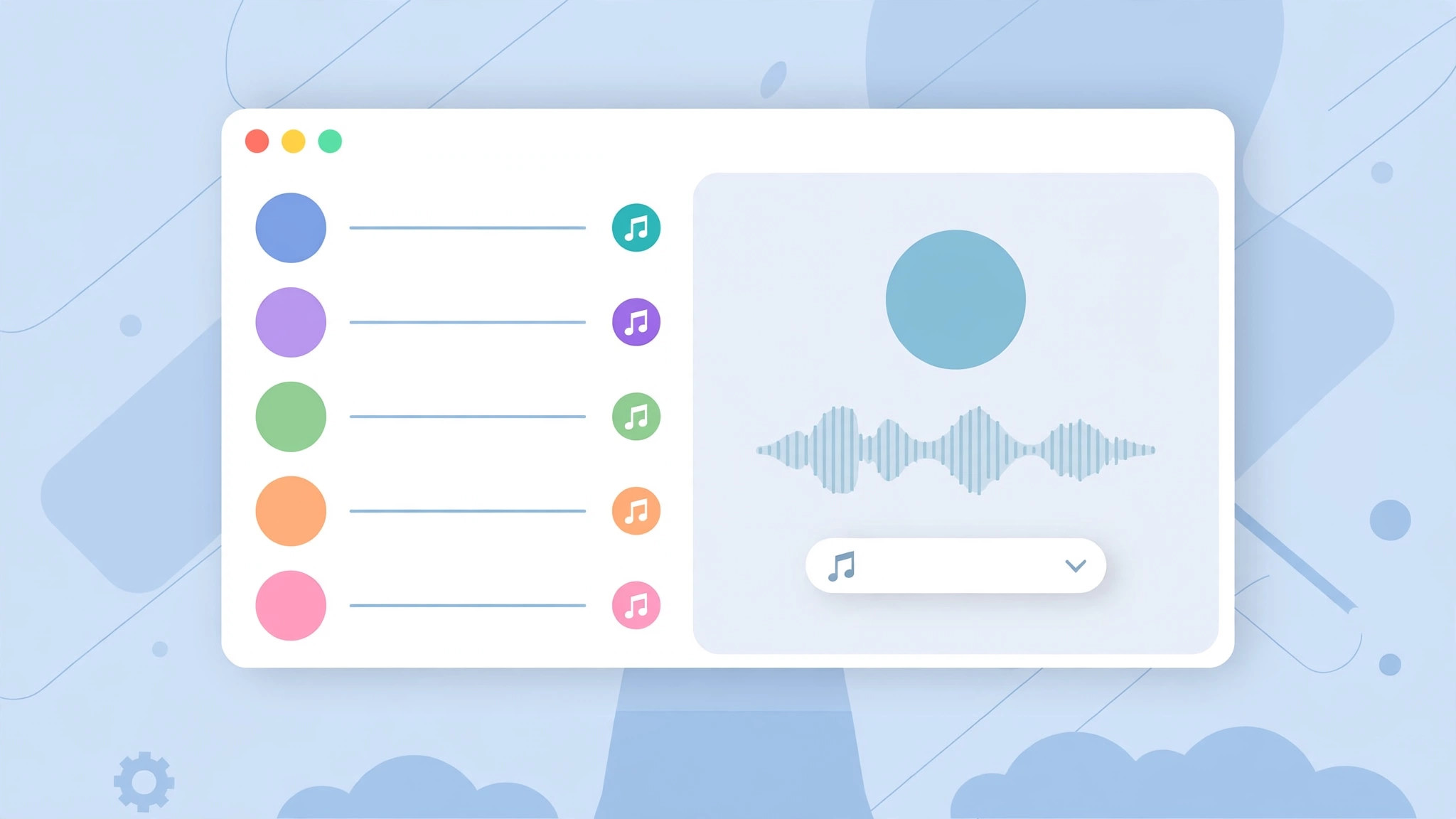
There is something deeply satisfying about hearing a specific ringtone and knowing exactly who is calling before you even look at the screen. On the iPhone, assigning custom ringtones to contacts takes only a few taps. Yet many Mac users are surprised when their computer rings with the same default chime for every caller, even though FaceTime calls come through just fine. The good news is that your Mac can play per-contact ringtones too — you just need to set them up in the right place, and there are two reliable ways to do it.
Why your Mac ignores the ringtones you set on iPhone
The Mac’s Contacts app keeps its own copy of your contact data. If iCloud Contacts is not enabled on both devices, the Mac never sees the ringtone you assigned on your iPhone, so it falls back to the system default for every incoming call. Even when sync is on, ringtones only carry over when both devices share the same contact list. The fix starts with making sure both devices look at the same data — the same kind of device harmony we describe in our guide on how to monitor battery levels of your devices from your Mac.
Method 1: Sync iCloud Contacts so ringtones carry over
If you have already assigned ringtones on your iPhone, the easiest path is to let iCloud carry them to your Mac:
- On your iPhone, open Settings and tap your name at the top.
- Tap iCloud, then make sure the Contacts toggle is switched on.
- On your Mac, open System Settings, click your Apple ID in the sidebar, and choose iCloud.
- Confirm that Contacts is enabled there as well.
- Give the sync a few minutes — large contact lists can take a little while.
- Open the Contacts app on your Mac, select a contact you customized on your iPhone, and you should now see its ringtone listed.
Once sync works, any new ringtone you assign on either device follows you around. And if both devices keep refusing to share nicely, read our piece on fixing Continuity Camera photos that won’t transfer from iPhone to Mac — the troubleshooting mindset is the same.
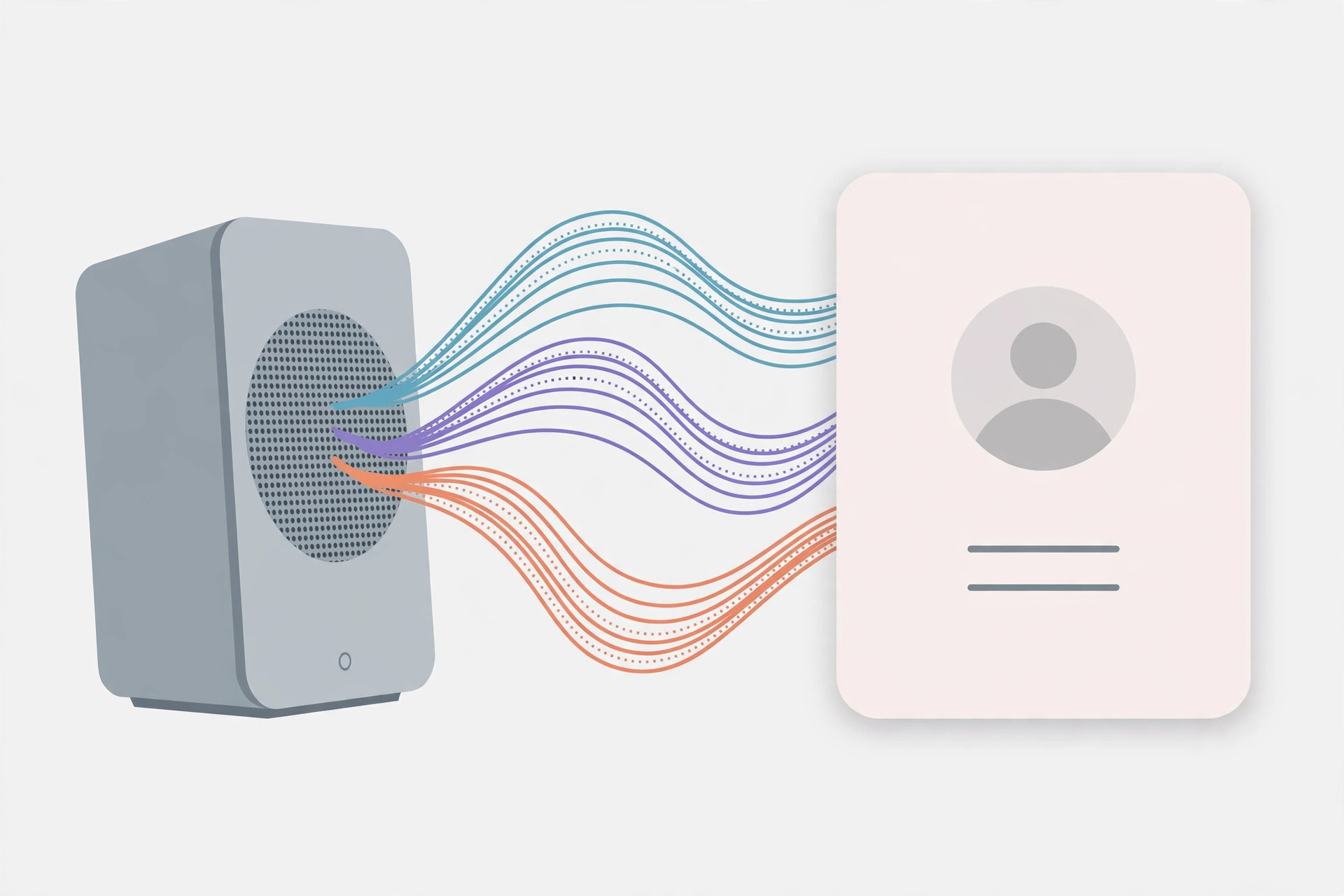
Method 2: Assign a ringtone directly on your Mac
Prefer to set things up on the Mac itself? You can assign ringtones without touching your iPhone:
- Open the Contacts app on your Mac.
- Select the contact you want to customize.
- Click Edit at the bottom of the contact card (or press Command+E).
- Click the Ringtone dropdown menu and pick an audio file from the list.
- Click Done to save your change.
The next time that person calls you via FaceTime, your Mac will play their personal tone. Apple’s Mac support pages confirm the Contacts app is the right place for per-contact settings, and 9to5Mac has covered handy tricks for getting custom audio tones onto Apple devices in the first place.
If it still doesn’t work
First, confirm both devices are signed in to the same Apple ID — sync silently fails when they are not. Then toggle Contacts off and back on in iCloud settings on both devices to force a fresh sync. Restarting the Contacts app, or the Mac itself, also clears stale data. If the ringtone field still does not appear, make sure the audio file is in a format macOS recognizes, such as M4R or AAC.
Frequently asked questions
Do I need my iPhone nearby for Mac ringtones to work?
No. Once the contact data is synced through iCloud, your Mac plays the assigned ringtone for incoming FaceTime calls on its own. Your iPhone can be in another room — or even switched off.
Will changing a ringtone on my Mac change it on my iPhone?
Yes, if iCloud Contacts sync is enabled on both devices. The contact card — ringtone included — stays identical everywhere, so edit it on whichever device is closest.
Custom ringtones are a small touch that makes your Mac feel more personal and helps you prioritize calls at a glance. Set up sync once, assign a few tones, and you will never again wonder who is calling from across the room.





