
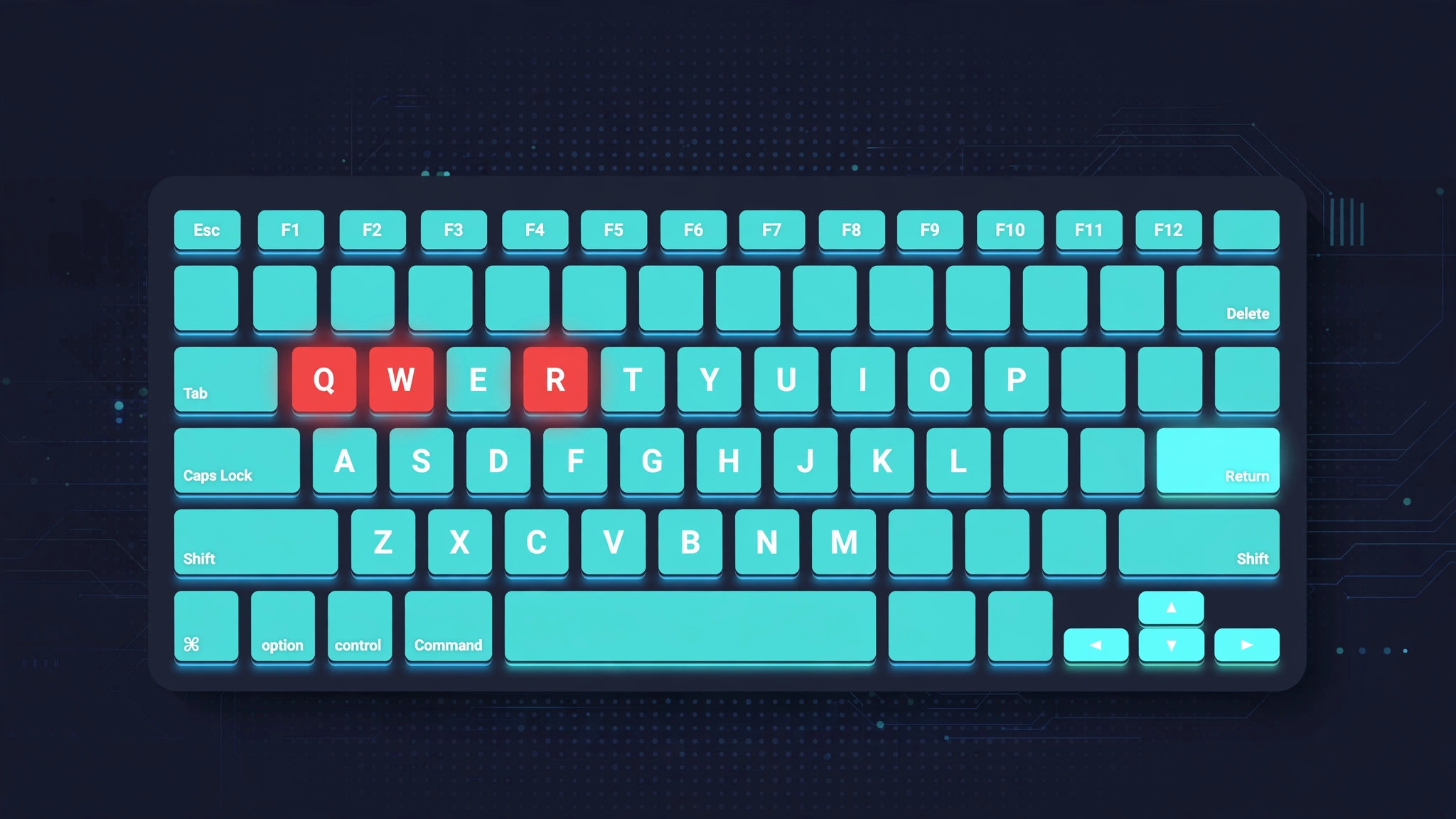
You’re typing away on your Mac when suddenly a handful of keys stop behaving. Pressing U, O, J, K, or L does nothing at all — or worse, the cursor jumps around the screen instead of letters appearing. Before you assume your keyboard is broken and start shopping for a replacement, take a breath: this is almost always a software setting, not a hardware failure. The culprit is an accessibility feature called Mouse Keys, and switching it off takes less than a minute. If you’ve been customizing your workspace, you might also enjoy our guide on how to quickly hide all desktop icons on Mac for a cleaner setup.
What is Mouse Keys, and why did it turn on?
Mouse Keys is an accessibility feature built into macOS. It lets you move the mouse pointer using the keyboard — the 7, 8, 9, U, O, J, K, L, and M keys become directional controls instead of typing characters. It is genuinely useful for people who cannot use a mouse or trackpad, and Apple documents it among its Mac accessibility features. The catch? It is very easy to switch on by accident. Pressing the Option key five times in a row toggles it, as does tapping Touch ID three times quickly on newer Macs. A few stray key presses during a game or a frantic typing session can leave half your keyboard “broken” with no obvious explanation.
How to turn off Mouse Keys
Here is the fix:
- Click the Apple menu in the top-left corner and open System Settings (on older macOS versions this is called System Preferences).
- In the sidebar, choose Accessibility.
- Scroll to the Motor section and click Pointer Control.
- Find the “Enable Mouse Keys” toggle and switch it off.
- Test your keyboard — the U, J, K, L, and number keys should type normally again.

Tip: while you are in the Accessibility settings, look for the option that lets you press the Option key five times to toggle Mouse Keys — you can disable that shortcut so this never happens again. MacRumors readers often name this shortcut as the surprise cause.
If it still doesn’t work
If the keys are still misbehaving after disabling Mouse Keys, restart your Mac — a fresh boot clears stuck modifier states. For a wireless keyboard, check the battery level or plug it in to charge; low power causes exactly this kind of erratic behavior, and you can monitor battery levels of your devices from your Mac to catch it early. You can also open Keyboard Viewer (System Settings > Keyboard, turn on “Show Input menu in menu bar,” then choose Show Keyboard Viewer) to see whether macOS registers your presses. If an external keyboard works fine but the built-in one doesn’t, the issue may be hardware — contact Apple Support or book a Genius Bar appointment.
Frequently asked questions
Why do only some keys stop working, not all of them?
Because Mouse Keys remaps only the keys clustered around the right side of the keyboard — 7, 8, 9, U, I, O, J, K, L, and M — to pointer movement. The rest of the keyboard keeps typing normally, which is exactly why the problem feels so strange.
Can I keep Mouse Keys on but still type normally?
Not really — when Mouse Keys is active, those keys control the pointer by design. If you need the feature for accessibility but also want to type, press the Option key five times to toggle it off while you type, then toggle it back on when you need it.
Nine times out of ten, “broken” Mac keys are just Mouse Keys doing its job a little too enthusiastically. Now you know where the switch lives — and how to stop it flipping itself on again. For more ways to bend your Mac to your will, check out our guide on adding a handy calendar to the macOS menu bar.





