
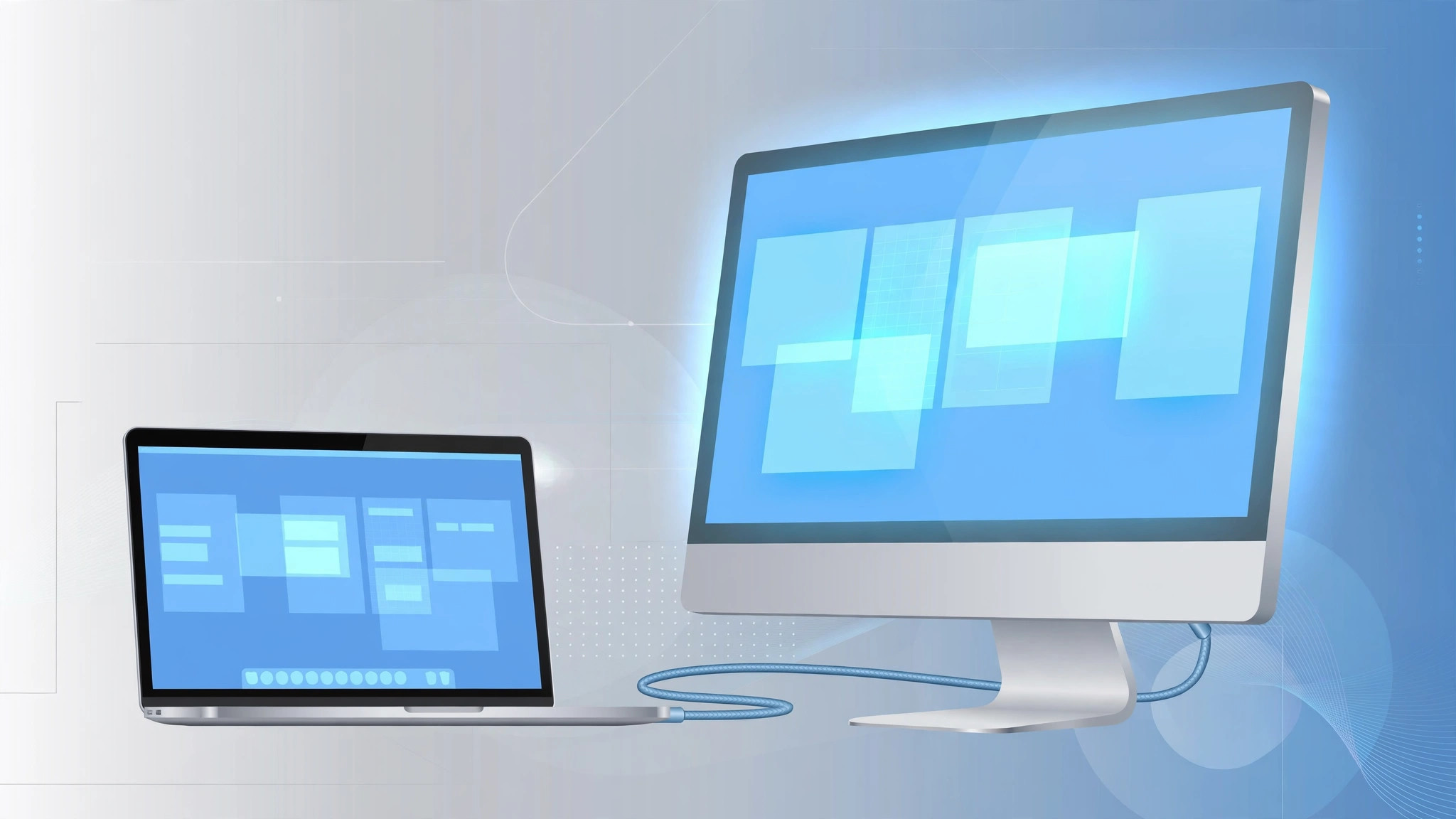
Before Sidecar and AirPlay, Apple had a simpler trick for giving your Mac more screen: Target Display Mode, which turned a compatible iMac into a big external monitor for another Mac. It is a legacy feature now — Apple has not supported it on any iMac sold since late 2014 — but if you have an older iMac gathering dust in a closet or on a side desk, it can still earn its keep as a second display. A 27-inch iMac from 2011 still has a gorgeous panel, and using it as a monitor costs nothing but a cable. The catch: only specific models qualify, and only specific cables work. Here is how to check both and switch the mode on.
1. Check that your iMac qualifies
Only certain iMacs support Target Display Mode: the iMac (Mid 2011 to Mid 2014) and the 27-inch iMac (Late 2009 to Mid 2010). The Retina 5K iMac (Late 2014 and later) and all Apple silicon iMacs CANNOT act as a display this way — the feature was dropped when the 5K panel arrived. The iMac must also be running OS X 10.6.1 or later, and it cannot be booted into Windows.
2. Get the right cable
You need a Mini DisplayPort-to-Mini DisplayPort or Thunderbolt cable connecting the two Macs. If the source Mac has Thunderbolt 3 (USB-C), use a Thunderbolt 3 (USB-C) to Thunderbolt 2 adapter plus a Thunderbolt cable. Apple’s own documentation (Apple Support) stresses that HDMI and DVI adapters are not guaranteed to work — stick with Mini DisplayPort or Thunderbolt end to end.
3. Enter Target Display Mode
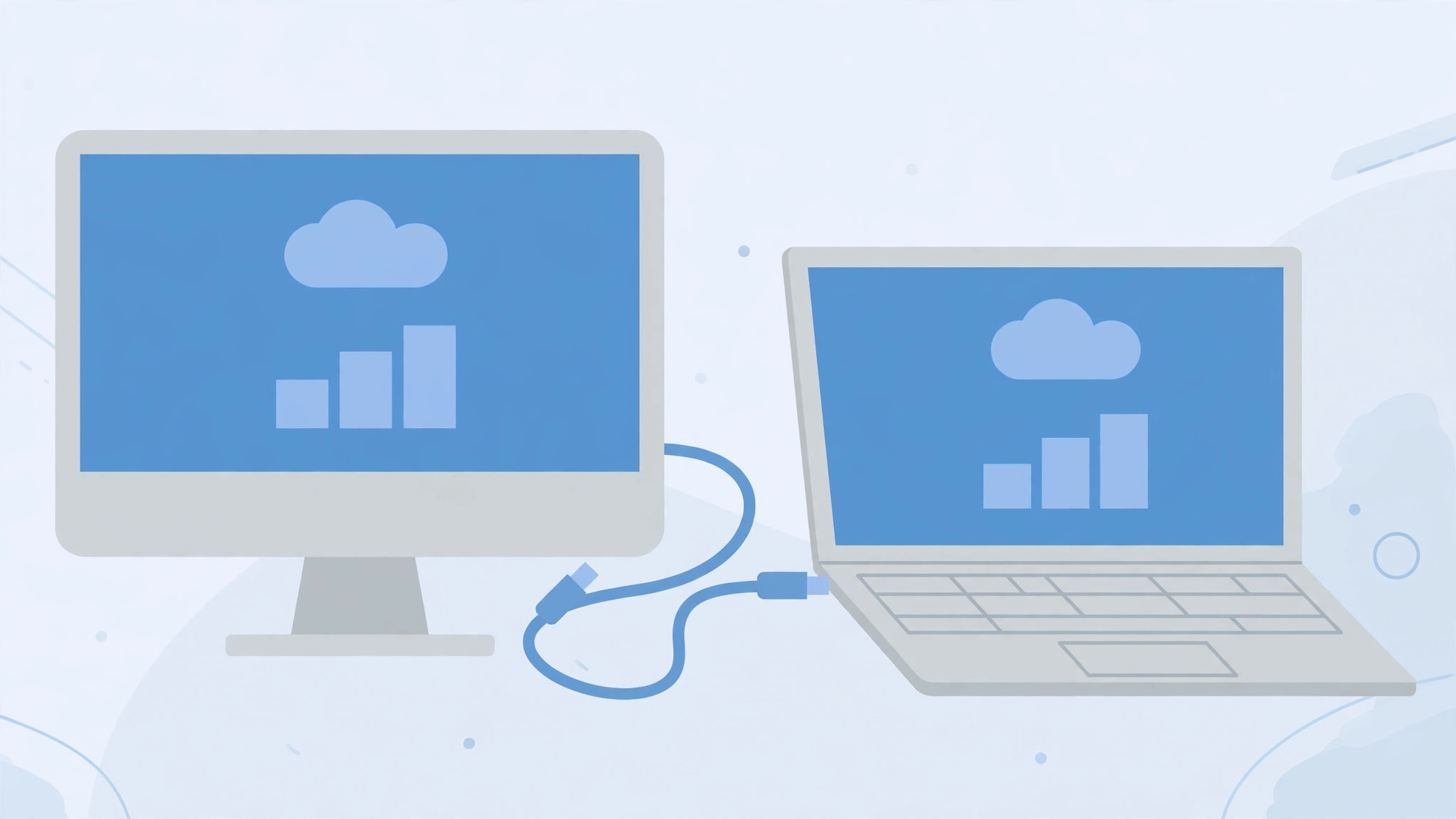
Power on both Macs and connect the cable. On the iMac you want to use as a display, press Command-F2 on its keyboard — the keystroke must register on the iMac itself, so make sure a keyboard is connected to it. The iMac’s screen switches to show the other Mac’s output. Press Command-F2 again to exit, or simply disconnect the cable.
4. Modern alternative: AirPlay to Mac
If your iMac is from 2019 or later and runs macOS Monterey or newer, skip the cable entirely: AirPlay to Mac mirrors or extends your primary Mac wirelessly to the iMac. It is the supported path now that Target Display Mode is history. For more Mac tricks, see how to quickly open the installed apps list on macOS 26 or how to enable face lighting during video calls on Mac.
If it still doesn’t work
Double-check the model years first — a 5K iMac will never enter the mode no matter what cable you use. Try a different Thunderbolt cable, make sure the iMac is booted into macOS (not Windows via Boot Camp), and confirm the keyboard’s Command-F2 is not remapped. 9to5Mac has covered the quirks of this legacy mode over the years.
FAQ
Can I use Target Display Mode with a PC?
No — the source must be a Mac with Mini DisplayPort or Thunderbolt output, and the iMac itself must be running macOS, not Windows.
Can an Apple silicon Mac be the source?
Yes, any Thunderbolt-equipped Mac can drive the mode with the right adapter. The restriction is on the iMac receiving the signal: it must be one of the supported 2009–2014 models.
Target Display Mode is frozen in time — 2009 to 2014 iMacs only — but within that window it still works exactly as designed. For anything newer, AirPlay to Mac is the answer.





