
When the App Store got its big redesign in iOS 11, Apple moved things around — including your purchase history. If you are hunting for an app you bought years ago, trying to re-download a deleted game, or checking what is tied to your Apple ID, the old paths no longer apply. This guide covers the iOS 11 path step by step, then gives the updated route for today’s iOS, so it stays useful no matter which version you run.
1. Open the App Store
Start on the Home Screen and tap the App Store icon. Make sure you are signed in with the Apple ID whose purchases you want to see — purchase history is tied to the account, not the device.
2. Open your Account menu
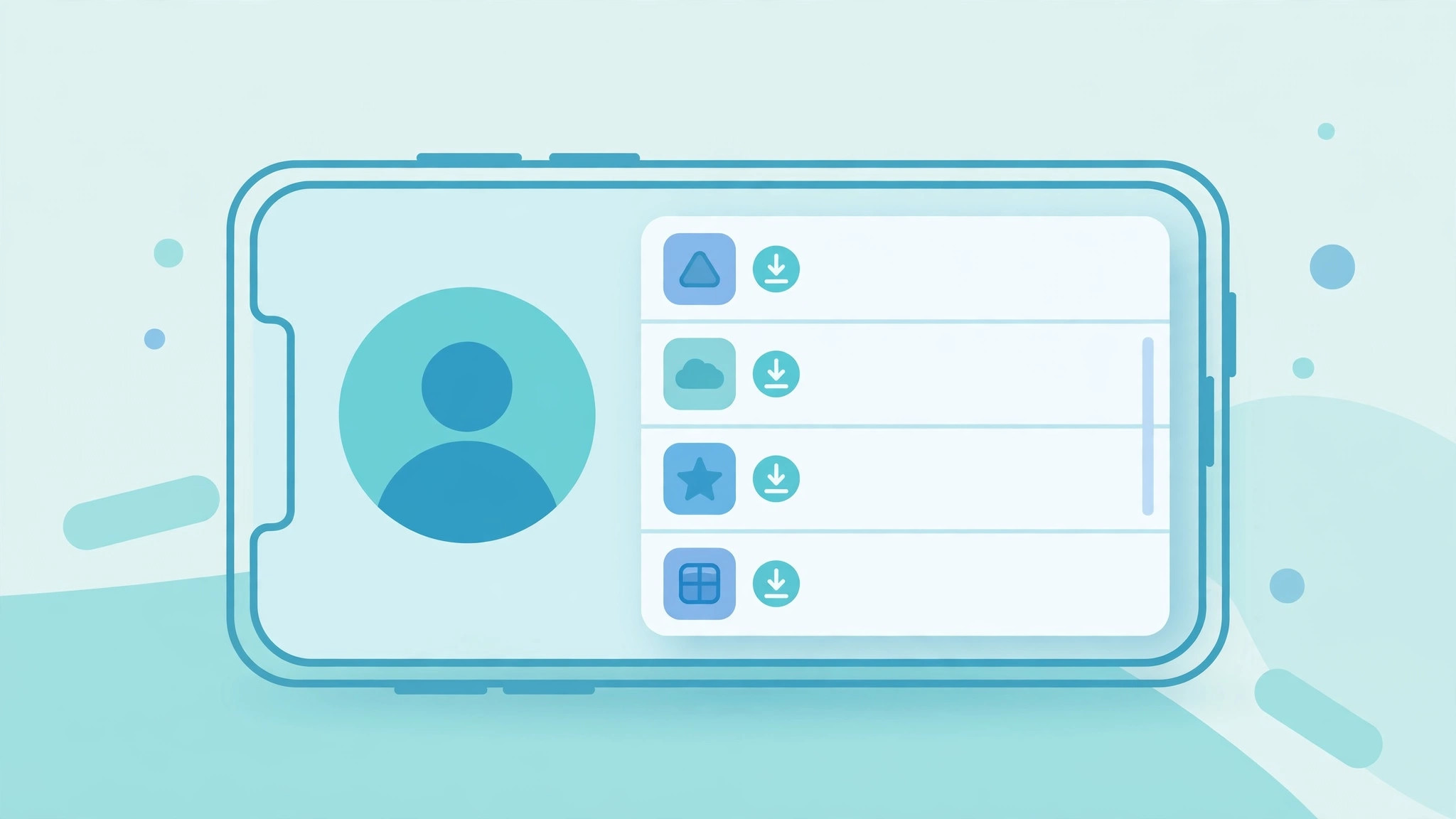
Tap your profile picture or avatar in the top-right corner of the App Store. On iOS 11’s redesigned store this opens your Account page, the new home for everything tied to your Apple ID. If you use Touch ID or Face ID, you may be asked to authenticate before the Account page opens — that is normal.
3. Tap “Purchased”
On the Account page, tap Purchased. This lists everything ever bought or downloaded with this Apple ID — including free apps. Use the two tabs at the top to filter: My Purchases shows your own downloads, while Not on this iPhone shows only items that are not currently installed — handy for re-downloading without scrolling. Not sure which apps are safe to remove? See which built-in iPhone apps you can delete.
4. The modern route on current iOS
On recent iOS versions the path moved again: go to Settings → tap your name at the top → Media & Purchases → View Account → Purchase History. The same screen shows the date of each purchase and lets you report a problem with a charge. Apple’s purchase-history support article (Apple Support) documents this current path, including how to filter by date range and see receipts.
If it still doesn’t work
If Purchased is empty, you are probably signed in with a different Apple ID — check Settings → your name at the top. Family Sharing members see their own purchases, not the organizer’s. On a Mac or PC you can also open the Music or TV app (or iTunes on older systems), go to Account → View My Account → Purchase History for the same list on a bigger screen. And if you want to stop surprise updates while you audit your library, see how to completely block iOS 26 updates on iPhone. AppleInsider has also covered the quirks of the redesigned App Store account area.
FAQ
Do free apps appear in purchase history?
Yes — “Purchased” includes every free download tied to your Apple ID, which surprises people who never technically bought anything.
Can I hide purchases from the list?
Yes. Swipe left on an item in the Purchased list (or long-press on newer iOS) to hide it; hidden purchases can be unhidden from your Account settings on a Mac or PC.
The iOS 11 redesign buried purchase history one tap deeper, but it is still right there in the Account menu — and on modern iOS it lives under Media & Purchases. Either way, your full download history is never more than a few taps away.





