
iOS 11 brought built-in screen recording to the iPhone for the first time — but for many users the feature seemed broken right out of the box. The record button was nowhere to be found, recordings had no sound, or captures failed silently. Here’s why that happened in iOS 11 and how to fix each problem.
First: add the Screen Recording toggle
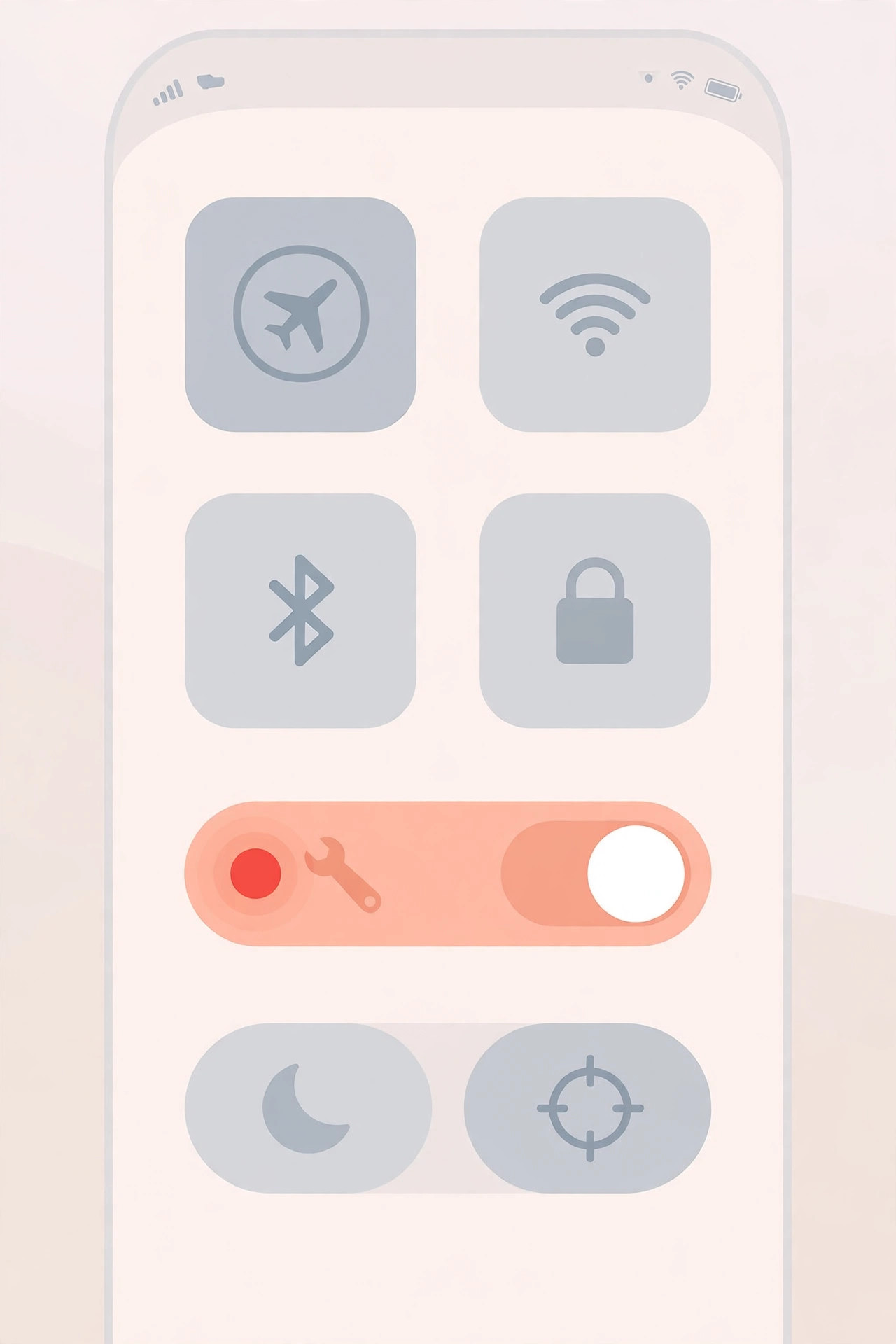
The most common reason recording “doesn’t work” in iOS 11 is simply that the feature is not on by default. Unlike the camera or flashlight, the Screen Recording control has to be added to Control Center manually. Go to Settings → Control Center → Customize Controls and tap the green plus next to Screen Recording. Once it appears in the list, the record button will be waiting for you in Control Center — swipe up from the bottom edge on older iPhones, or down from the top-right corner on the iPhone X.
Fix the common problems, step by step
- Record it correctly. Open Control Center and tap the record button. You’ll get a 3-2-1 countdown before capture starts — this gives you time to get back to the screen you want. To stop, tap the red status bar at the top of the screen and confirm. The video saves to the Photos app, as Apple Support explains in its screen-recording documentation.
- No sound in the recording? Before you start, long-press (or 3D Touch) the record button in Control Center and turn on Microphone Audio. Screen recordings capture on-screen audio by default, but your voice or ambient sound only gets picked up when the microphone is enabled — a step 9to5Mac highlighted when the feature first launched.
- Button missing or grayed out. Check Settings → General → Restrictions (or Screen Time → Content & Privacy Restrictions on later 11.x builds) — screen recording can be switched off by a parental restriction or a device-management profile installed by an employer or school. Early iOS 11.0 releases also had bugs that broke recording, so update to the latest iOS 11.x build, then add the toggle to Control Center again.
- Recording fails silently. If the button works but no video ever appears in Photos, the most common cause is insufficient free storage. Screen captures eat a lot of space — check Settings → General → iPhone Storage and free up room by deleting what you don’t need, for example with our guide on built-in iPhone apps you can delete. Then restart the iPhone and try again.
If it still doesn’t work
Make sure you’re on the latest iOS 11.x release and that the toggle is actually present in Control Center after updating. If recordings still fail, try Settings → General → Reset → Reset All Settings — this doesn’t delete your data, but it does restore system defaults including Control Center layouts. MacRumors forum threads from the iOS 11 era show that this cleared up stubborn recording failures for many users. On a company- or school-managed device, recording may be blocked by policy — talk to your administrator in that case.
Frequently asked questions
Can I record the screen with sound in iOS 11?
Yes. System audio is captured by default; to add narration, long-press the record button before starting and switch on Microphone Audio. Note that some apps, such as certain video and music players, block recording of their audio for copyright reasons.
Where do screen recordings go?
Every recording is saved to the Photos app, where you can trim, edit, or share it. If you only need a still image instead, our guide to taking HDR screenshots on iPhone and iPad is the quicker route — and if the camera keeps launching from your lock screen instead, see how to disable the quick camera launch.
Conclusion
Screen recording in iOS 11 works reliably once you know its quirks: add the toggle in Control Center, enable Microphone Audio for narration, keep enough free storage, and make sure no restriction or outdated build is blocking it. Run through the steps above and your captures should work every time.





