
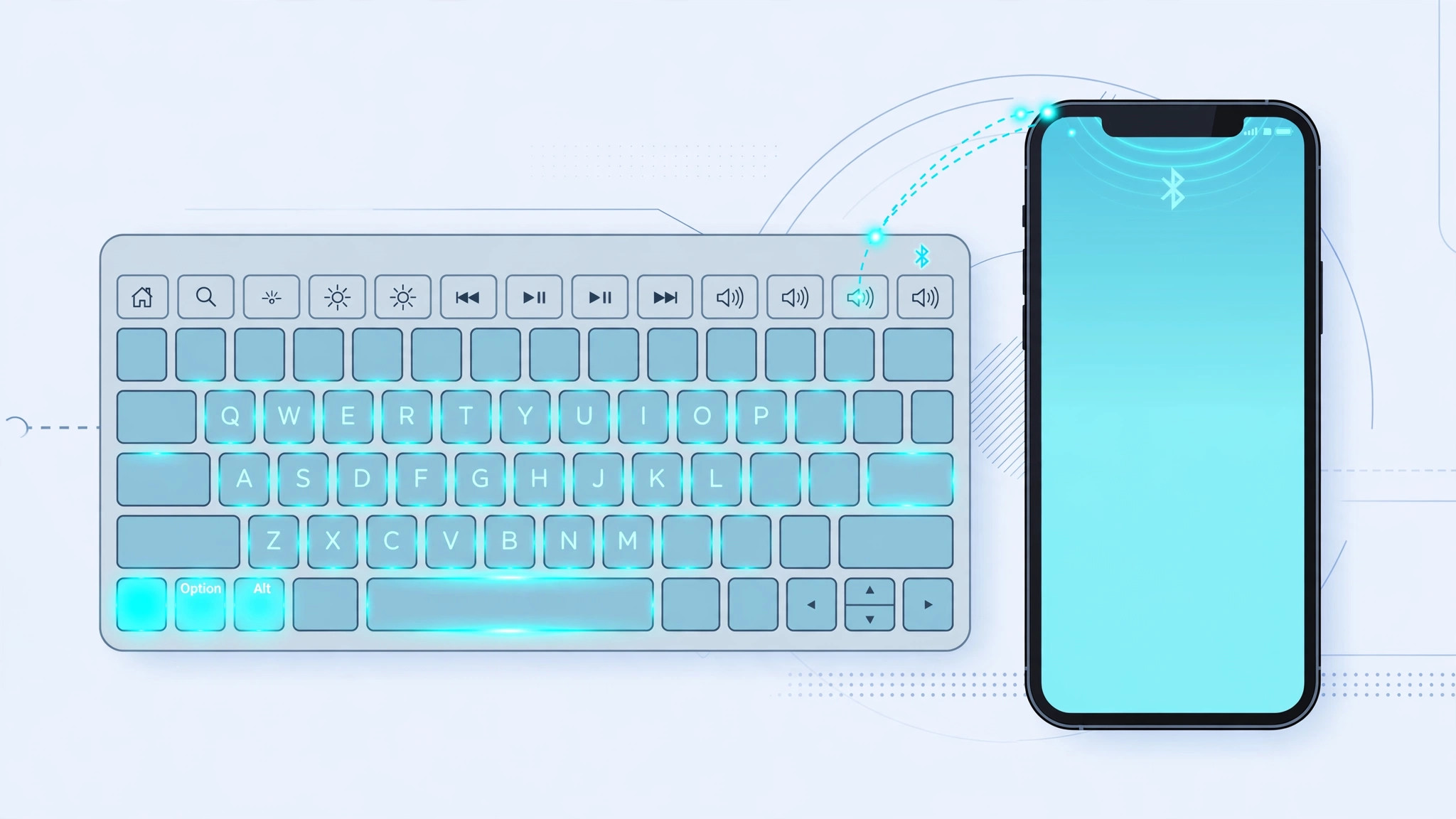
Typing on a glass screen is fine — until you have real work to do. Pair a wireless keyboard with your iPhone or iPad and iOS turns into a surprisingly capable productivity machine, complete with system-wide keyboard shortcuts. Here’s how to pair one and the shortcuts worth memorizing.

Step 1: Pair your wireless keyboard
Put your Bluetooth keyboard in pairing mode (usually by holding its power or Bluetooth button until a light blinks). Then open Settings > Bluetooth on your iPhone or iPad and tap the keyboard’s name when it appears in the list. Once connected, you can start typing immediately — no extra setup needed. Apple covers the basics in its guide to using a Magic Keyboard with iPad, and the same steps work for most third-party Bluetooth keyboards.
Step 2: Learn the global shortcuts
These work everywhere in iOS, no matter which app is open: Cmd+H jumps to the Home Screen, Cmd+Space opens Spotlight search, and Cmd+Tab switches between recent apps (keep holding Cmd and tap Tab to cycle through them). Text editing works as you’d expect too — Cmd+A selects all, Cmd+C copies, Cmd+V pastes. If you’re a Mac user, these will feel instantly familiar: many iOS shortcuts deliberately mirror macOS, as 9to5Mac has noted in its iPad keyboard coverage.
Step 3: Use the function keys
On Apple keyboards and most third-party ones, the function row maps to iOS controls: F1/F2 adjust screen brightness, F7–F9 handle media (previous track, play/pause, next track), and F10–F12 control mute and volume. That makes a wireless keyboard a handy media remote for a docked iPad too.
Step 4: Hold Cmd for the hidden cheat sheet
Here’s the trick most people miss: press and hold the Cmd key in any app, and iOS pops up a cheat sheet listing every keyboard shortcut that app supports. It’s the fastest way to discover app-specific shortcuts without searching the web — try it in Safari, Mail, Notes, and Files.
Step 5: Think like a Mac user
Once the basics click, you’ll find iOS rewards the same muscle memory as macOS: Cmd+F finds text, Cmd+Z undoes, and Cmd+N starts something new in many apps. That consistency pays off when you switch devices — like when you quickly open the installed apps list on macOS 26. And if autofill popups interrupt your typing flow, you can stop Safari from suggesting passwords for websites on iPhone.
If it still doesn’t work
If the keyboard won’t pair, make sure it’s not still connected to another device — Bluetooth keyboards often remember only one host. Toggle Bluetooth off and on in Settings, then try the keyboard’s pairing mode again. If certain shortcuts do nothing, the app you’re in may simply not support them; hold Cmd to check its cheat sheet. As a last resort, forget the keyboard in Settings > Bluetooth and re-pair from scratch.
FAQ
Can I use any Bluetooth keyboard with iPhone?
Yes — virtually any Bluetooth keyboard works, from Apple’s Magic Keyboard to inexpensive third-party ones. Some Windows-oriented keyboards have slightly different key labels, but the core shortcuts still function.
Do shortcuts work in all apps?
Global shortcuts (Cmd+H, Cmd+Space, Cmd+Tab) work everywhere. App-specific ones vary — hold Cmd in any app to see exactly what it supports.
Conclusion
A wireless keyboard transforms how you use iOS. Pair it once, memorize a handful of shortcuts, and use the hold-Cmd cheat sheet to learn the rest. Your iPhone or iPad just became a lot more like a Mac — in the best way.





