
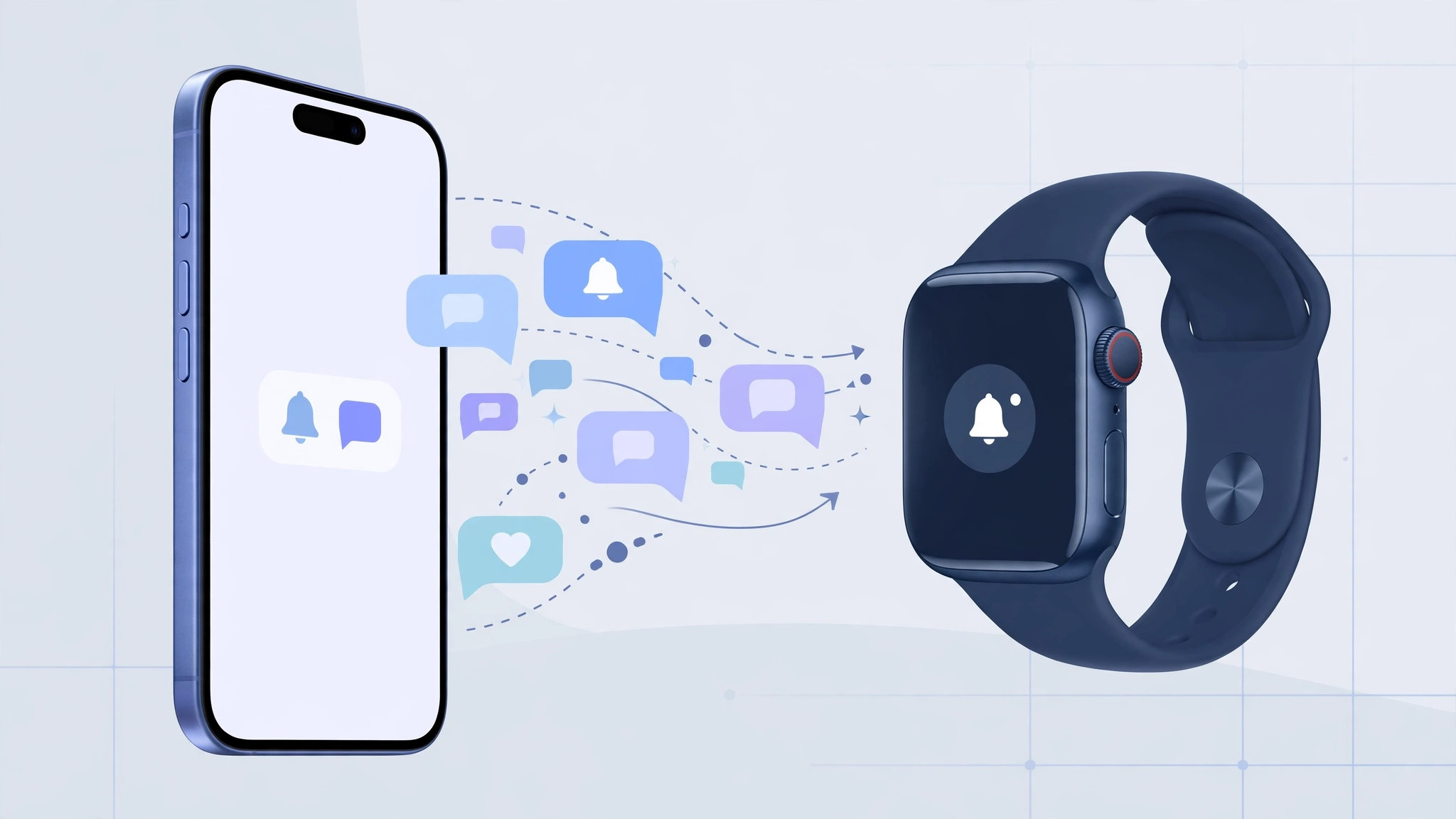
If your wrist buzzes every time your phone does, you are not imagining it — your Apple Watch mirrors iPhone notifications by default. For many owners that is the whole point of the watch, but when every group chat, news alert, and game reminder pings in two places at once, the duplication gets old fast. The good news is that Apple gives you precise control over which alerts get mirrored and which stay on the phone.
Everything happens in the Watch app on your iPhone. You can either let an app mirror your iPhone exactly, or break away with custom settings for each app. Once you trim the list, each app notifies your wrist only when you have explicitly allowed it. If you also wrestle with other notification quirks, our guide to silencing adaptive power notifications in iOS 26 covers another common source of alert fatigue.
Step 1: Open the Watch app and head to Notifications
On your paired iPhone, open the Watch app and make sure the My Watch tab is selected at the bottom of the screen. Tap Notifications. This screen is mission control: every app that can send alerts to your watch is listed here, along with how it currently behaves. Apple’s official documentation on watch notifications describes the same layout and is worth bookmarking for reference.
Step 2: Pick the app you want to change
Scroll through the list and tap the app whose behavior you want to adjust — Messages, Mail, WhatsApp, or any third-party app you have installed. Each app gets its own settings page, so you can be as granular as you like instead of applying one rule to everything at once.
Step 3: Choose Mirror iPhone or Custom
At the top of the app’s page you will see two choices. Mirror iPhone makes the watch behave exactly like the phone: whatever banners, sounds, and badges you configured in the iPhone’s Settings appear on your wrist too. Custom breaks the link and lets you set the watch’s alerts independently — for example, quiet banners on the watch while the phone still rings out loud. Pick whichever matches how urgently you need that app’s alerts on your wrist.
Step 4: Disable mirroring for apps you don’t want duplicated
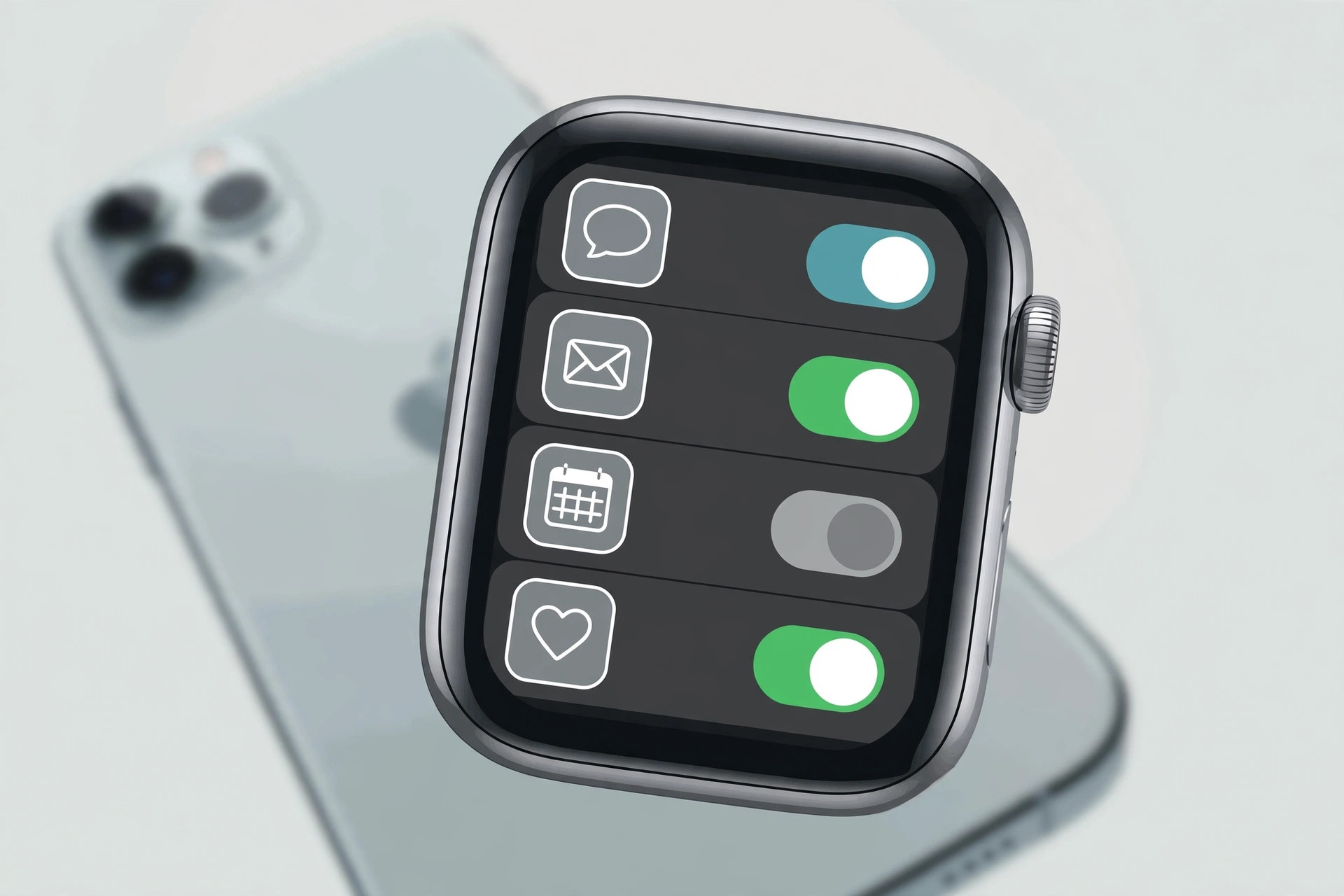
Now scroll down to the section labeled “Mirror iPhone alerts from.” You will find a row of toggles, one per app. Switch off every app you never want buzzing your wrist. The change takes effect right away: those apps will notify you on the iPhone only, while the rest keep working on both devices. Review this list every few months — newly installed apps often enable mirroring by default. Mac owners dealing with similar duplication on the desktop can see how to mute Mail notifications for specific contacts in macOS for the same decluttering idea on another device.
If it still doesn’t work
If an app keeps pinging your watch after you disabled it, confirm that both devices run current software and that they are properly paired — unpairing and re-pairing the watch resets notification settings to their defaults, so you would need to redo your choices afterward. Also note that system apps such as Phone and Messages are more deeply integrated; outlets like MacRumors and 9to5Mac regularly document edge cases where Apple’s own apps ignore the usual toggles after major watchOS updates.
Frequently asked questions
Will turning off mirroring silence the app on my iPhone too?
No. These toggles only control the watch. Your iPhone keeps notifying exactly as before — you are simply choosing which alerts are worth a tap on the wrist.
Can I get haptics on the watch without the iPhone buzzing?
Yes — that is what the Custom option is for. Set the app to Custom in the Watch app, enable its alerts and haptics there, and silence the matching notification on the iPhone itself.
Conclusion
Notification mirroring is powerful but blunt by default. Spend five minutes in the Watch app’s Notifications screen, choose Mirror iPhone or Custom for each app, and switch off the “Mirror iPhone alerts from” toggles you don’t need. For more setup help, Apple’s support team on X answers watch questions daily — and your wrist will thank you for the quiet.





