
If your data plan seems to vanish faster than it should, you’re not alone. Streaming, photo backups, and even apps running quietly in the background can eat through gigabytes before your billing cycle resets. The good news is that your iPhone keeps a precise record of where every megabyte goes — you just need to know where to look.
How to check cellular data usage on iPhone
- Open Settings and tap Cellular (labeled Mobile Data in some regions).
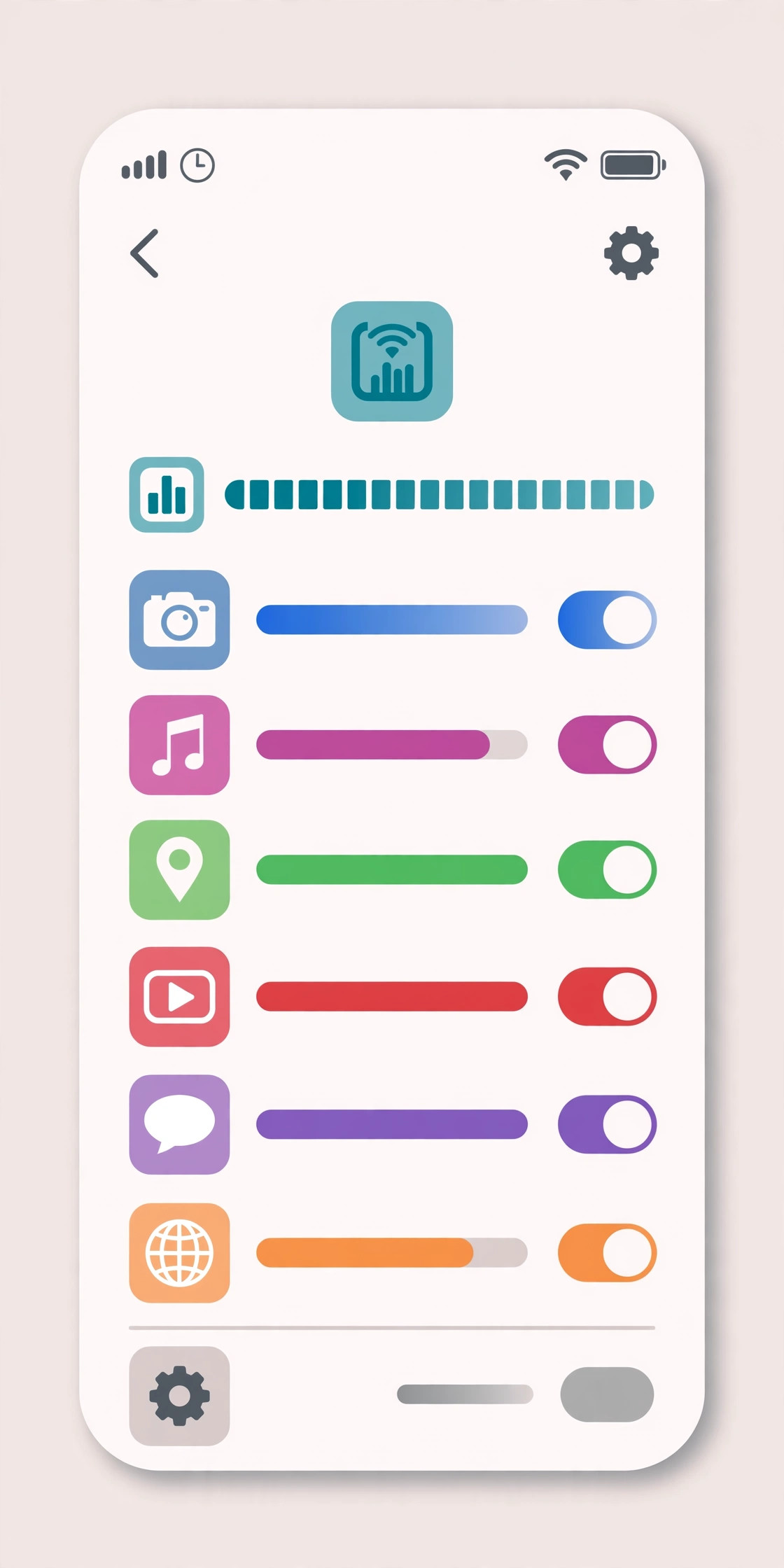
- Scroll down to the app list under Cellular Data. Each app shows exactly how much data it has consumed during the current period, with the heaviest users at the top.
- Scroll to the very bottom and note the date next to Current Period. The counter does not reset automatically, so tap Reset Statistics on the first day of your billing cycle to keep the numbers honest.
- Toggle off cellular access for any app that doesn’t need it on the go — cloud storage, video editors, and social apps with autoplay are the usual culprits. You can always turn off video autoplay in apps to cut their consumption even further.
Spot the hidden data drains
Apps aren’t the only things consuming your plan. At the bottom of the same screen, tap System Services to see how much data iOS itself uses for push notifications, software updates, and Siri. If Personal Hotspot appears near the top, someone may be tethering to your phone — change the hotspot password if the numbers look suspicious.
Also check Wi-Fi Assist under Settings > Cellular. When this feature is on, your iPhone silently switches to cellular data whenever Wi-Fi is weak, which can quietly add gigabytes to your bill. Apple documents this behavior in its official iPhone support pages, and it’s worth toggling off if your plan is tight.
Reduce iPhone data usage in minutes
- In Settings > General > Background App Refresh, switch the feature to Wi-Fi only or disable it for heavy apps. This alone can save hundreds of megabytes a month.
- Turn on Low Data Mode in Settings > Cellular > Cellular Data Options. This pauses automatic updates, photo syncing, and background tasks while you’re on cellular.
- In streaming apps like YouTube and Spotify, switch playback quality to a lower setting when on mobile data. Creators like MKBHD on YouTube regularly demonstrate how much difference this makes on metered connections.
- Disable automatic downloads in Settings > App Store so new app updates wait for Wi-Fi.
Tech sites such as MacRumors and 9to5Mac regularly cover new iOS data-saving tricks when Apple releases software updates, so it’s worth checking their coverage after each major iOS release.
If it still doesn’t work
If your usage numbers still look wrong after these changes — for example, apps you deleted long ago still showing data, or totals that don’t match your carrier’s bill — your statistics counter may simply be out of sync. Reset the statistics, wait one full billing cycle, and compare the iPhone’s numbers with your carrier’s own usage dashboard. We’ve explained why deleted apps still show cellular data usage on iPhone in a separate guide.
FAQ
Does the iPhone data usage counter reset automatically?
No. The “Current Period” counter keeps running until you manually tap Reset Statistics. For accurate tracking, reset it on the first day of each billing cycle.
Why is “System Services” using so much data?
System Services covers iOS-level traffic: push notifications, iCloud sync, software update checks, and Siri requests. If it’s unusually high, check that automatic updates and iCloud Drive sync aren’t running on cellular.
Conclusion
Finding out where your iPhone data goes takes less than a minute: open Settings > Cellular, read the per-app list, and reset the statistics each month. Once you know the biggest consumers, Low Data Mode and a few toggled-off switches keep your plan comfortably within limits.





