

Typing ™, —, °, or the same emoji dozens of times a day gets old fast. Your iPhone already has a built-in shortcut system that solves this: Text Replacement. Type a short abbreviation — like tm — and iOS instantly expands it into the full symbol, word, or emoji. No third-party keyboards, no extra apps, and it works in every app on your phone.
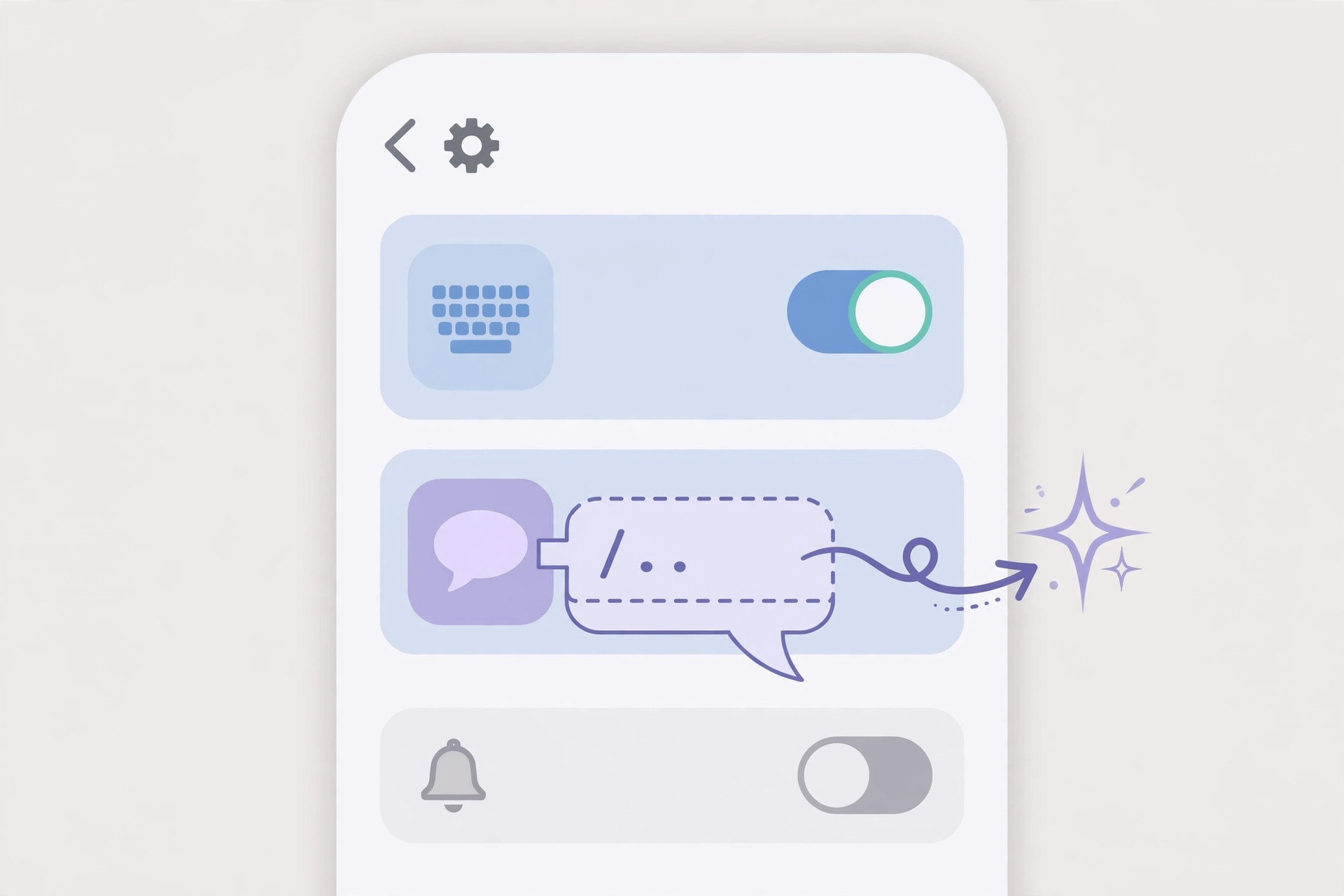
The idea is simple: you define a phrase (what you want to appear) and a shortcut (the few letters that trigger it). Once saved, typing the shortcut followed by a space anywhere — Messages, Mail, Safari, Notes — swaps in the full phrase automatically.
Set up Text Replacement step by step
- Open Text Replacement settings. Go to Settings → General → Keyboard → Text Replacement. You’ll see any shortcuts you’ve already created, plus a few examples Apple includes by default.
- Add a new shortcut. Tap the + button in the top-right corner of the screen.
- Enter the phrase. In the Phrase field, type or paste the symbol, word, or emoji you want to appear — for example ™, —, →, your email address, or a favorite emoji.
- Enter the shortcut. In the Shortcut field, type a short abbreviation you’ll remember but rarely type by accident — tm for ™, md for —, sig for your signature. Avoid real words, or the replacement will fire when you don’t want it.
- Save and test it. Tap Save, then open any app and type the shortcut followed by a space. The abbreviation should expand into the full phrase immediately.
Bonus: long-press keys for hidden characters
Text Replacement isn’t the only typing shortcut hiding in iOS. Long-press almost any key on the iPhone keyboard to reveal extra characters: hold e for é, è, and ê; hold $ for other currency symbols; hold – for the en dash and em dash; hold . for an ellipsis. It’s the fastest way to type accents and special characters without touching Settings.
If it still doesn’t work
If a shortcut refuses to expand, check the basics: you must type the exact shortcut followed by a space or punctuation — iOS only triggers the replacement at a word boundary. Also confirm the shortcut still exists under Settings → General → Keyboard → Text Replacement, since a stray left swipe can delete one. Replacements sync through iCloud, so a brand-new shortcut can take a minute to reach your other Apple devices. See Apple’s guide to text replacements on iPhone for the official details.
Text Replacement is one of several small iPhone productivity wins: you can also sync Messages between iPhone and Mac so conversations follow you, set an alarm for urgent reminders you can’t afford to miss, and change Safari’s design on iPhone to match how you browse.
Frequently asked questions
Do text replacements sync to my Mac and iPad?
Yes. Entries sync via iCloud to every device on the same Apple Account, so a shortcut created on iPhone works in macOS and iPadOS too. Give a new entry a minute to propagate.
Can the phrase be an emoji or a long block of text?
Absolutely. The phrase can be anything — a single emoji, a symbol like ™, or a full paragraph such as an email signature or home address. Many people use eml for their email address and addr for their street address.
Conclusion
Text Replacement turns a few forgettable letters into any symbol, emoji, or phrase you type often. Set up your most-used shortcuts once in Settings, and pair them with the long-press trick for hidden keyboard characters — you’ll wonder how you ever typed the slow way.





