
When your iPhone refuses to join your own Wi-Fi
Everything else in the house is online — the laptop, the smart TV, even the fridge — but your iPhone stubbornly refuses to connect to your home Wi-Fi. Before you call your internet provider, work through this checklist from simplest to most drastic. Apple’s own iPhone support pages cover the same troubleshooting ground, and AppleInsider has rounded up reader-tested fixes for stubborn Wi-Fi too.
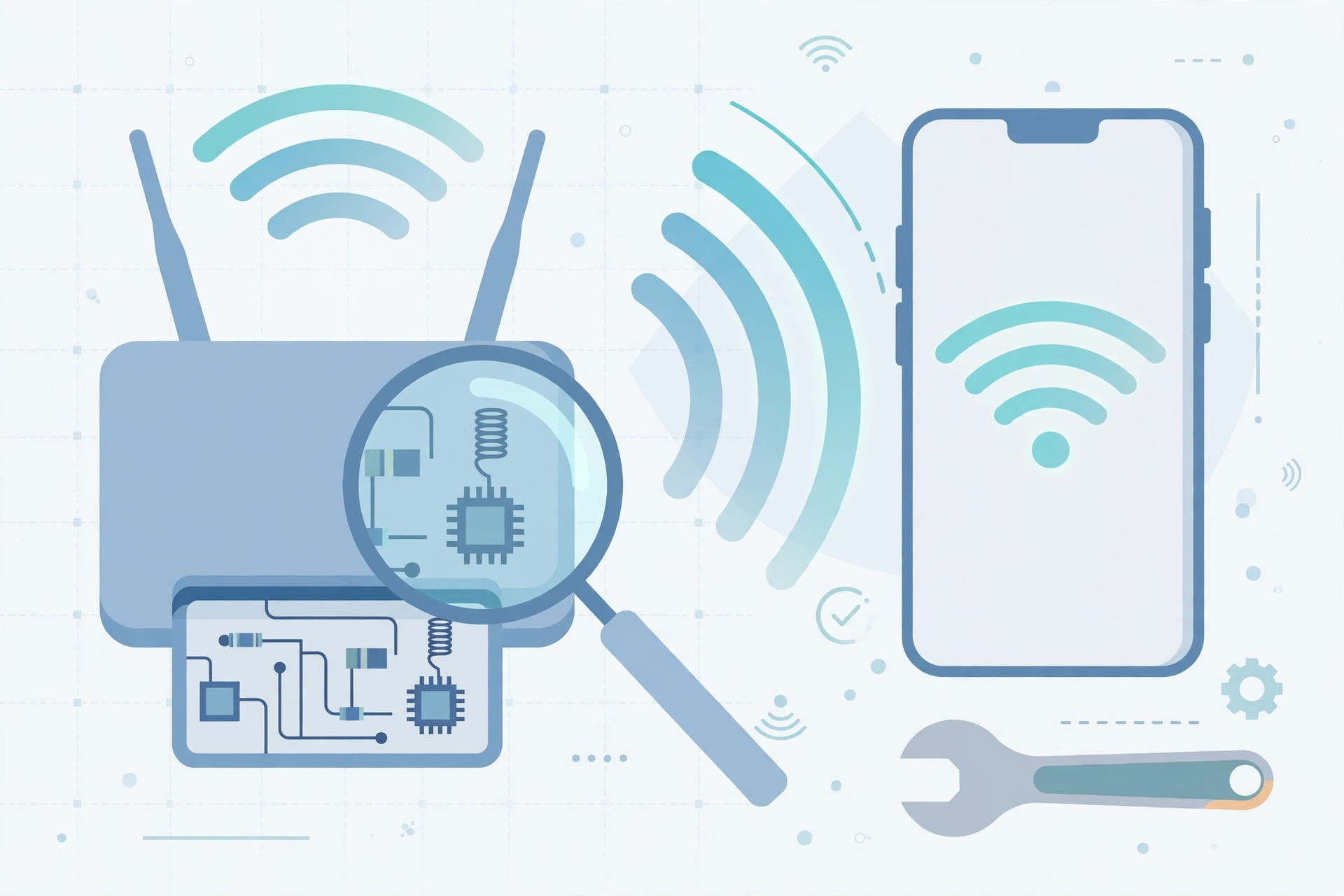
Step-by-step: get your iPhone back on your home Wi-Fi
- Restart both sides. Power your iPhone fully off and back on — don’t just lock the screen. Then reboot your router: unplug it from power for 30 seconds and plug it back in. Wait a couple of minutes for it to fully come back, then try connecting. This alone resolves a surprising number of connection failures.
- Check the password carefully. Most Wi-Fi failures are typos. Retype the password slowly, watching for look-alike characters (0 vs O, 1 vs l), stray spaces at the beginning or end, and case — Wi-Fi passwords are case-sensitive. The default password is usually printed on a sticker on the router itself.
- Forget the network and rejoin. Go to Settings > Wi-Fi, tap the (i) icon next to your home network, and choose Forget This Network. Now select the network again from the list and re-enter the password fresh. This clears any corrupted saved credentials.
- Turn off Private Wi-Fi Address (if your router whitelists devices). In Settings > Wi-Fi, tap the (i) on your home network. If your router uses MAC filtering or a device whitelist, switch Private Wi-Fi Address off — it’s safe to do on your own home network, and it lets the router recognize your iPhone consistently.
- Reset network settings. If nothing has worked, go to Settings > General > Transfer or Reset iPhone > Reset > Reset Network Settings. This wipes all saved Wi-Fi passwords and network preferences, so you’ll need to re-enter them — but it clears deep configuration glitches. If your connection problems extend to cellular data, our guide on verifying your SIM card may help too.
- Look at the router itself. Log into your router’s admin page and update its firmware — outdated firmware is a classic cause of refused connections. If the 5 GHz band won’t connect, try the 2.4 GHz band instead (it reaches farther and is more forgiving). Also, temporarily disable any VPN profile on your iPhone (Settings > General > VPN) to rule out a conflict. Once you’re reliably connected, you can set up an automatic hotspot connection so your Mac joins your iPhone’s network without fuss.
If it still doesn’t work
If your iPhone connects to other Wi-Fi networks but not your home one, the issue is almost certainly the router — check its settings or contact your internet provider. If it fails on every network, the phone’s Wi-Fi hardware may be at fault, and an Apple Store visit is the next step. One more quick test: connect with a different phone to see whether the problem follows the iPhone or the router.
FAQ
Why does my iPhone say “Incorrect password” when the password is right?
This usually means the saved credentials are corrupted or the router rejected the handshake for another reason (MAC filtering, full DHCP pool, firmware bug). Forgetting the network and rejoining, as described in step 3, fixes it in most cases.
Will Reset Network Settings delete my photos or apps?
No. It only erases network-related data: saved Wi-Fi networks and passwords, Bluetooth pairings, cellular settings and VPN configurations. Your photos, apps and files are untouched.
Conclusion
Start with the easy wins — restart everything and retype the password — and escalate through forgetting the network, disabling the private address, and resetting network settings. In the vast majority of cases, one of these six steps brings your iPhone back online.






[…] on the cellular side, not your device. If your phone won’t join that Wi-Fi either, fix your iPhone that won’t connect to home Wi-Fi before going any […]