
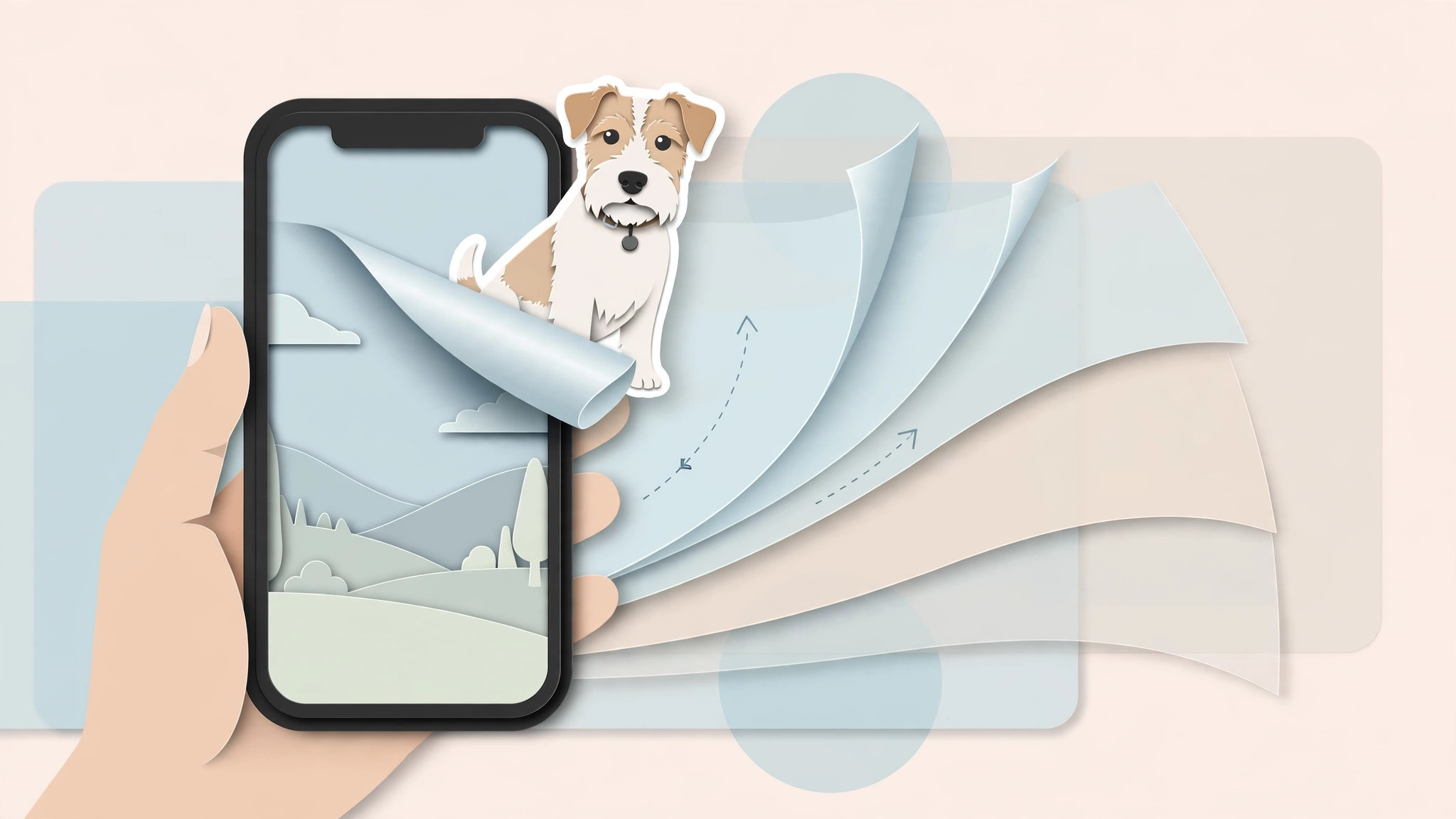
Some of the best iPhone photo tricks require no editing skills at all — like lifting the subject clean off a photo’s background with a single long-press. Since iOS 16, the iPhone can separate a person, pet, or object from its background in a second, giving you a cutout you can paste, share, or drag into other apps. Here’s how it works, and what to do if your iPhone is too old for the built-in version.
What the lift-subject feature does
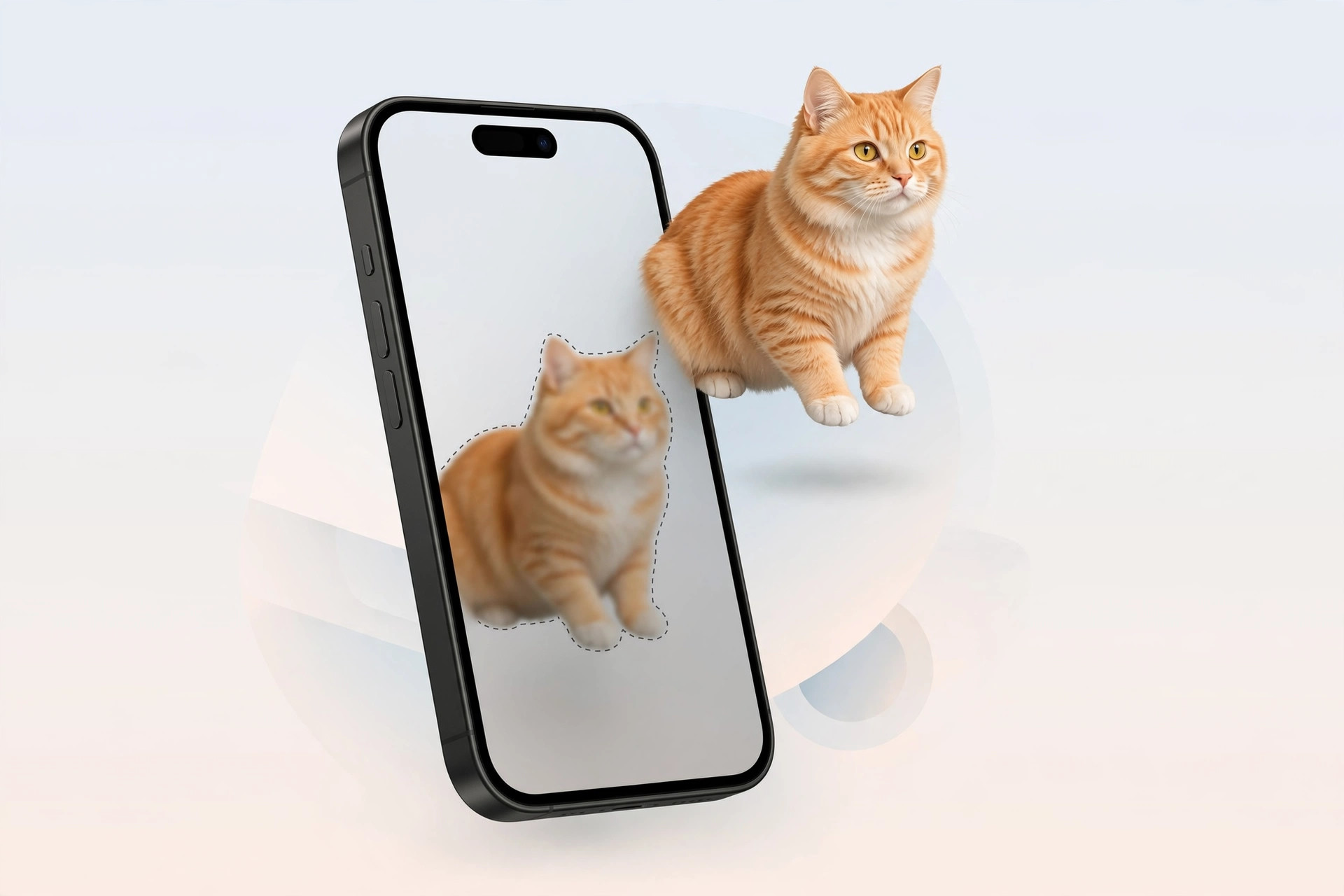
Apple’s subject-lifting is built into iOS 16 and later on iPhone XS/XR and newer — anything with an A12 Bionic chip or later. Open a photo, long-press the subject, and the outline animates as the phone’s neural engine separates it from the background. A popup then offers Copy and Share; you can also drag the cutout directly into another app. The result is saved as a PNG with a transparent background. Apple describes the feature in its photo cutout documentation, and it has been covered extensively by MacRumors and 9to5Mac.
How to lift a subject from a photo on iPhone
- Open the photo. Launch the Photos app and open any photo with a reasonably clear subject — a person, pet, or object.
- Long-press the subject. Touch and hold the subject for a second. You will see the outline shimmer and animate as the iPhone separates it from the background.
- Choose what to do with the cutout. From the popup menu, tap Copy to put it on the clipboard, or Share to save it to Files or send it to someone. You can also drag it straight into Messages, Notes, or another app — the cutout drops in as a transparent PNG.
- Try it beyond Photos. The same long-press works on paused video frames, images in Safari, screenshots, and Quick Look previews. Nothing needs enabling — if your iPhone and iOS version support it, it just works.
On iOS 15 and older iPhones
The built-in lift-subject feature is unavailable on iOS 15 and on older hardware like the iPhone X and 8 — it needs the A12-era neural engine. The workaround is simple: open the App Store, search for “remove background,” and install a free background-removal app. Import your photo there, and the app does the same subject-separation job, saving a transparent cutout you can use anywhere.
More photo tricks: if you like playing with advanced capture modes, see why spatial photo mode isn’t working in iOS 26 — and since the long-press works on screenshots too, you may want to take HDR screenshots on iPhone and iPad for the cleanest source images.
If it still doesn’t work
Confirm you are on iOS 16 or later (Settings → General → Software Update) and using an iPhone XS/XR or newer — the iPhone X and 8 simply cannot do this on-device. If the long-press does nothing, try a photo with a clearer, better-lit subject; extremely busy backgrounds can defeat the detection. Restart the Photos app or the iPhone if the popup menu fails to appear.
Frequently asked questions
Where does the cutout go when I tap Share?
Wherever you send it — Files, Messages, Mail, or any app you choose. The cutout is a standard PNG with a transparent background, so it pastes cleanly over any other image or color.
Can I use the cutout as a sticker?
Yes. Dragged or pasted into Messages, the transparent cutout behaves like a sticker you can place over conversations. Third-party apps that accept image stickers work the same way.
Conclusion
Lifting a subject from a photo background is one of those features that feels like magic the first time: long-press, and the subject peels away, ready to paste anywhere. On iOS 16 and an iPhone XS/XR or newer it is built in and instant; on older setups a free App Store background remover does the same job. Either way, no photo-editing skills required.






[…] The lifted subject can be pasted anywhere an image is accepted. For a deeper walkthrough of the technique, see our guide to lifting a subject from a photo background on iPhone. […]