
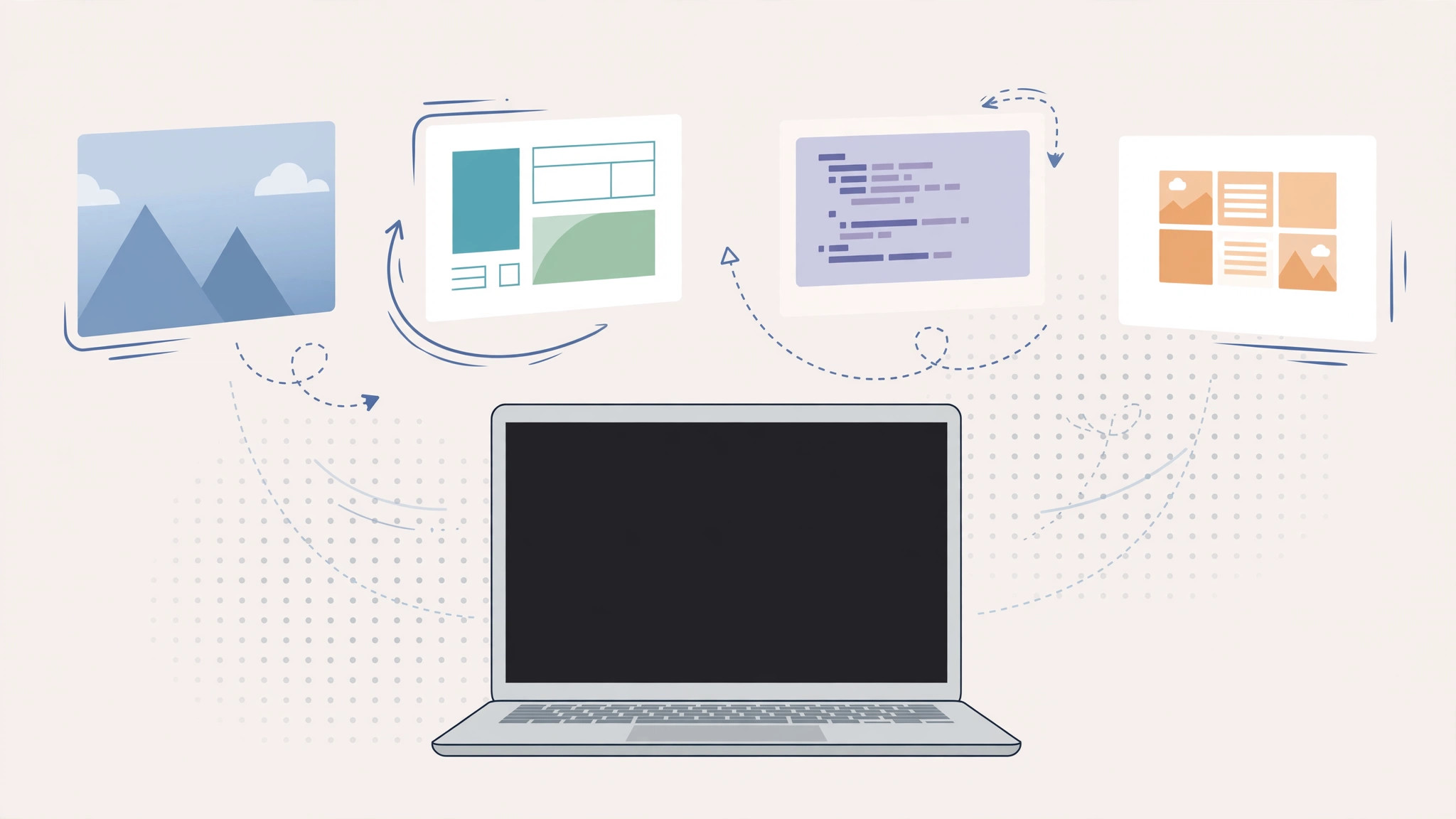
You set up your Mac desktops — work on the left, chat in the middle, browser on the right — and the next morning they’ve shuffled themselves around. Spaces (Apple’s name for virtual desktops) do this by design, but you can make them stay put. Here’s why it happens and how to stop it.
Why Spaces rearrange themselves
macOS has a Mission Control setting called “Automatically rearrange Spaces based on most recent use.” When it’s on, your Mac promotes the desktop you used most recently to the front of the row, pushing the others along. It feels helpful at first — until muscle memory kicks in and you swipe to a desktop that isn’t where you left it. If you open your installed apps list on the wrong desktop often, this shuffling is usually the culprit.
The logic behind it is simple: Apple assumes the Space you touched last is the one you want closest at hand. For casual users with two or three desktops, that guess is often right. But if you’ve built a deliberate layout — say, a writing desktop, a research desktop, and a communications desktop — the constant re-sorting breaks your spatial memory and slows you down every time you switch.
How to lock your desktops in place
1. Open Mission Control settings
Click the Apple menu and go to System Settings > Desktop & Dock, then scroll down to the Mission Control section. (On older macOS versions, it’s in System Preferences > Mission Control.) Apple’s Spaces support guide walks through the same panel.
2. Turn off automatic rearrangement
Find “Automatically rearrange Spaces based on most recent use” and switch it off. That’s the whole fix — from now on, your desktops stay in the order you arranged them, no matter which one you visit most. The change takes effect immediately; you don’t need to restart or log out.
3. Arrange your Spaces once
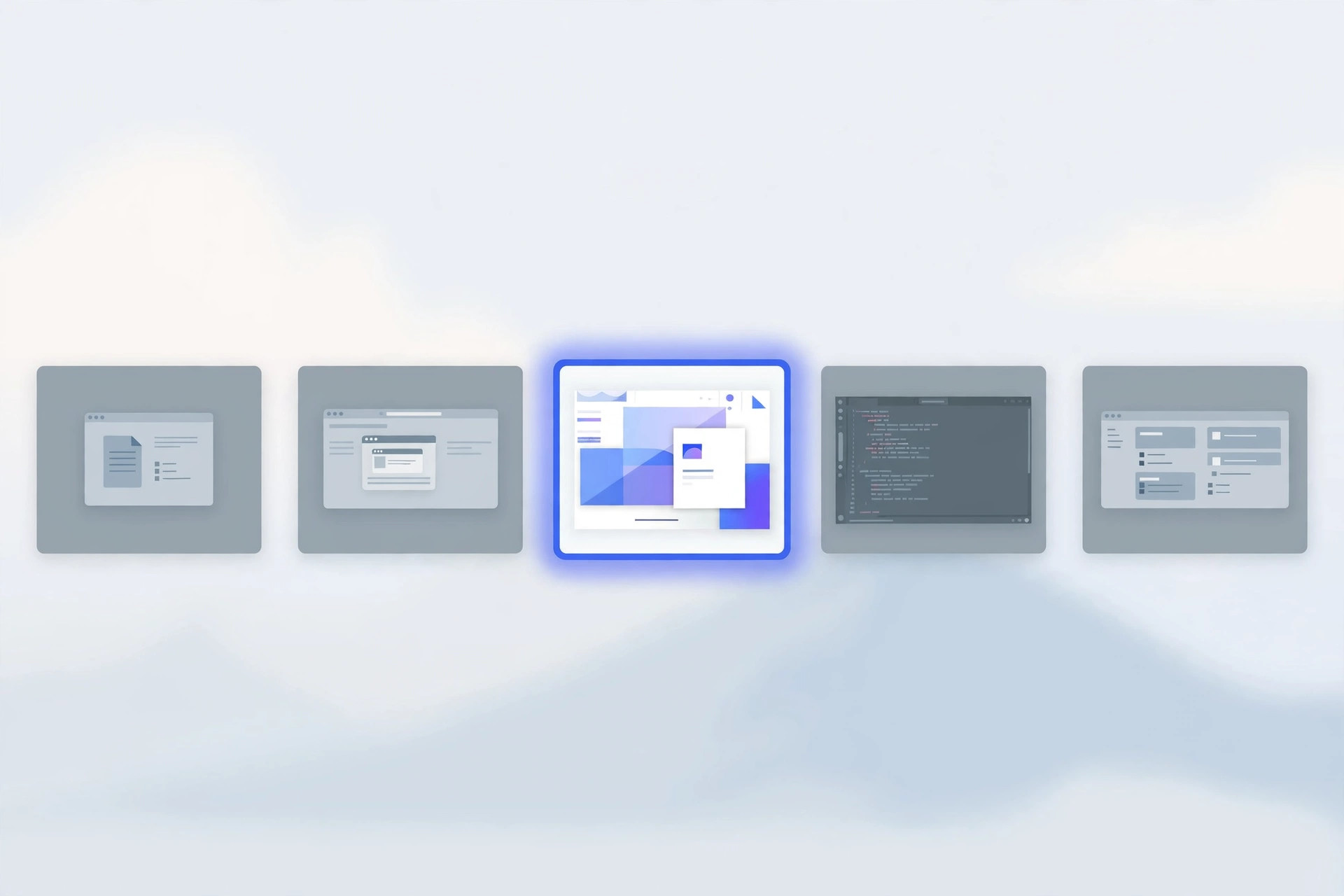
Open Mission Control (swipe up with three fingers, or press F3), then drag the desktop thumbnails at the top into your preferred order. With rearrangement off, this order is now permanent. Cult of Mac notes this is one of the first settings power users change on a new Mac. Take a moment to put your most-used desktop first so it’s one swipe away.
If it still doesn’t work
If desktops still move after the toggle is off, check for third-party window managers or utilities that reorder Spaces on their own — pause them and test again. Also make sure you’re not accidentally dragging thumbnails in Mission Control, and give your folder colors and emoji a matching scheme so each desktop is easy to recognize at a glance. In rare cases, a corrupted preferences file can re-enable the behavior; deleting the Dock preferences and restarting the Dock usually clears it.
FAQ
Will turning this off affect full-screen apps?
No. Full-screen app Spaces still appear at the end of the row as usual; the setting only stops macOS from re-sorting your regular desktops by recency.
Can I still reorder Spaces manually?
Yes — drag thumbnails in Mission Control any time. Manual order is preserved; only the automatic reshuffling stops.
Conclusion
Spaces that swap places aren’t a bug — they’re macOS trying to be clever. Flip one toggle in Mission Control settings, and your desktops will stay exactly where you put them.





