
If you’re coming from Windows or you just prefer a different keyboard layout, macOS lets you remap the modifier keys — Caps Lock, Control, Option, Command, and the Function (fn) key. You can swap them, turn one off, or assign a different action entirely. This is a lifesaver for Windows switchers whose muscle memory expects Ctrl where macOS puts Command, for left-handed users who want easier reach, and for anyone who keeps triggering Caps Lock by accident. Here’s how to do it in macOS System Settings in under a minute.
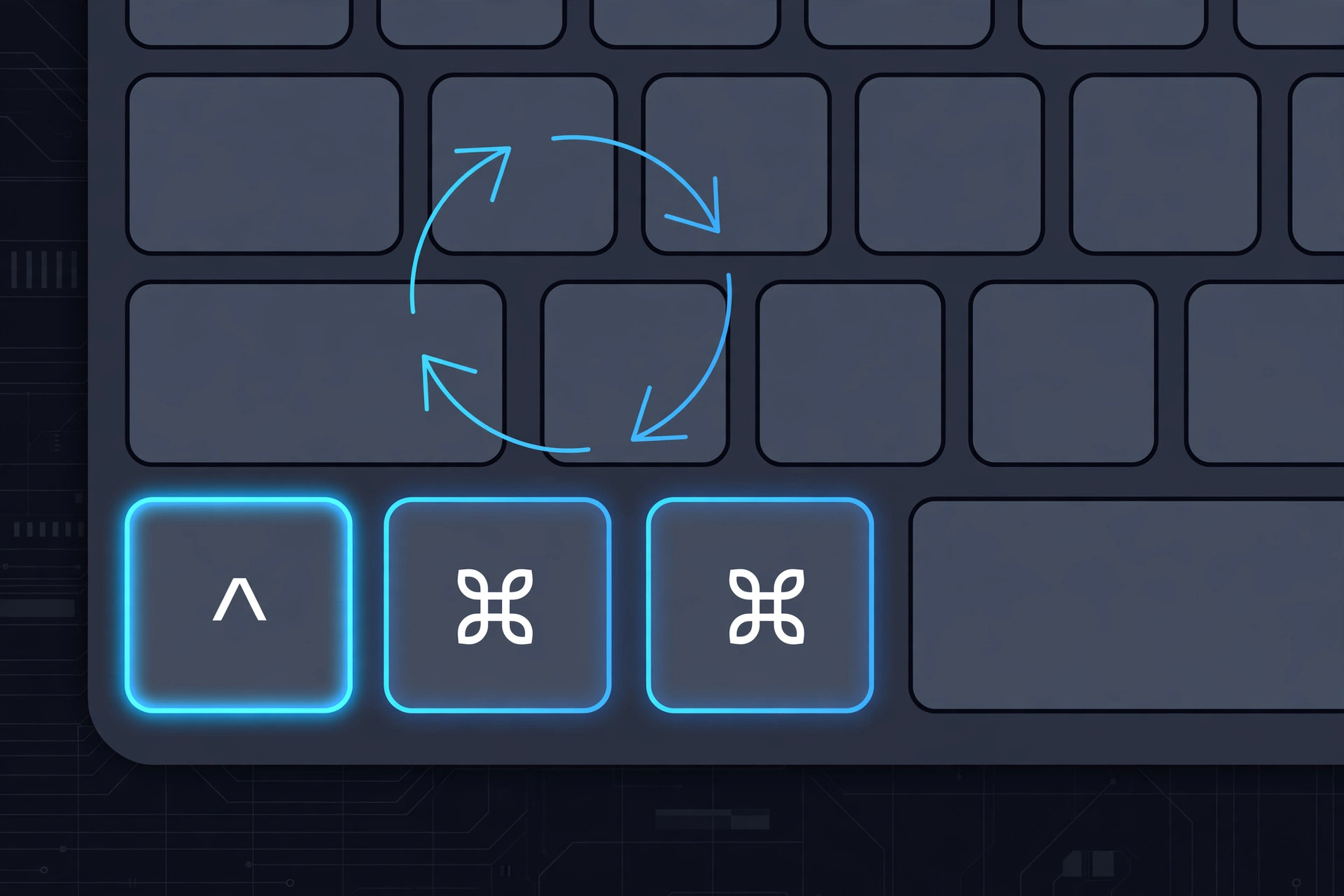
Remap modifier keys in System Settings
- Open System Settings (Apple menu → System Settings).
- Click Keyboard in the sidebar.
- Click the Modifier keys… button (you may need to scroll down, depending on your macOS version).
- Select your keyboard from the dropdown at the top (if you use an external keyboard, choose it here).
- For each modifier key (Caps Lock, Control, Option, Command, Function), choose a new action from the dropdown — you can swap them, set one to “No Action”, or assign another key.
- Click Done.
Apple documents this in Apple Support’s guide to changing the behavior of modifier keys on Mac. The change applies immediately and works for the selected keyboard only, so your MacBook’s built-in keyboard and an external keyboard can have different mappings.
Popular remapping ideas
- Swap Command and Control: If you’re used to Windows, swapping these makes copy/paste (Ctrl+C) feel familiar.
- Turn Caps Lock into Escape: A favorite among programmers — set Caps Lock to “Escape” for quick access in code editors like VS Code or Vim.
- Disable a key: Set any modifier to “No Action” if you keep hitting it by accident.
- Swap Option and Command: Some Windows keyboards have the Alt and Windows keys in swapped positions relative to a Mac layout; swapping Option and Command fixes the physical mismatch.
For more macOS customization, see how to quickly open the installed apps list in macOS 26 and how to change folder colors and add emoji in macOS 26.
How to reset to defaults
Changed your mind? Go back to System Settings → Keyboard → Modifier keys, select the keyboard, and click Restore Defaults. This instantly returns every modifier to its factory behavior — useful if a remapping experiment made typing confusing.
If it still doesn’t work
If your remapping doesn’t seem to apply, make sure you selected the correct keyboard in the Modifier keys dialog (built-in vs. external). Some third-party keyboards with custom drivers may override macOS settings — check the manufacturer’s software. And if keys behave strangely after a macOS update, revisit the Modifier keys dialog; MacRumors notes that major updates occasionally reset custom mappings.
FAQ
Can I remap keys per-app?
Not with the built-in Modifier keys dialog — it applies system-wide per keyboard. For per-app remapping, you’ll need a third-party tool like Karabiner-Elements.
Will this affect my external keyboard too?
Only if you select it in the dropdown. Each keyboard gets its own independent modifier mapping.
Conclusion
Remapping modifier keys is one of the quickest macOS customizations you can make. Whether you’re swapping Command and Control to match muscle memory from Windows, turning Caps Lock into Escape, or disabling a key you keep hitting by accident, it takes less than a minute in System Settings → Keyboard → Modifier keys. And if you ever want to undo it, Restore Defaults is one click away. Your fingers will thank you.





