
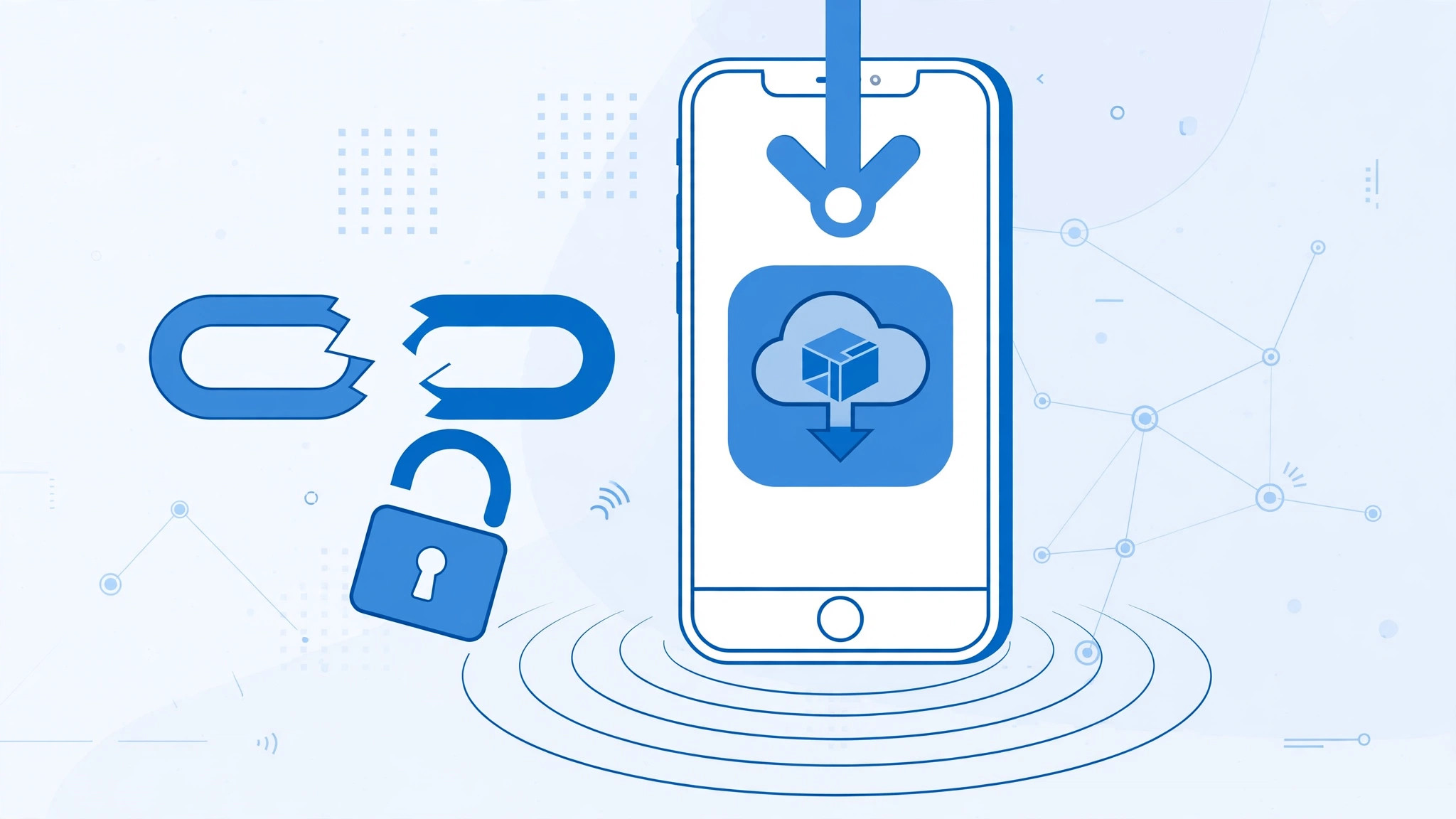
Trying to download a 1 GB game over LTE, only to have your iPhone refuse until you find Wi-Fi? Apple’s cellular download cap exists to protect your data plan — but if you are on an unlimited plan, it is just annoying. Here is how to change the rule.
iOS 13 made this far better: Apple raised the default cap to 200 MB and added a real setting for it. On older iOS versions, large downloads over cellular were simply blocked, and users had to resort to workarounds. Now you can decide for yourself: always allow large downloads, or have the iPhone ask first.
How the cellular download limit works
Before starting a download over cellular, the App Store checks the app’s size against your limit. Anything over the limit triggers a warning telling you to connect to Wi-Fi — or, with the right setting, a prompt asking whether to proceed anyway. It is the same family of download controls as blocking iOS 26 updates, which also tames what your iPhone pulls in the background.
Remove the limit on iOS 13
- Open Settings. Tap Settings on the Home Screen.
- Go to iTunes & App Store. Scroll down and tap iTunes & App Store (the App Store section).
- Open the cellular-download rule. Under Cellular Data, tap Apps to see the available options.
- Pick the rule that fits your plan. Choose Always Allow if you are on an unlimited mobile-data plan — large apps and updates will download freely over cellular. Choose Ask If Over 200 MB if your plan is capped — the system asks permission before downloading anything large, so nothing eats your data by surprise.
- Download normally from now on. After this, downloading a big app or update over LTE triggers the behavior you chose instead of being blocked.
On modern iOS the setting moved but works the same way: go to Settings → App Store → App Downloads, and choose Always Allow, Ask If Over 200 MB, or Always Ask. Apple’s iPhone User Guide explains managing app downloads and cellular data, and 9to5Mac covered these App Store changes when iOS 13 introduced them.
If it still doesn’t work
If downloads keep stalling, make sure your carrier settings are up to date — open Settings → General → About and install any carrier update the iPhone offers. Also check that Low Data Mode is off, since it can override download behavior, and note that some carriers impose their own caps that no iPhone setting can lift.
Frequently asked questions
Will “Always Allow” burn through huge amounts of data?
Yes — that is exactly what it does. Only choose it on a truly unlimited plan; otherwise pick Ask If Over 200 MB so nothing large downloads without your approval.
Does this setting affect app updates too?
Yes. It covers both new downloads and updates, so a 2 GB game update will no longer sit waiting for Wi-Fi.
Conclusion
The cellular download limit is a safety net, not a hard wall. With one setting in iOS 13 and later, you decide whether your iPhone asks first or just goes for it — pick the option that matches your plan and forget about the Wi-Fi chase. And if your data plan lives on a second line, our guide to allowing calls only from a specific SIM card in Focus mode shows how to manage multi-line life on iPhone.





