
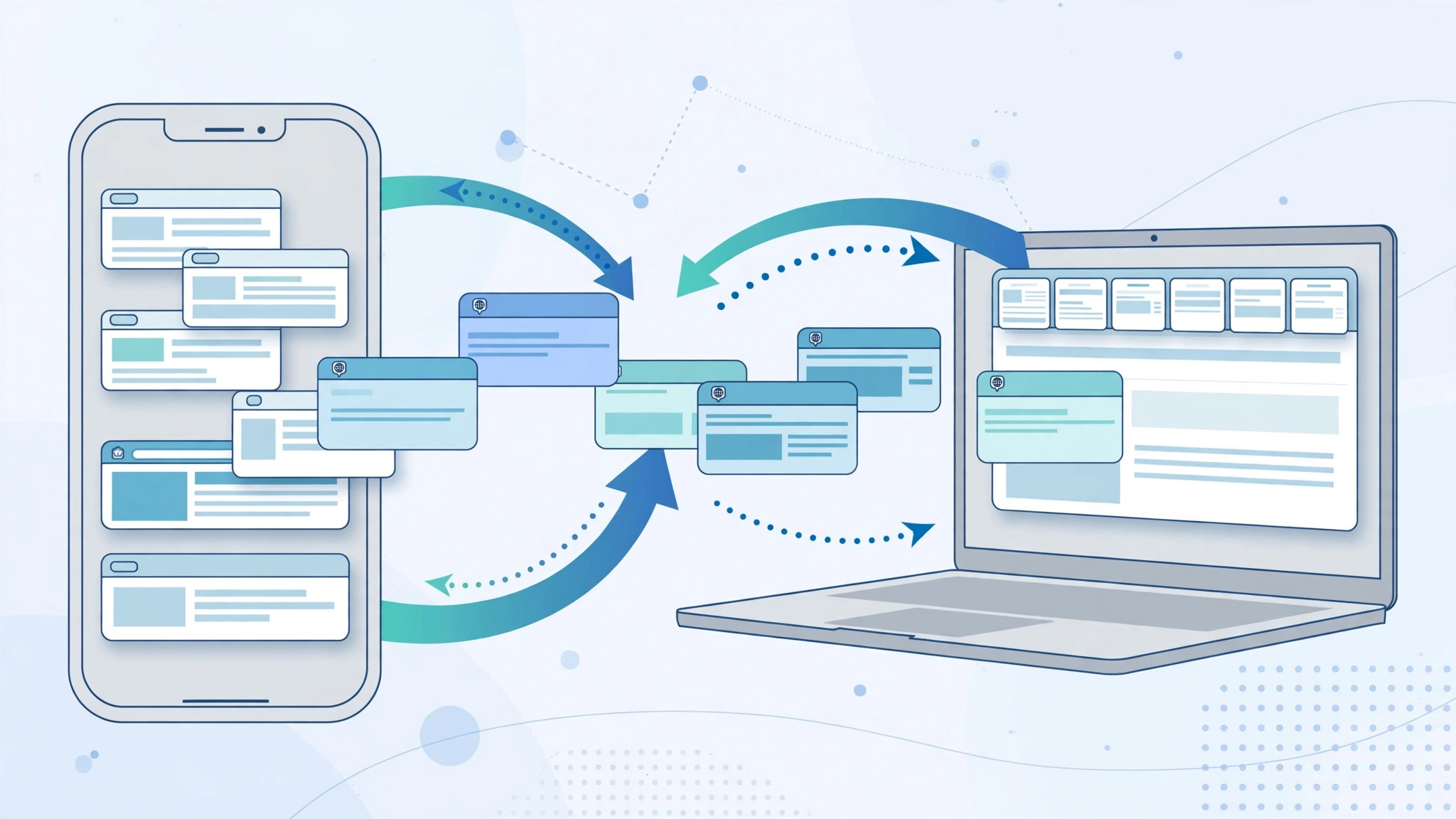
One of the handiest tricks in Apple’s ecosystem is iCloud Tabs: start reading on your Mac, then pick it up on your iPhone. But sometimes the list of tabs from your other devices refuses to appear in Safari on iPhone, even though it worked fine before. This is almost always a settings or sync hiccup, not a hardware problem, and you can usually fix it in minutes. Here is a proven, step-by-step method to get Safari tabs syncing across your iPhone, iPad, and Mac again.
Why your Safari tabs disappear from other devices
iCloud Tabs depend on three things: the same Apple ID on every device, the Safari toggle switched on in iCloud settings, and a stable software and network environment. If any of these break — after an iOS update, a password change, or an accidental settings toggle — the tab list can go blank. Beta versions of iOS or macOS can also temporarily break cross-device features. Similar sync issues affect other Apple services too; if you have dealt with messages not syncing between iPhone and Mac, you know how fragile these handshakes can be. Before changing anything, confirm every device is online and signed into the same Apple ID.
How to bring back Safari tabs from your other devices
Work through these steps in order. In most cases the tabs return after step 4.
- Confirm the same Apple ID everywhere. On iPhone or iPad, open Settings and tap your name at the top. On Mac, open System Settings and click Apple ID. Tabs cannot be shared between different accounts.
- Restart all your devices. A restart clears temporary sync glitches — Apple Support lists it as the first step for most iCloud issues.
- Update to stable software. On iPhone or iPad go to Settings > General > Software Update; on Mac, System Settings > General > Software Update. Avoid beta builds if you rely on cross-device features.
- Toggle the iCloud Safari switch off and on. On iPhone: Settings > [your name] > iCloud — turn Safari off, wait 30 seconds, turn it back on. On Mac: System Settings > Apple ID > iCloud, same for Safari. This re-registers the device for tab sync.
- Check the iCloud Tabs section in Safari. Open Safari, tap the tab overview button, and confirm the iCloud Tabs section is enabled on the start page. Guides on MacRumors show where it lives in current iOS versions.
- Repeat on the other devices, then wait. Apply the same toggle on your iPad and Mac, then give iCloud a few minutes — sync is not instant.
If it still doesn’t work
If the list is still empty, check Apple’s system status page for an iCloud outage and temporarily disable any VPN or content blocker. As a last resort, sign out of iCloud on the iPhone and sign back in to force a full re-sync (back up your data first). If Safari misbehaves in other ways, see our guide on why Safari on iPhone displays some websites incorrectly. Step-by-step walkthroughs on YouTube can also help you follow the taps visually.
Frequently asked questions
Can I view tabs from a device signed into a different Apple ID?
No. iCloud Tabs only sync within a single Apple ID. To move a page between accounts, use Handoff or AirDrop instead.
Does iCloud Tabs need Wi-Fi to work?
Any internet connection works, including cellular data. Syncing may just be slower on mobile data, so give it a few extra minutes.
Conclusion
Missing Safari tabs are almost always caused by a mismatched Apple ID, a disabled iCloud Safari toggle, or a temporary sync glitch. Verify the account, restart your devices, and toggle the Safari switch — that combination restores iCloud Tabs for the vast majority of users.





