
Autocorrect is supposed to save you from typos. But the iPhone keyboard learns from everything you type — including the typos you never bothered to fix, the slang you used once, and the misspelled names you tapped through in a hurry. Over months, that learned dictionary turns against you: autocorrect starts “fixing” correct words into wrong ones. The cure is simple: wipe the dictionary and let the keyboard start over.
Why autocorrect goes bad
iOS builds a personal dictionary from your typing habits. Every time you accept a suggestion or ignore a correction, the keyboard takes notes. The trouble is it also remembers your mistakes — type a word wrong three times without correcting it, and the iPhone may decide that’s how you spell it. A reset erases all of it at once.
Reset the keyboard dictionary step by step
- Open Settings → General → Transfer or Reset iPhone.
- Tap Reset, then choose Reset Keyboard Dictionary.
- Enter your passcode and confirm. Every custom word the keyboard learned from you is erased, and iOS starts learning fresh from zero. Apple’s autocorrect and predictive text guide describes what these settings do.
- Check your keyboard settings afterward. Go to Settings → General → Keyboard and confirm Auto-Correction is on, plus Predictive Text and Check Spelling set the way you like.
- Re-teach the keyboard correctly. Type new words properly a few times and tap the suggested correction to accept it — accepted corrections are what the dictionary actually learns. Cult of Mac’s walkthrough covers the same process with screenshots.
Try this before a full reset
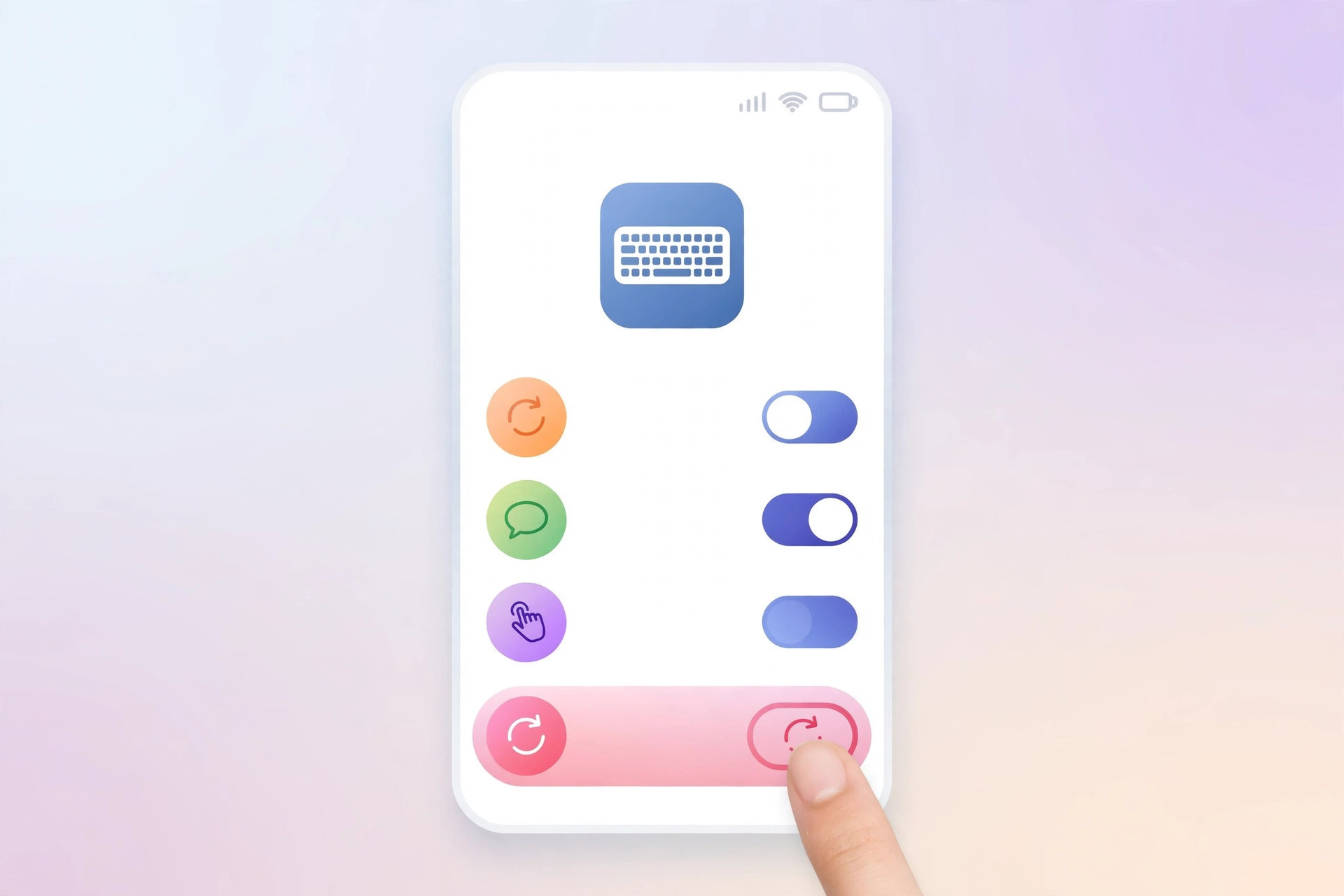
Sometimes you don’t need the nuclear option. Toggle Auto-Correction off and back on in Settings → General → Keyboard, and do the same with Predictive Text. That alone can dislodge a stuck suggestion. If autocorrect mangles words in another language instead, see how to fix autocorrect suggesting foreign words on macOS — the learning mechanism is the same.
If it still doesn’t work
- Remember there’s no way to delete individual learned words — only the full dictionary reset. If one bad word keeps coming back, the reset is the only fix.
- Backups don’t preserve the custom dictionary separately, so a reset is final until the keyboard relearns your habits.
- If autocorrect itself annoys you more than it helps, you can turn autocorrect off on Mac — and on iPhone, just switch Auto-Correction off in keyboard settings.
- For words you type often, iPhone text replacement for rare symbols and emoji gives you shortcuts the dictionary can’t mess up.
Frequently asked questions
Will resetting the dictionary delete my text replacements?
No. Text replacements (Settings → General → Keyboard → Text Replacement) are stored separately and survive the reset. Only the words the keyboard learned passively from your typing are wiped.
How long until the keyboard learns my words again?
Usually a few days of normal typing. The keyboard picks up frequently used words quickly — just make sure to correct it when it’s wrong in the early days, so it learns the right spellings this time.
Conclusion
A corrupted keyboard dictionary makes autocorrect feel like sabotage. One reset wipes the slate clean, and with a little careful re-teaching, your iPhone will be finishing your sentences correctly again within days.





