
Nothing ruins a quiet browsing session like a video that starts blaring the moment a page loads. News sites, blogs, and shopping pages are all guilty of it. The good news: Safari on Mac lets you shut this down for good. You can stop videos from auto-playing on every website at once — or tame them site by site, so your favorite video platforms still behave the way you like.
It’s a small settings change with an outsized effect on your sanity, and it pairs nicely with other Safari tune-ups like turning off tab previews in Safari on Mac.
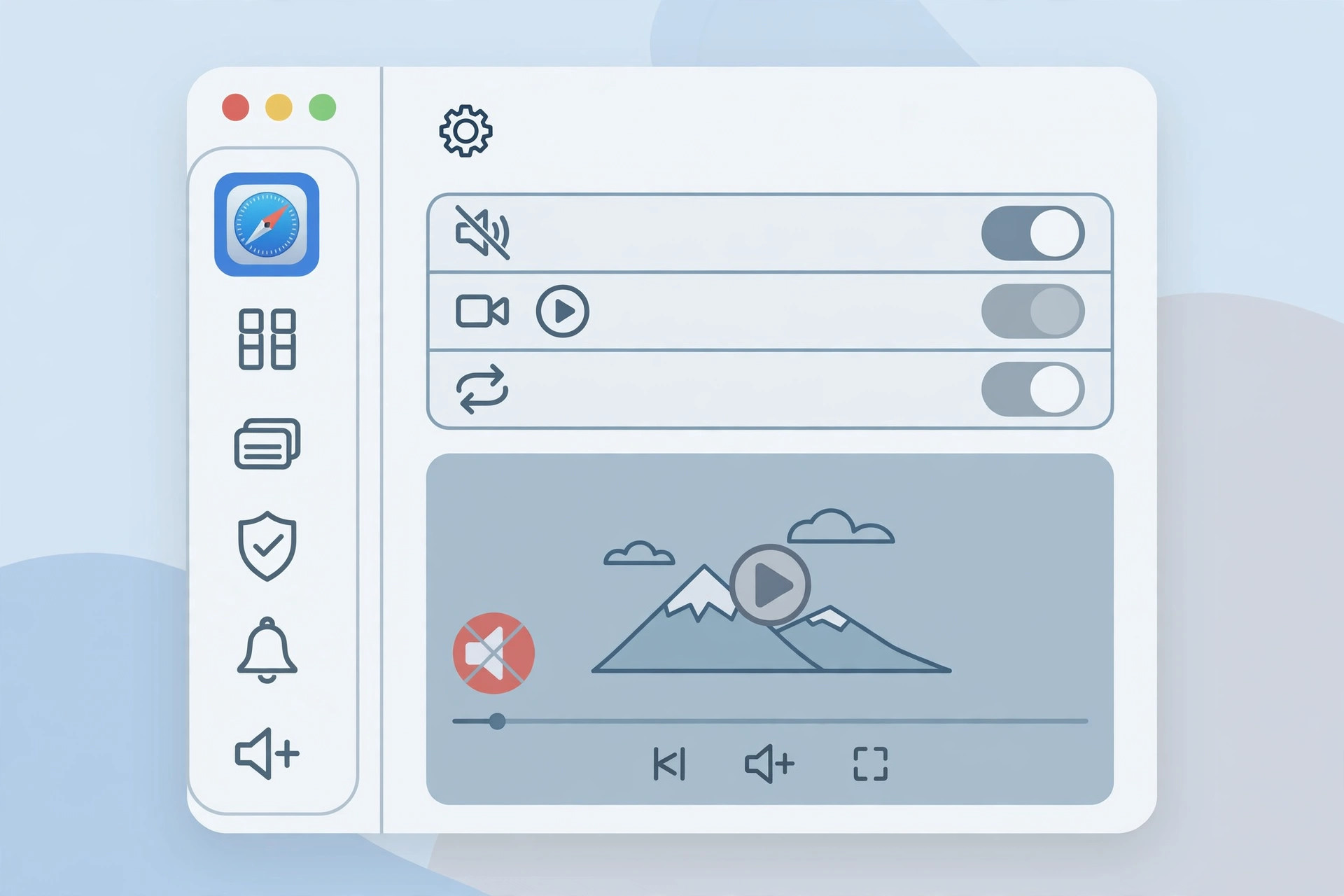
Turn off video autoplay step by step
- Open Safari on your Mac.
- In the menu bar at the top, click Safari > Settings (on older macOS versions it’s called Preferences).
- Click the Websites tab at the top of the Settings window.
- In the left sidebar, click Auto-Play.
- At the bottom of the window, next to “When visiting other websites”, open the dropdown and choose Never Auto-Play.
- Optional: websites you have already visited appear in the list above. Set each one individually — for example, allow auto-play on your favorite streaming site while blocking it everywhere else.
- Close the Settings window. The change takes effect immediately — no restart needed.
Safari gives you three choices here, and it’s worth knowing what each does. Allow All Auto-Play is the default noisy behavior. Stop Media with Sound is a good middle ground: videos may still play silently, but nothing will start blasting audio at you. Never Auto-Play is the nuclear option — nothing plays until you press the play button yourself. Apple’s Safari user guide for Mac documents these website settings, and 9to5Mac has covered the auto-play controls in its Safari tips.
If it still doesn’t work
A handful of sites use custom video players that ignore Safari’s auto-play policy — if one particular site still misbehaves, set it explicitly in the per-site list rather than relying on the global default. Also double-check that you’re changing the setting in Safari on your Mac: this toggle does not sync to your iPhone or iPad, which have their own (more limited) media behavior. If videos stutter or fail to load after the change, a content blocker or extension may be interfering — try disabling extensions temporarily. And while you’re cleaning up Safari, you might also want to set different Safari start pages on iPhone and Mac for a tidier browsing setup. Video walkthroughs of the Safari auto-play setting can help if you can’t find the Websites tab.
Frequently asked questions
Will this break YouTube or Netflix?
No. Videos still load normally — they just wait for you to press play. If you prefer the old behavior on specific sites, add them as exceptions in the per-site list and set them to Allow All Auto-Play. For YouTube specifically, you can also use picture-in-picture for YouTube in Safari on Mac to keep watching while you work.
Does this setting sync to my iPhone?
Unfortunately not. Safari website settings like Auto-Play are per-device and don’t travel over iCloud. On iPhone, Safari doesn’t offer the same global toggle, so you’ll need to manage noisy sites individually there — or use Reader view, which strips most auto-playing media from articles automatically.
Conclusion
One dropdown, set to Never Auto-Play, and the web goes quiet. Your pages load faster, your speakers stay silent until you say otherwise, and the only videos that play are the ones you actually chose to watch.





