
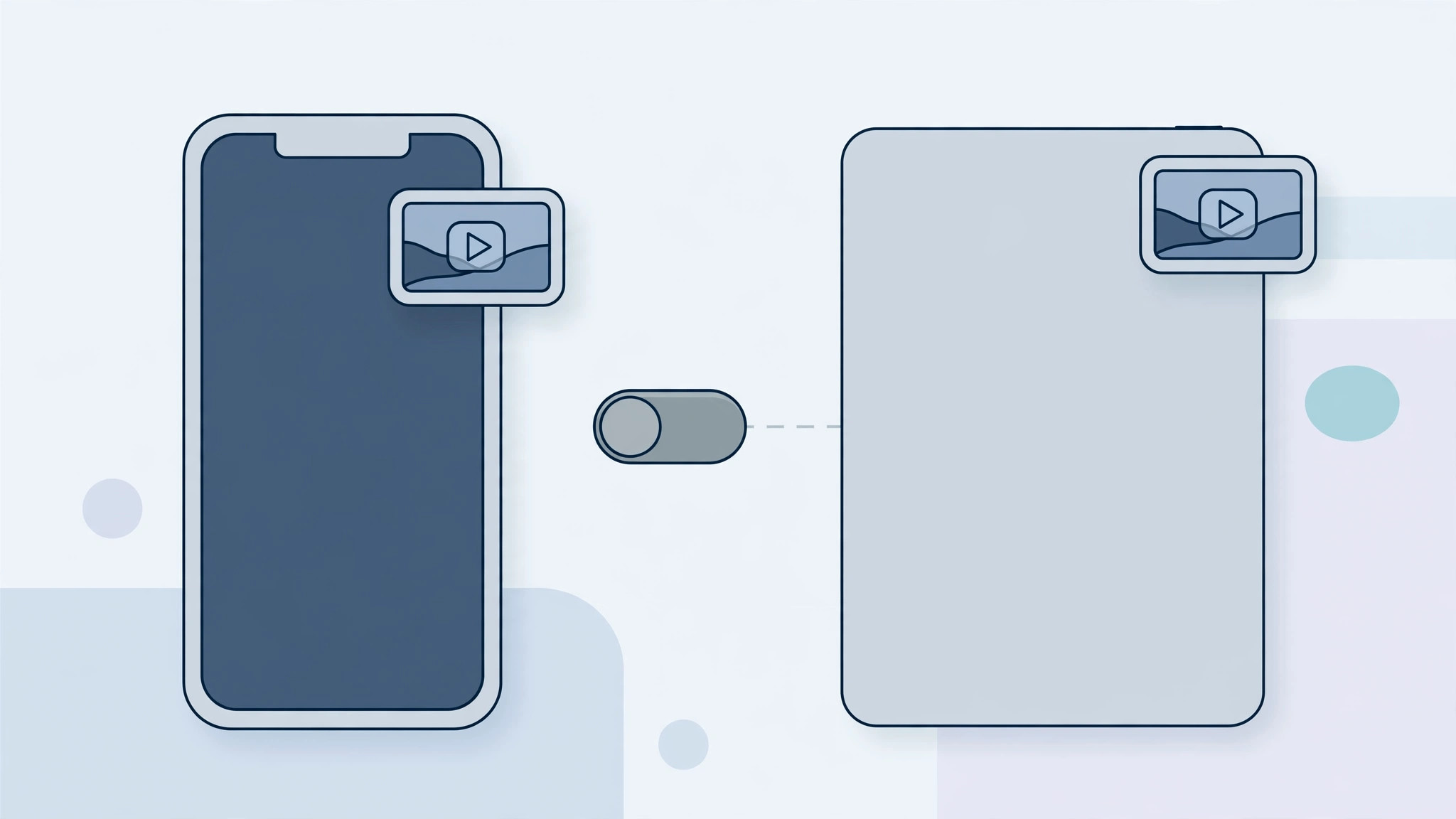
You’re watching a video, swipe up to check a message — and the video follows you as a floating mini-window. That’s automatic picture-in-picture (PiP), and while some people love it, others find it annoying when it kicks in every single time you leave an app. The good news: turning off automatic PiP takes one tap, and you can still use PiP manually whenever you want. Here’s how on iPhone and iPad.
Step-by-step: turn off automatic picture-in-picture
- On your iPhone or iPad, open Settings.
- Go to General > Picture in Picture.
- Turn off “Start PiP Automatically”. That’s it — videos will no longer pop into a floating window when you leave an app.
PiP is still there when you want it
Turning off the automatic behavior doesn’t remove picture-in-picture. To use it on demand, play a video in fullscreen and tap the PiP button in the corner — the video detaches into its familiar floating window. You get full control: PiP only when you ask for it. Apple Support documents the PiP settings, and sites like Cult of Mac and MacRumors have covered how the feature behaves across apps.
A quick tip: PiP and FaceTime
Automatic PiP also affects FaceTime calls — leave the call screen and your conversation shrinks to a corner window. The same “Start PiP Automatically” toggle controls this, so disabling it keeps your FaceTime video fullscreen until you tap the PiP button yourself.
Requirements
Picture-in-picture needs iOS 14 or later on iPhone. On iPad, PiP has been supported since iOS 9. Note that some apps implement their own video behavior, so a third-party app might handle background playback its own way — but the system setting covers the standard iOS video player.
More iPhone video tips
If you watch a lot of video on your iPhone, you may also want to read how to turn off all SharePlay features on iPhone and how to take HDR screenshots on iPhone and iPad.
If it still doesn’t work
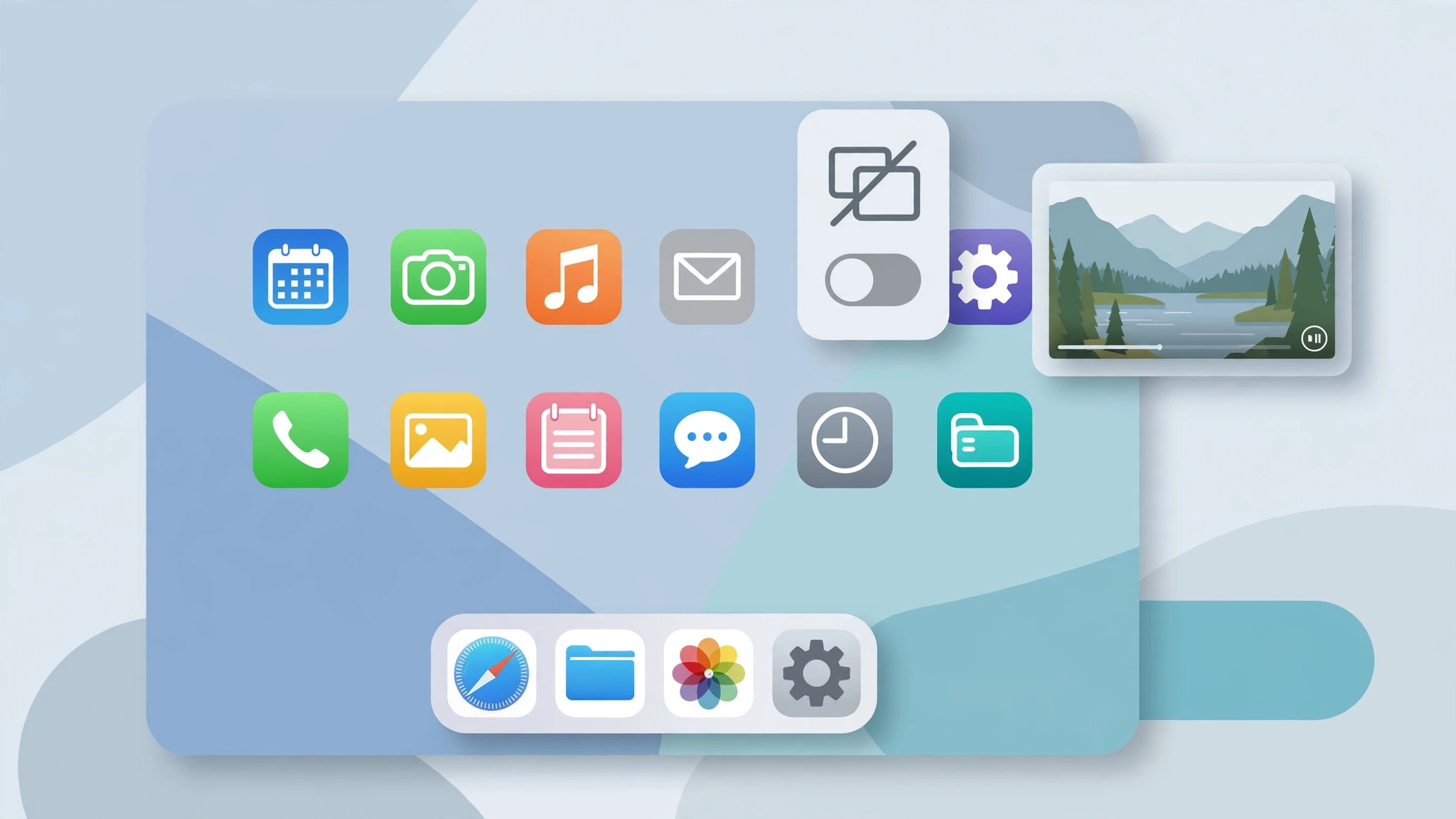
If videos still pop into a floating window, first double-check that “Start PiP Automatically” is really off — the setting occasionally reverts after major iOS updates. Also check the specific app’s own settings, since some apps have their own background-play toggles. A restart of the device clears most stuck PiP states.
Frequently asked questions
Will turning this off break PiP completely?
No. You only disable the automatic trigger. The manual PiP button still works in fullscreen video, so you can summon the floating window whenever you want it.
Does this setting sync between iPhone and iPad?
No — it’s a per-device setting. If you want the same behavior on both, repeat the steps on each device.
Conclusion
Automatic picture-in-picture is a classic “great for some, annoying for others” feature. Now you know the one toggle that tames it — and that manual PiP remains a tap away whenever you actually want a floating video. Set it once and your videos will stay put until you say otherwise.





