
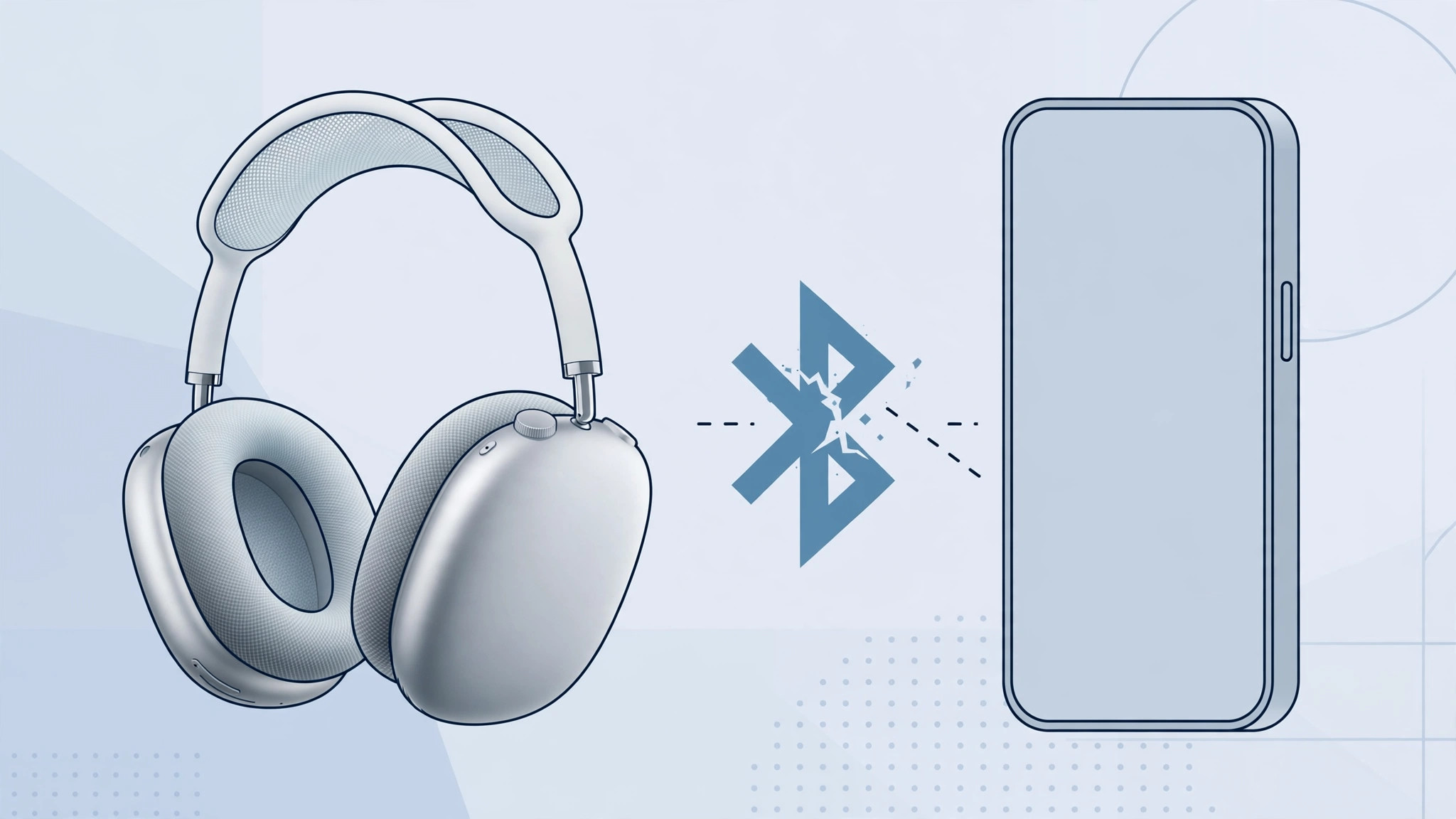
AirPods Max have a stubborn streak: they latch onto the last device you used and refuse to switch to the new one. Whether you’re pairing with a second iPhone, a Mac, or an Android phone, the fix comes in two stages — a quick restart first, then a full factory reset if needed.
Stage 1: Restart your AirPods Max
A restart clears the temporary pairing state without deleting any settings. It takes about a minute:
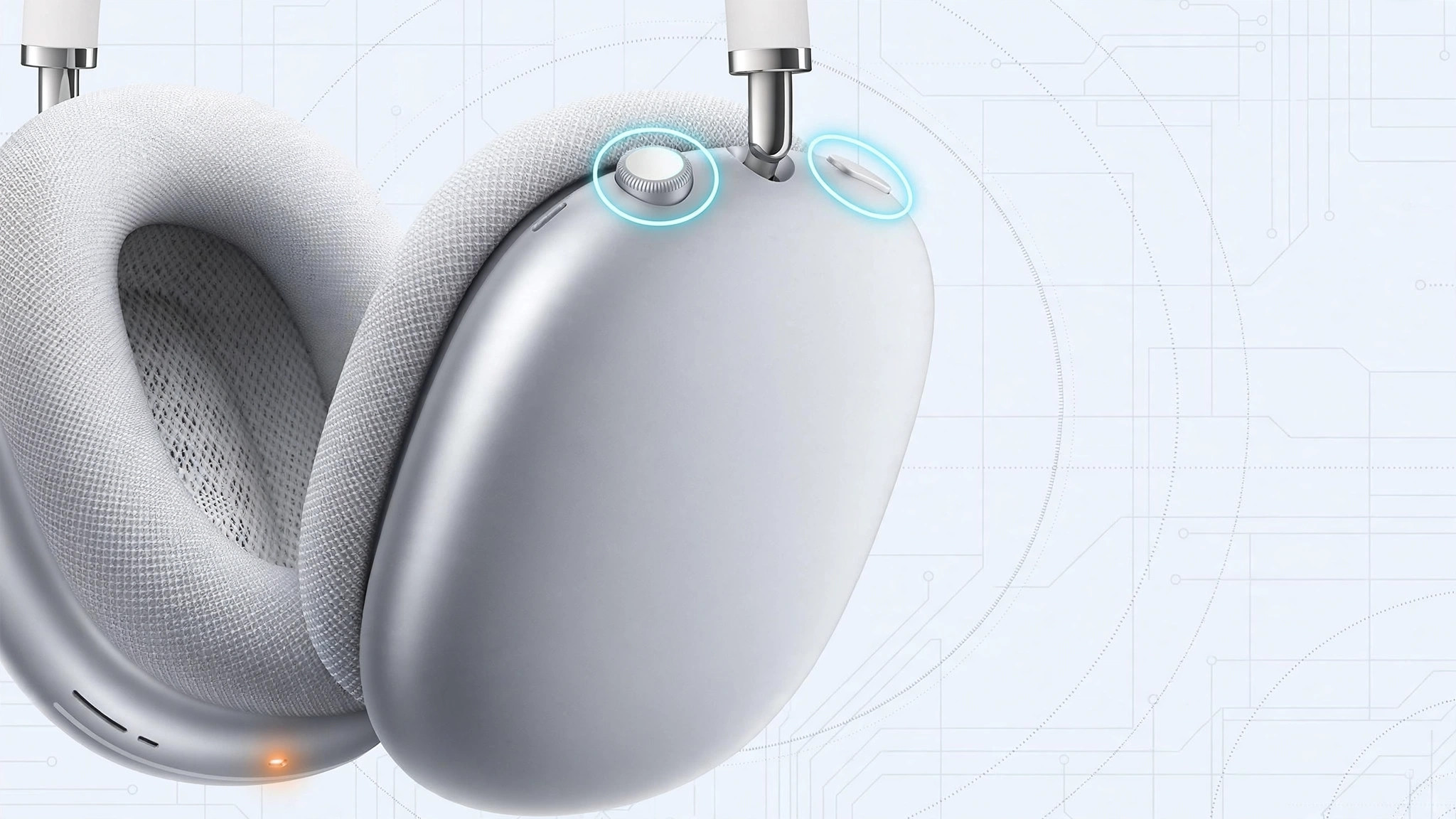
- Place your AirPods Max on a flat surface and flip them upside down, so the headband rests on the surface and the ear cups point up.
- Press and hold both the Digital Crown and the noise control button at the same time.
- Watch the status light: keep holding until it blinks amber (about five seconds), then release both buttons.
- Wait roughly 30 seconds, then flip the headphones right-side up and try connecting to the new device again.
On an iPhone, make sure the new device has Bluetooth on and is nearby — the pairing card should appear automatically. Apple’s AirPods support pages walk through the same button combination if you want the official reference.
Stage 2: Factory reset
If the restart didn’t break the connection to the old device, reset the headphones completely. Note that this removes all settings, including any equalizer or button customizations, so you may want to check the specs on Apple’s AirPods Max page afterward to redo any custom controls you had.
- Charge your AirPods Max for a few minutes, then unplug them from power.
- Flip them upside down on a flat surface, as before.
- Press and hold both the Digital Crown and the noise control button for about 15 seconds.
- Keep holding until the status light flashes white and then turns off — that’s the reset signal.
- Wait a moment, then re-pair: bring the headphones near your iPhone and follow the setup animation, or pair them from your device’s Bluetooth settings.
If it still doesn’t work
Before blaming the headphones, rule out the basics: confirm Bluetooth is on and the target device isn’t already connected to another pair of headphones. On an iPhone, try toggling Bluetooth off and on, or choose Forget This Device for the AirPods Max and pair from scratch. Watch users may also find our guide on stopping the music player from auto-launching on Apple Watch helpful when juggling audio across devices, and Mac users can see our fix for AirPlay receiver problems on macOS if the connection issue is on the Mac side.
Frequently asked questions
Will resetting delete anything important?
Not your music or accounts — a reset only wipes the headphones’ own settings (EQ, button assignments, paired devices). Your devices forget the pairing too, so you’ll set them up fresh, exactly like the first day.
Why won’t my AirPods Max switch devices automatically?
Unlike regular AirPods, AirPods Max don’t always follow automatic device switching reliably. They tend to stick to the most recent connection, which is why the manual restart above is often needed when moving to another device.
Start with the restart, escalate to the reset, and your AirPods Max will be happily paired with the new device in a couple of minutes.






[…] check that your earbuds show as Connected. If they keep dropping out, re-pair them — our guide on fixing AirPods Max connection problems walks through the usual fixes that also apply to other […]