
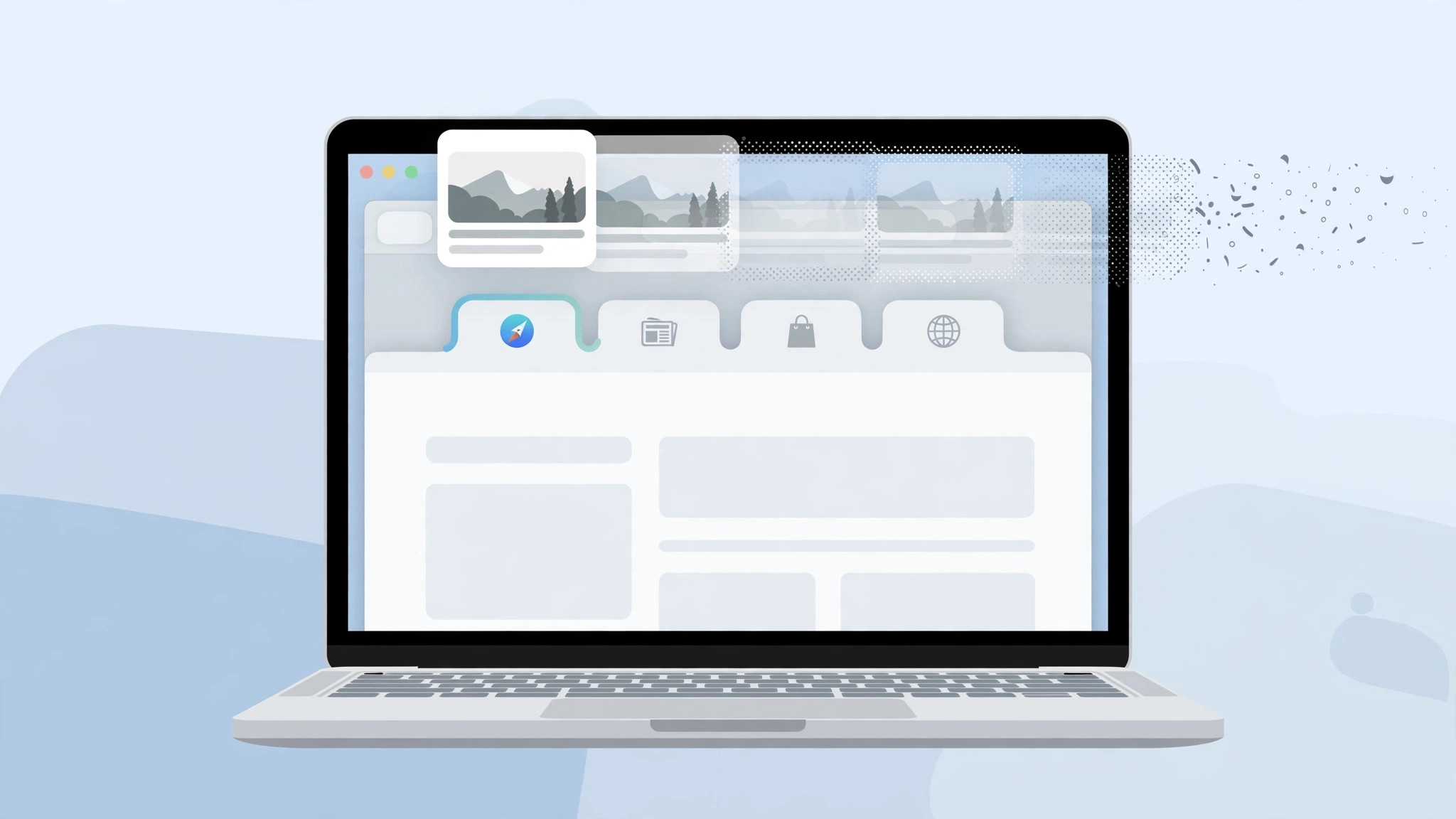
You’re moving your cursor across Safari’s tab bar, and every tab you touch pops up a thumbnail preview of its page. For some it’s handy; for the rest of us it’s visual noise that slows you down and clutters the screen. Here’s the catch: Apple never added an off switch. But a single Terminal command does the job — you just have to grant Terminal a special permission first.
Why there’s no off switch
Since macOS Big Sur, Safari shows these hover previews by default and offers no toggle in Settings or the View menu. Power users have been grumbling about it for years — sites like AppleInsider have documented the hidden preference that controls it. The setting does exist in Safari’s preferences file; Apple simply never exposed it in the interface. The good news: it takes about two minutes to disable.
Step 1: Give Terminal Full Disk Access
The command needs to modify Safari’s protected preferences, which macOS guards behind Full Disk Access. Without this permission, the command runs but silently does nothing — so don’t skip this step:
- Open System Settings → Privacy & Security.
- Click the lock icon at the bottom and enter your password to make changes.
- Open Full Disk Access, click the plus button, and add Terminal from your Applications → Utilities folder.
- Make sure the toggle next to Terminal is switched on.
Step 2: Run the command
- Open Terminal (Applications → Utilities).
- Paste this exact command and press Enter:
defaults write com.apple.Safari DebugDisableTabHoverPreview 1 - Quit Safari completely (Command + Q), then reopen it.
That’s it — hover over your tabs and nothing pops up anymore. Apple’s Mac support pages have a primer on using Terminal safely if the command line is new to you.
What the command actually does
The defaults write command sets a single hidden preference key inside Safari’s settings: DebugDisableTabHoverPreview. Setting it to 1 tells Safari to skip rendering the preview thumbnails; nothing else in the browser changes. It touches no other app, doesn’t affect your tabs or bookmarks, and can be reversed at any time with the restore command below.
How to turn previews back on
Changed your mind? Run the same command with a 0 instead of a 1 — defaults write com.apple.Safari DebugDisableTabHoverPreview 0 — then restart Safari. The previews return immediately, exactly as before.
If it still doesn’t work
Major macOS updates sometimes reset Safari’s hidden preferences, so if the previews reappear after an upgrade, just run the command again — no need to redo the Full Disk Access step, since that permission survives updates. If the command seems to have no effect, double-check that you granted Full Disk Access before running it and that you fully quit Safari rather than just closing windows. And while you’re fine-tuning Safari, you might also like setting different Safari start pages on iPhone and Mac, or tidying up your desktop with our guide to hiding desktop icons on Mac.
Frequently asked questions
Is running this Terminal command safe?
Yes. It only flips a single documented Safari preference key. Nothing else on your system is touched, and you can reverse it at any time with the restore command above.
Will this work on older macOS versions?
The command targets the preview feature introduced in Big Sur, so it works on Big Sur and everything newer. On older macOS releases the preference simply has no effect.
One command, zero pop-ups: your Safari tab bar is finally calm again.





