
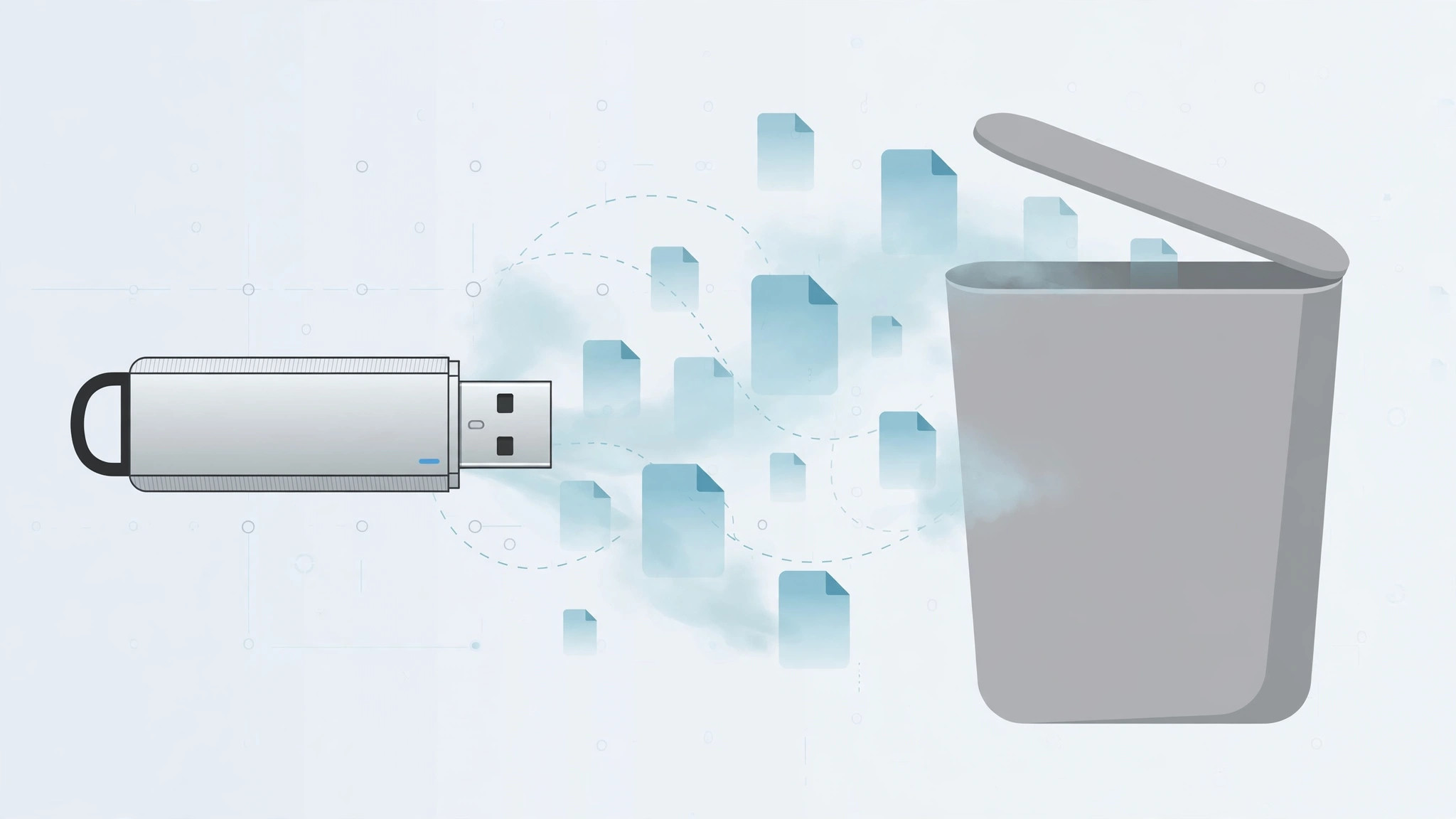
You dragged a few gigabytes of old videos off your USB flash drive, watched them vanish from the Finder window — and then checked the drive’s storage, only to find the free space hadn’t budged. Nothing is wrong with your drive, and you didn’t imagine deleting the files. macOS simply didn’t finish the job: when you delete files from an external drive, macOS moves them into a hidden Trash folder on that drive, and the space stays occupied until you empty the Trash with the drive still connected.
Why the space stays used
On your Mac’s internal drive, the Trash is a single system folder. External drives get their own invisible .Trashes folder at the root of the drive. Deleted files sit there, fully recoverable — and fully counted against the drive’s capacity. But it surprises everyone the first time a supposedly cleaned drive reports the same free space as before.
Step-by-step: actually free the space
- Keep the USB drive connected. This is the step everyone misses. If you already ejected the drive, plug it back in — emptying the Trash only clears a drive’s hidden Trash folder while that drive is mounted.
- Empty the Trash. In the Finder menu bar, choose Finder → Empty Trash, or right-click (Control-click) the Trash icon in the Dock and choose Empty Trash.
- Confirm the deletion. macOS asks whether you’re sure. Click Empty Trash again. This permanently deletes everything in the Trash — from every connected drive, not just the USB stick — so glance through it first if there’s anything you might want back.
- Check the free space. Right-click the USB drive in Finder and choose Get Info, or select it and press Command+I. The available space should now reflect the deleted files. If you enjoy keeping your storage tidy, browsing your full installed-apps list is a handy way to spot disk-cleaning utilities among the apps you already own.
The advanced route: clear the hidden .Trashes folder yourself
If emptying the Trash doesn’t help — or you want to be thorough — you can remove the hidden folder directly:
- Open the USB drive in Finder.
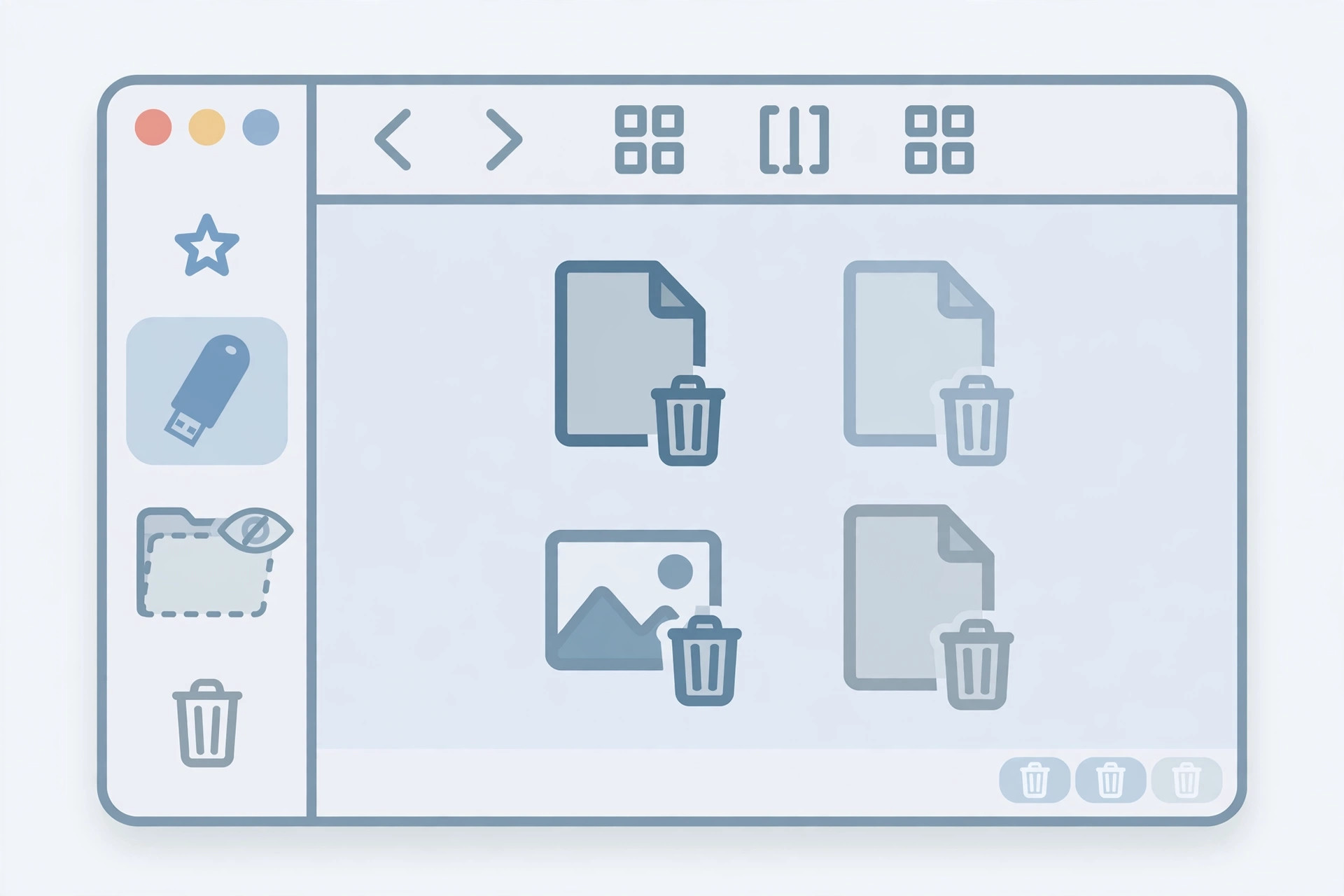
- Press Command+Shift+. (period) to reveal hidden files. You’ll see a faded folder named .Trashes at the root of the drive.
- Open .Trashes, select everything inside, and press Command+Delete to move it to the Trash.
- Empty the Trash as described above, then press Command+Shift+. again to hide system files.
Apple’s Mac User Guide documents how hidden files and the Trash interact.
Always eject before unplugging
Yanking out a drive mid-write can corrupt the hidden Trash bookkeeping and leave phantom used space that no amount of emptying will fix. Click the eject icon next to the drive in Finder’s sidebar and wait for it to disappear before pulling the plug — Apple Support lists safe ejection as the first troubleshooting step for misbehaving external drives, and guides like How-To Geek’s storage walkthroughs say the same.
If it still doesn’t work
Still missing gigabytes? Look for other space hogs: Spotlight index files, hidden backup folders, or a second .Trashes folder from another user account — each macOS user gets their own numbered subfolder inside .Trashes, and emptying yours won’t clear theirs. As a last resort, copy the files you want to keep elsewhere and reformat the drive with Disk Utility; that guarantees every byte is reclaimed.
Frequently asked questions
Will emptying the Trash also delete files from my Mac?
Yes — Empty Trash permanently deletes everything currently in the Trash, including files deleted from your Mac’s internal drive. Double-click the Trash icon in the Dock to peek inside first, and drag back anything you want to keep before emptying.
Does this happen on Windows too?
Windows works the same way: every drive keeps its own hidden $RECYCLE.BIN folder, and space isn’t freed until you empty the Recycle Bin.
Conclusion
macOS isn’t eating your flash drive’s space — it’s just parking your deleted files in a hidden .Trashes folder until you empty the Trash with the drive connected. Make “empty Trash before eject” a habit and phantom used space will never puzzle you again. For more ways to keep your Mac organized, try giving your Finder folders a color-coded makeover.






[…] This single checkbox can hide a healthy, mounted drive from the sidebar. (For other drive quirks, see our guide on why USB drive space isn’t freed when deleting files on Mac.) […]