
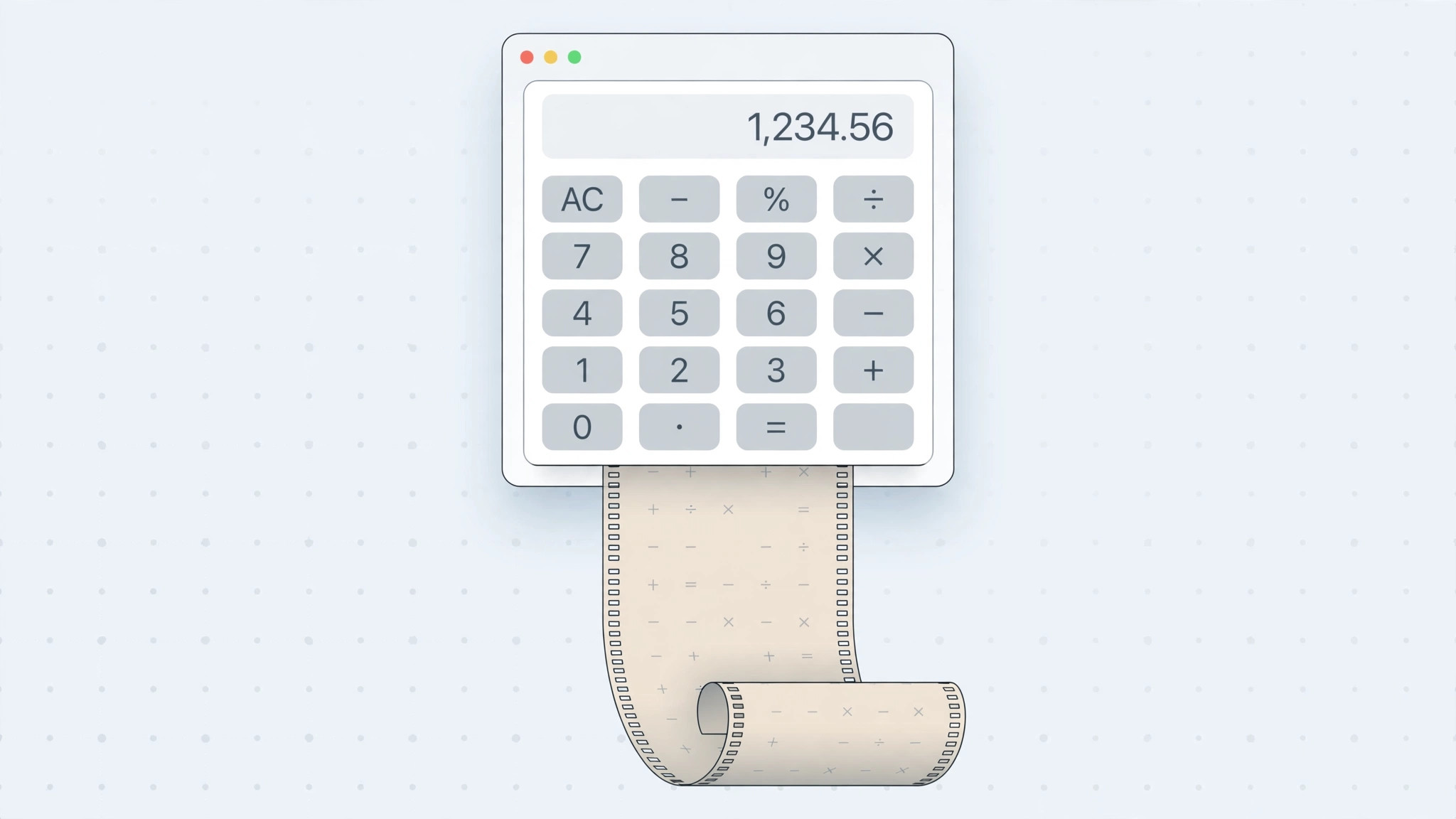
You’re halfway through a long column of figures on your Mac when you realize you’ve lost track of a number you typed a few steps back. Starting over would be tedious — but you don’t have to. The Mac Calculator has a quiet little feature called Paper Tape that keeps a running log of every calculation in your current session. Here’s how to reveal it and put it to work.
How to show the Calculator’s Paper Tape
Follow these steps to turn on the calculation history:
- Open the Calculator. Press Cmd + Space to open Spotlight, type “Calculator” and hit Return. You can also launch it from the Applications folder or Launchpad.
- Show the Paper Tape. With the Calculator active, choose Window > Show Paper Tape in the menu bar, or press Cmd + T. A narrow tape window opens beside the calculator.
- Watch the tape fill up. Every entry, operation and result is now logged on the tape in order, exactly as you type it. Made a typo three steps back? Scroll the tape and you’ll see precisely where it happened.
- Clear the tape to start fresh. Click the Clear button at the bottom of the tape window. The calculator itself keeps working — only the log is wiped.
- Save or print a copy. Need a permanent record? With the tape window active, choose File > Save Tape As (or press Shift + Cmd + S) to save it as a file. Press Cmd + P to print it, or select any lines and copy them into another app.
That’s the whole trick, and it’s documented in Apple’s Calculator user guide. Long-time Mac users on forums like MacRumors have leaned on Paper Tape for years when reconciling receipts and double-checking invoices.
The built-in history sidebar on newer macOS versions
On macOS 15 (Sequoia) and newer, the redesigned Calculator has history built right in — no separate tape window needed. Look for the history button at the top-left of the Calculator window; toggling it opens a sidebar listing your recent calculations. It works in the Basic, Scientific and Programmer views, as Macworld noted when covering the redesign. On older macOS versions, stick with the classic Paper Tape method above.
If you enjoy handy built-in Mac features like this, you may also like our guide on how to enable face lighting during video calls on Mac, or learn how to set up message sync between iPhone and Mac.
If it still doesn’t work
Remember that Paper Tape only logs the current session — it doesn’t remember anything after you quit the Calculator. If the tape is empty, you probably opened a fresh session or cleared it by accident. Also note that the Window > Show Paper Tape menu item is only available when the Calculator window itself is active; click the calculator first, then open the Window menu. On macOS 15 and newer, look for the history sidebar toggle at the top-left instead of hunting for the old menu item.
Frequently asked questions
Does the Paper Tape save automatically between sessions?
No. The tape is a session log, not an archive — when you quit the Calculator, the log is gone for good. If you need a permanent record, save the tape with File > Save Tape As before quitting.
Can I edit or delete individual lines on the tape?
No. The tape is a read-only record: you can clear the whole thing at once, save it or copy from it, but individual entries can’t be edited or removed. That’s by design — it’s meant to be a trustworthy log of exactly what you typed.
Conclusion
So, does the Mac Calculator keep a calculation history? Yes — through Paper Tape, a small but genuinely useful feature that logs every keystroke of your session. Press Cmd + T and you’ll never lose track of a long calculation again. And on macOS 15 and newer, the built-in history sidebar makes reviewing past calculations even simpler.





