
iCloud Keychain is convenient — it’s built into every iPhone and fills in your passwords automatically. But it’s not your only option. If you use Yandex services and keep your logins saved in Yandex Browser, you can make your iPhone offer those Yandex passwords in apps and Safari instead of — or alongside — iCloud Keychain. It takes about a minute to set up.
iOS lets any browser with a password manager register itself as an autofill source. Once enabled, tapping a username or password field shows your Yandex-saved logins right above the keyboard, just like iCloud Keychain does.
Use Yandex Password Manager for autofill step by step
- Install Yandex Browser and sign in. Get Yandex Browser from the App Store (or update it if you already have it), open it, and sign in to your Yandex account so your saved passwords sync to the phone.
- Open the autofill settings. On your iPhone, go to Settings → Passwords → Password Options. On newer iOS versions you’ll find the same screen under Settings → General → AutoFill & Passwords.
- Turn on autofill. Enable AutoFill Passwords and Passkeys at the top of the screen.
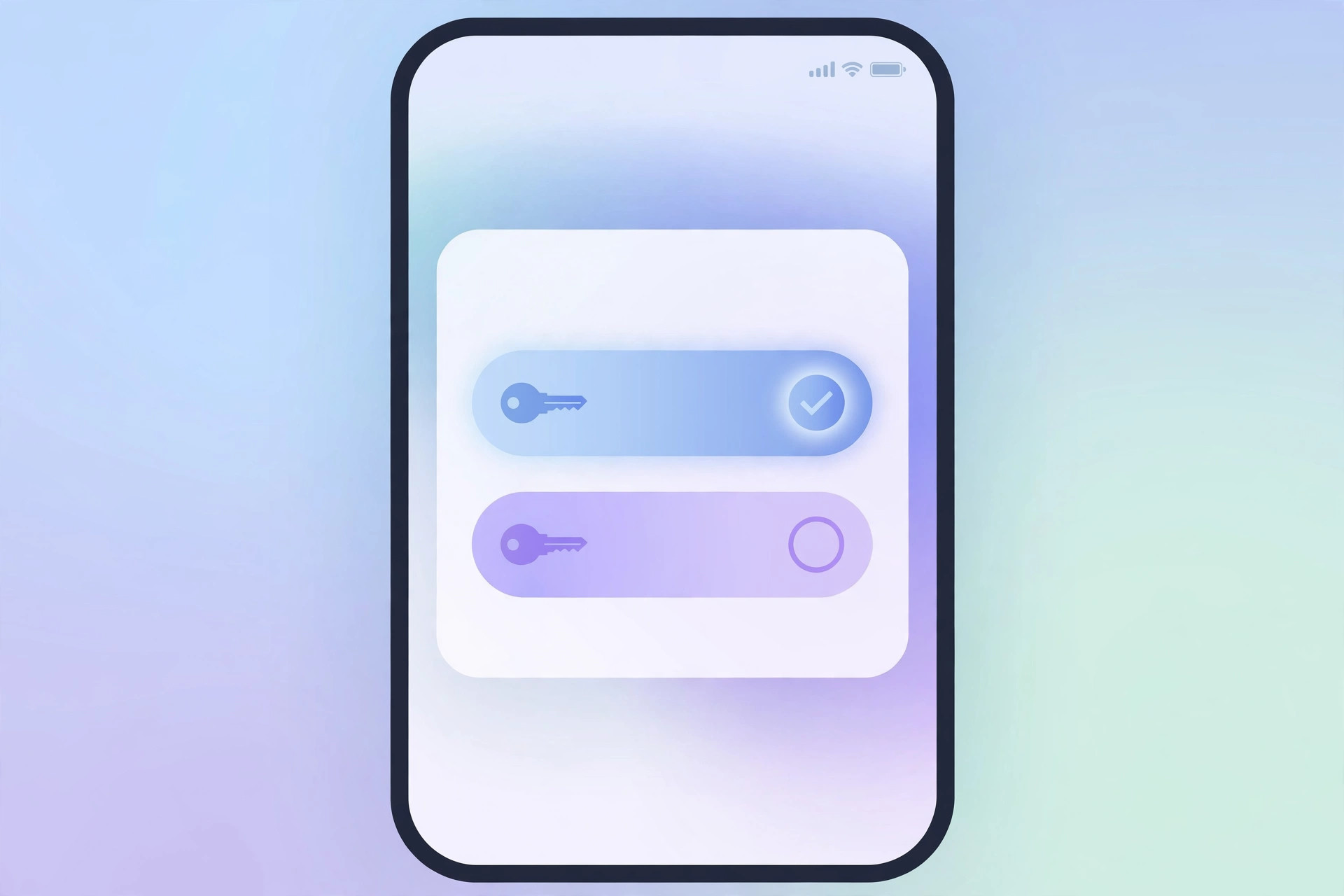
- Select Yandex Browser as a source. In the list of password managers below, tap Yandex Browser to enable it. You can keep iCloud Keychain enabled alongside it — iOS will offer logins from both — or switch iCloud Keychain off if you want Yandex to be the only source.
- Confirm the browser’s password manager is on. Open Yandex Browser’s own settings and make sure its password manager is enabled, so your saved credentials are actually available when iOS asks for them.
If it still doesn’t work
If your Yandex logins don’t appear above the keyboard, check the basics: you’re signed in to the same Yandex account in the browser, password sync is enabled, and AutoFill Passwords and Passkeys is toggled on in iPhone settings. Also try force-quitting and reopening the app you’re signing into — some apps only read the autofill sources when they launch. For the official background on how iOS handles third-party password sources, see Apple Support’s guide to AutoFill Passwords and Passkeys; 9to5Mac also covers how password managers plug into iOS.
Related reading: learn how to stop Safari from suggesting passwords for websites on iPhone and change Safari’s design on iPhone.
Frequently asked questions
Can I use iCloud Keychain and Yandex Password Manager at the same time?
Yes. iOS lets you enable multiple password sources at once. When you tap a login field, you’ll see matching credentials from every enabled source, clearly labeled — so nothing is lost by adding Yandex alongside Apple’s manager.
Is it safe to switch away from iCloud Keychain?
Switching the autofill source doesn’t delete anything. Your iCloud Keychain passwords stay saved in Settings → Passwords; you’re only choosing which manager iOS suggests first. You can toggle back to iCloud Keychain just as easily.
Conclusion
You don’t have to use iCloud Keychain just because it’s built in. Install Yandex Browser, sign in, enable it under Settings → Passwords → Password Options, and your Yandex-saved logins will be offered everywhere on your iPhone — alongside or instead of Apple’s own passwords.





