
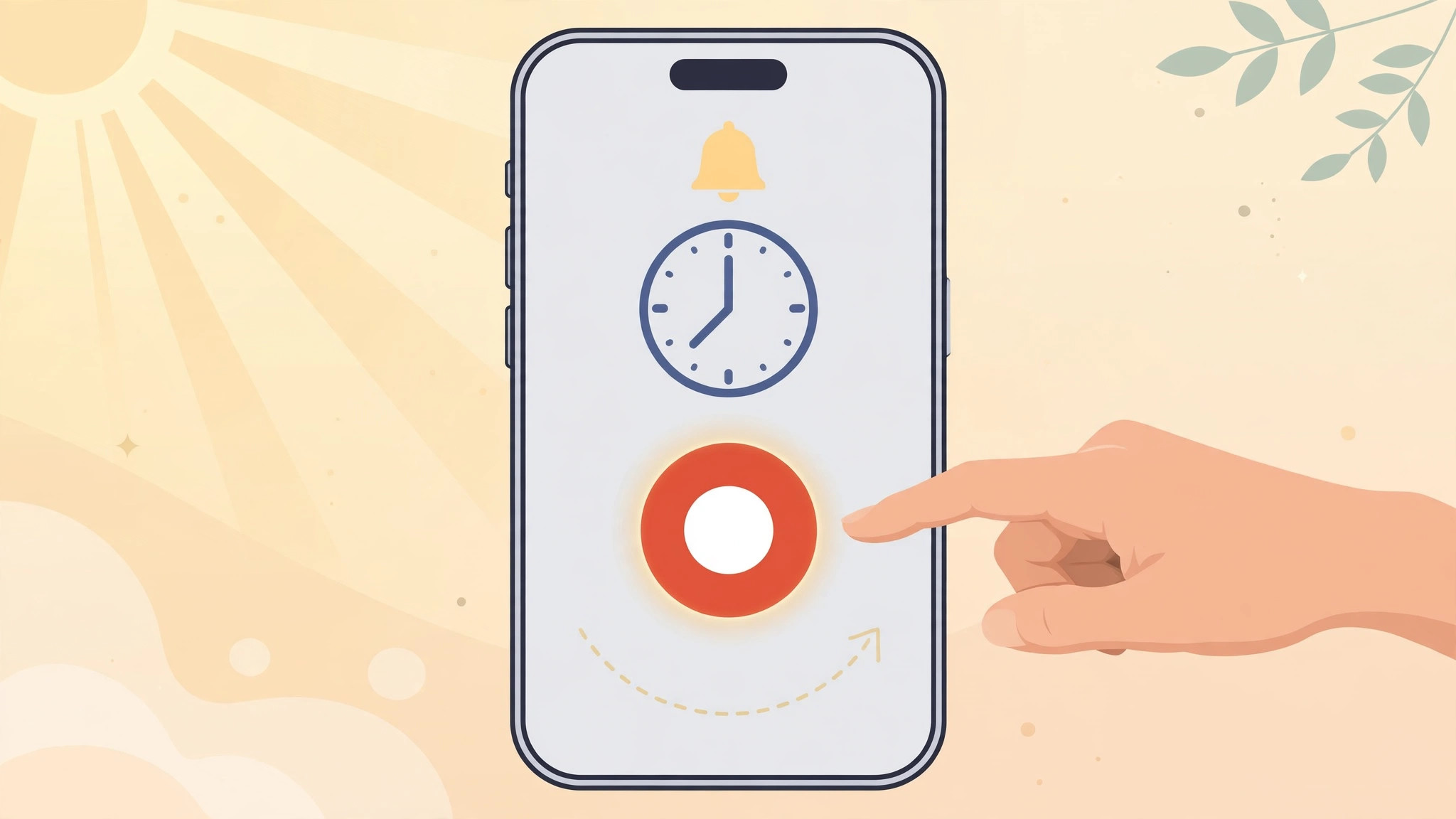
If you have updated to iOS 26, you may have noticed something different the last time your alarm went off: the familiar Stop button is gone, replaced by a swipe gesture on a slider at the bottom of the screen. For many people, that extra motion at 6 a.m. is more annoying than helpful. The good news is that Apple kept a way to bring the classic one-tap Stop button back — it is just tucked away in the Accessibility settings.
The swipe-to-dismiss change was designed to stop accidental alarm dismissals, but if you would rather go back to a single tap, the fix takes less than a minute and does not require any third-party apps.
What changed about alarms in iOS 26
In earlier iOS versions, silencing an alarm was as simple as tapping a large Stop button on the lock screen. iOS 26 replaced that with a horizontal slider: you now have to swipe sideways across the bottom of the screen to dismiss the alarm. Apple says the gesture reduces the chance of turning the alarm off by mistake when you fumble for your phone half-asleep — a change widely discussed on sites like MacRumors and AppleInsider. The same swipe logic also applies to timers, which has frustrated plenty of users on X and TikTok.
How to bring back the alarm Stop button
The classic button is restored through a single Accessibility toggle called Prefer One-Tap Actions. Here is what to do:
- Open Settings. Tap the Settings app on your home screen.
- Go to Accessibility. Scroll down and tap Accessibility.
- Open the Touch section. Under the Physical and Motor heading, tap Touch.
- Enable Prefer One-Tap Actions. Find the Prefer One-Tap Actions toggle and switch it on.
That is all it takes. The next time your alarm rings, the familiar Stop button will be back on the screen, and a single tap will silence it — no swiping required.
What the Prefer One-Tap Actions setting does
This Accessibility option tells iOS that you prefer single taps over swipe or press-and-hold gestures in certain system interfaces. Besides restoring the alarm Stop button, it can simplify a few other interactions across the system. It does not change anything else about how your alarms are scheduled, so guides like our tutorial on setting an alarm for urgent reminders in iOS 26 still apply exactly as written. If you are exploring the rest of the new system, our guide to the iOS 26 Liquid Glass lock screen clock walks through the other lock screen changes.
If it still doesn’t work
If the Stop button has not returned after enabling the toggle, first make sure your iPhone is actually running iOS 26 — the swipe-to-dismiss interface only exists there, so on older versions there is nothing to fix. Next, toggle Prefer One-Tap Actions off and back on, then test with a new alarm set one minute ahead rather than waiting for your morning alarm. If the problem persists, restart your iPhone; Accessibility preferences occasionally need a reboot to apply cleanly. Apple’s support pages also document the Touch settings if you want to explore related options.
Frequently asked questions
Does this also fix the swipe gesture for timers?
Yes. The Prefer One-Tap Actions setting affects the system-wide dismiss gesture, so timers get their tap-to-stop behavior back as well — handy, since iOS 26 changed timers the same way it changed alarms.
Will enabling this change anything else on my iPhone?
It only adjusts interfaces that offer a one-tap alternative to a gesture. Your other settings, alarms, and lock screen layout — including things like quick camera launch from the lock screen — stay exactly as they are.
Conclusion
iOS 26’s swipe-to-dismiss alarm was meant to save you from accidental taps, but nobody should have to wrestle with their phone before coffee. Flip on Prefer One-Tap Actions in Settings > Accessibility > Touch, and the Stop button is yours again. For more iPhone tips, browse the tutorials on CompareWala.






[…] follow the steps below. And if you enjoy tweaking how iOS responds to gestures, our guide to bringing back the alarm stop button in iOS 26 covers another swipe-related setting worth […]