
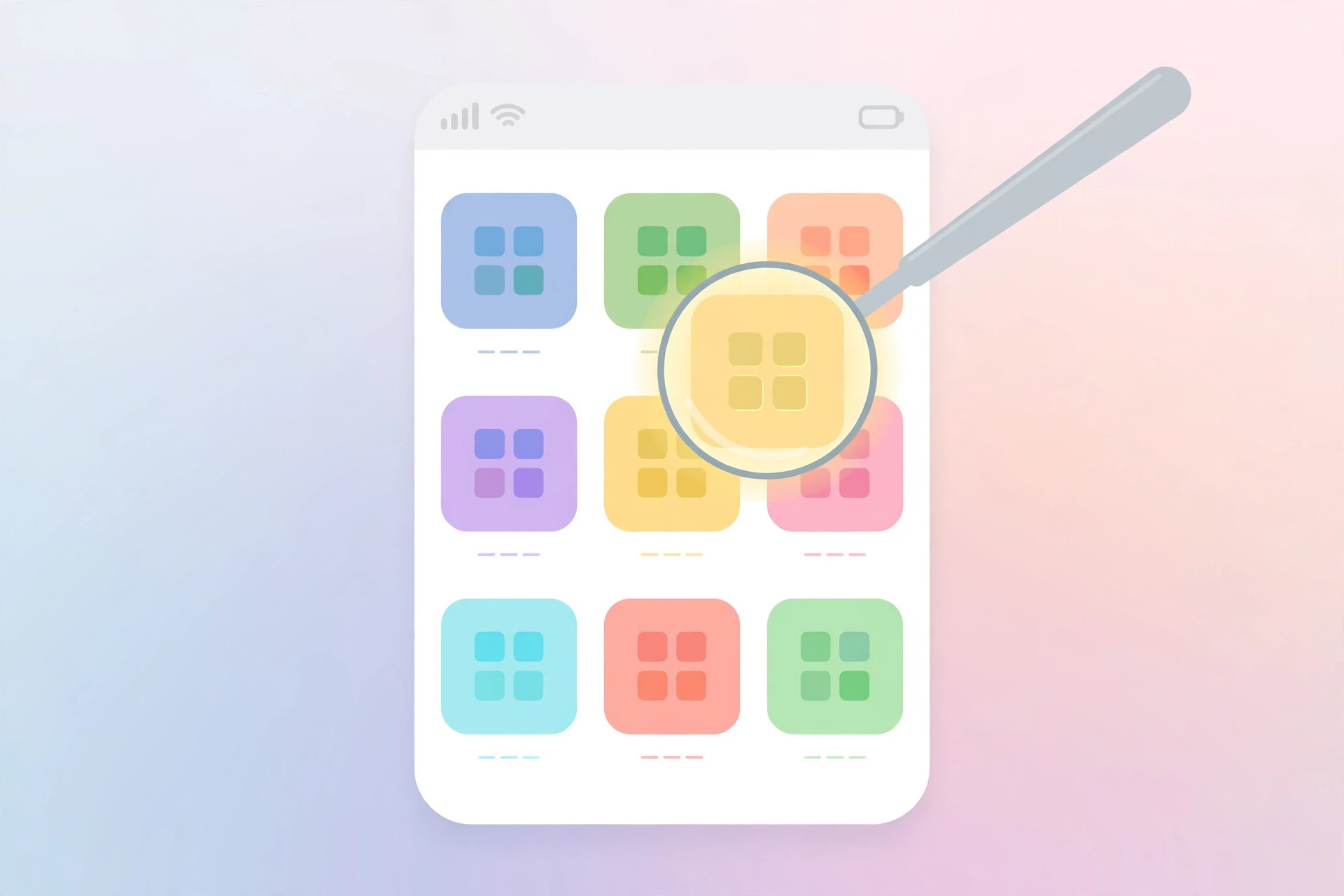
There is a special satisfaction in a perfectly tidy Home Screen. Icons lined up, a wallpaper that finally gets room to breathe, and — if you have seen the trend in screenshots online — folders with no text underneath them at all. It looks like a design choice Apple would offer, but here is the catch: iOS and iPadOS have no built-in option to hide folder names. Search the Settings app all you like; the switch simply does not exist.
That does not mean you are stuck with labels you do not want. Two workarounds reliably produce the clean, nameless look, and each takes less than a minute. Both are fully reversible, so you can experiment without worrying about losing anything. Pick the one that matches how far you want to go.
If you enjoy this kind of visual fine-tuning, you may also like changing folder colors and adding emoji on macOS 26 — a similar decluttering ritual for your Mac.
Method 1: Use large icons to remove all labels
The fastest way to hide folder names is to switch your Home Screen to the large icon layout. In this layout iOS drops the text under every icon and folder, so all labels — not just folder names — disappear at once.
- Touch and hold an empty area of the Home Screen until the icons start to jiggle.
- Tap Edit in the top-left corner, then tap Customize.
- In the panel that appears, choose the large icon option — the one shown without names underneath the icons.
- Tap anywhere outside the panel to apply the change.
The moment you apply it, every folder name and app label vanishes, leaving a grid of clean, oversized icons. It is the most dramatic option and suits anyone who navigates by icon shape and position rather than by reading labels. Apple describes the Home Screen layout choices in its customization guides on support.apple.com, and sites like MacRumors regularly cover how these visual options change with each iOS release.
The trade-off is obvious: this is all or nothing. If you still want your app names visible, skip to the second method.
Method 2: Rename a folder with an invisible character
If you want to hide just one folder’s name — say, a folder of utilities you would rather keep discreet — rename it with an invisible character. The classic choice is the braille blank character (U+2800): it counts as a character, so iOS accepts it as a name, but it renders as empty space.
- Copy this invisible character: [⠀]. (Select the space between the brackets and copy it.)
- On the Home Screen, touch and hold the folder you want to rename, then tap Rename.
- Delete the existing name, paste the invisible character in its place, and tap Done.
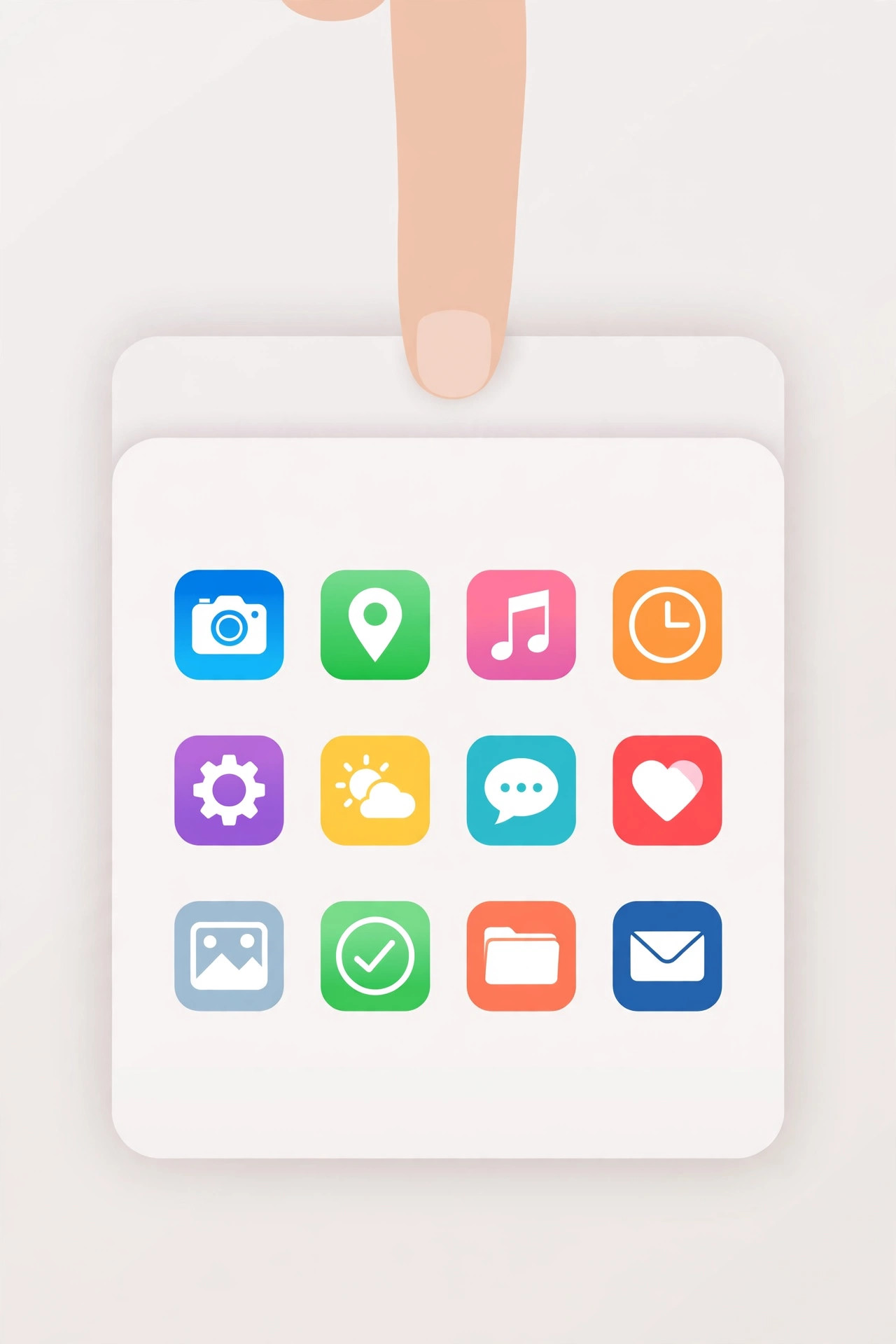
The folder now shows no visible name, while everything inside stays exactly where it was. To restore the label later, repeat the rename steps and type a normal name. This trick has been passed around by iPhone customizers for years, and 9to5Mac has featured similar Home Screen customization tips in its how-to coverage.
If it still doesn’t work
If the large icon option does not appear, check that your iPhone or iPad is running a recent version of iOS or iPadOS — the Customize panel with icon sizing was introduced in iOS 18. Update from Settings > General > Software Update if needed. If the invisible character shows up as a small box or question mark instead of blank space, your paste grabbed the wrong character; delete it and copy a fresh braille blank (U+2800), not a regular space.
Frequently asked questions
Does hiding a folder name delete the folder or the apps inside?
No. Both methods are purely cosmetic. Renaming with an invisible character does not touch the folder’s contents, and switching icon sizes does not move or remove a single app. Your layout, folders, and widgets all stay intact. Speaking of removing things, if you are decluttering further, here is which built-in iPhone apps you can safely delete.
Can I hide individual app names too?
Only with the large icon layout, which hides every label on the Home Screen. The invisible-character trick works for folders because folders can be renamed; individual app icons always show their developer-set names in the standard layout.
Conclusion
Apple may never add a “hide folder names” toggle, but you do not need one. Large icons give you a completely label-free Home Screen in four taps, and the invisible-character rename hides individual folders with surgical precision. Try one, and if you miss the labels, undoing it takes seconds. For more ways to make your iPhone feel like your own, see how to set up the Liquid Glass effect on the iOS 26 lock screen clock.





