
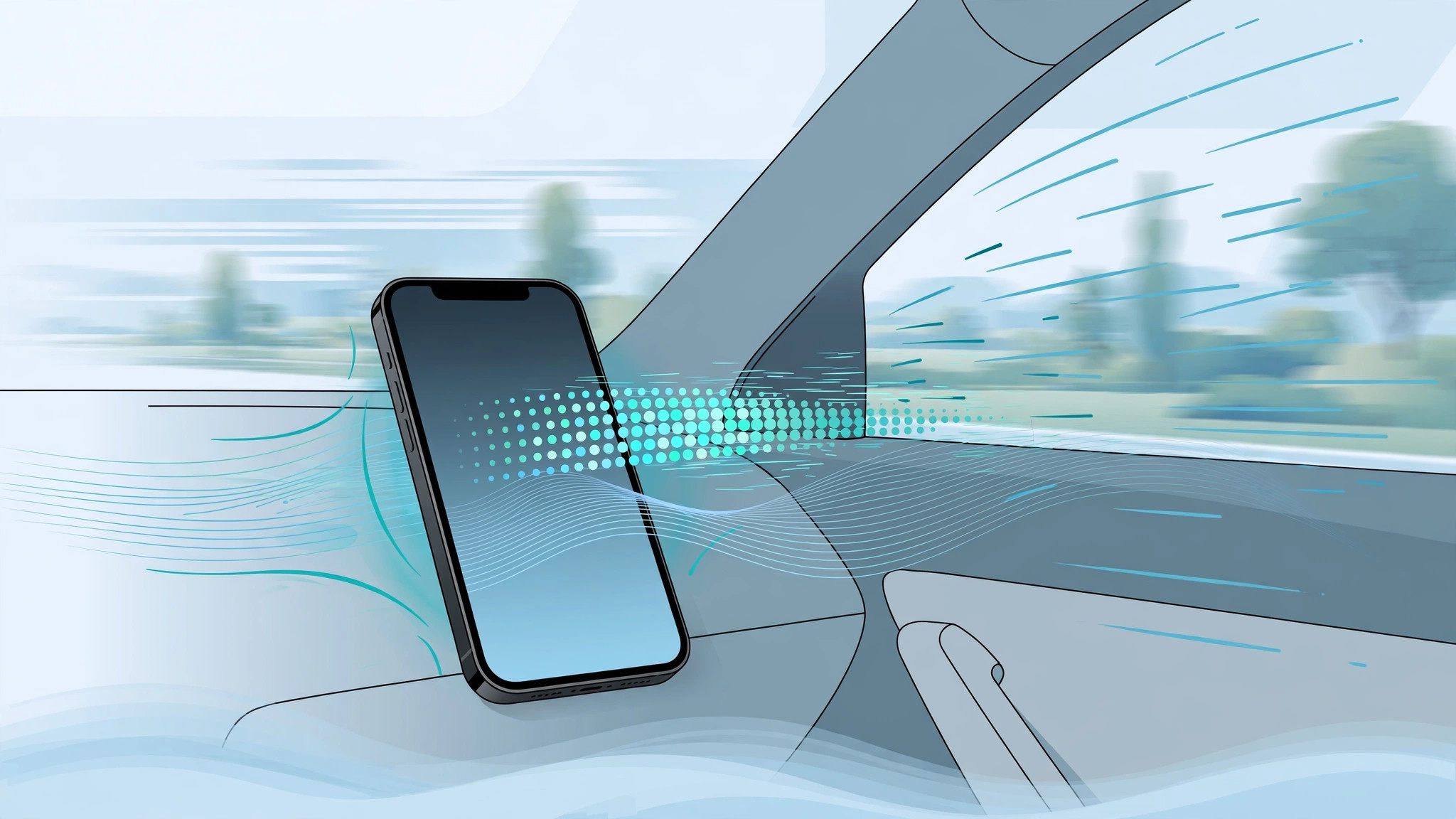
Reading your iPhone in a moving car can turn your stomach in minutes. The mismatch between what your eyes see on a steady screen and what your inner ear feels as the car turns and brakes is a classic recipe for motion sickness. Apple added a clever fix for this in iOS 18 called Vehicle Motion Cues: small animated dots that appear around the edges of your display and move in sync with the vehicle. Because the dots visually echo the car’s motion, the sensory conflict is reduced and many people feel noticeably better.
You can switch Vehicle Motion Cues on in Settings > Accessibility > Motion > Show Vehicle Motion Cues, but nobody wants to dig through Settings every time they get into a car. The faster path is to add a dedicated toggle to Control Center, so turning the overlay on or off is a single tap away. Here is how to set it up.
How to add the Vehicle Motion Cues toggle to Control Center
- Open Control Center. On iPhones with Face ID, swipe down from the top-right corner of the screen. On iPhones with a Home button, swipe up from the bottom edge.
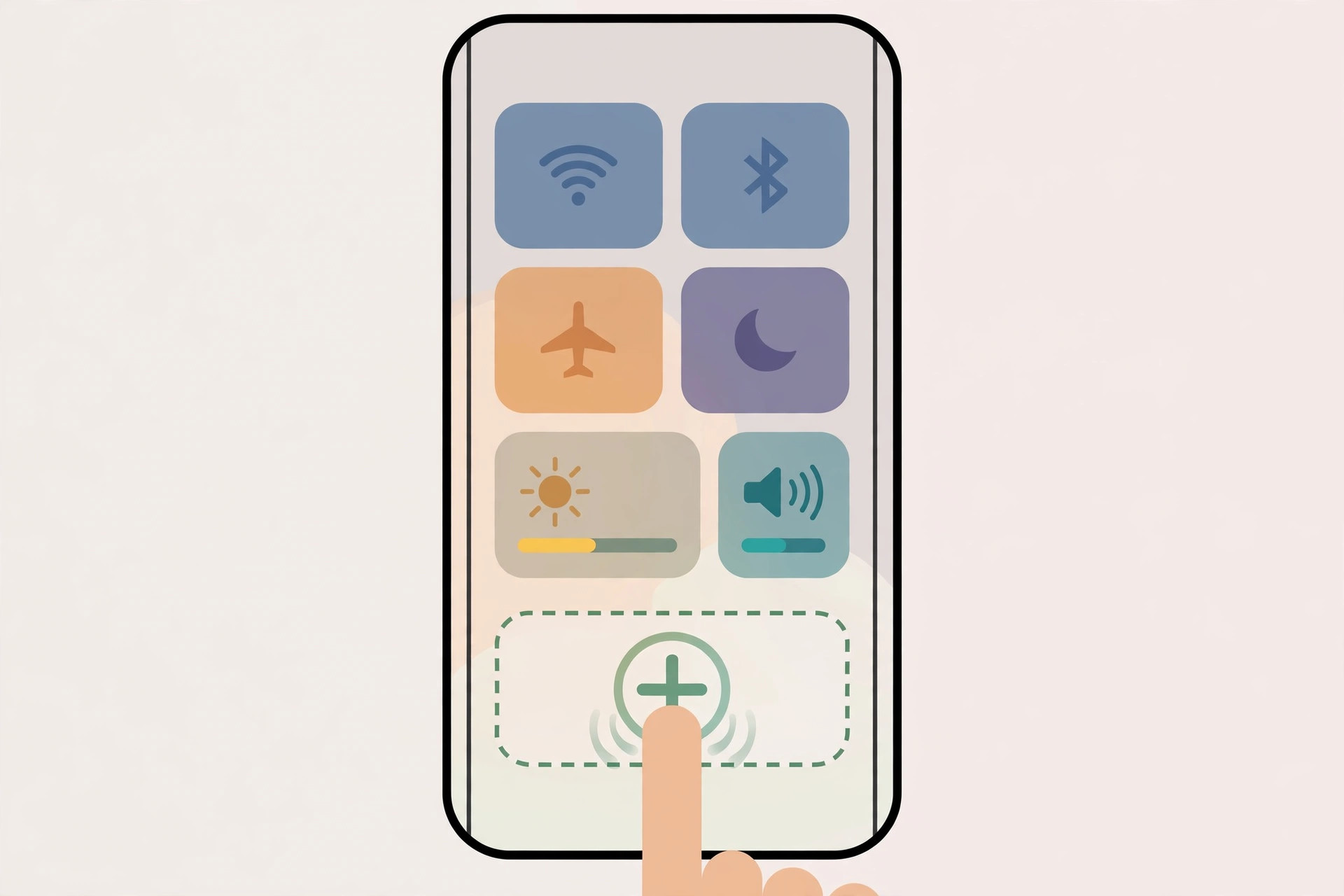
- Enter edit mode. Touch and hold any empty area of the Control Center until the controls start to jiggle. An Add a Control option appears at the bottom of the screen.
- Open the controls gallery. Tap Add a Control. A gallery of available controls slides up.
- Add the Vehicle Motion Cues control. Scroll through the gallery (or use the search field at the top) until you find Vehicle Motion Cues, then tap it. The toggle is added to your Control Center layout.
- Exit edit mode. Tap an empty area of the screen to stop the jiggling. Your new toggle is now permanently part of Control Center.
From now on, a single tap on the toggle turns the Vehicle Motion Cues overlay on, and another tap turns it off. You can also leave the underlying setting on Automatic in Settings > Accessibility > Motion, which lets the iPhone decide when to show the dots: the overlay only appears while the iPhone actually detects vehicle motion. When you are sitting still at your desk, the toggle being on changes nothing on your screen. That makes it safe to enable the feature before a trip and forget about it — the animated dots will quietly appear once the car starts moving and disappear when you arrive.
If you enjoy fine-tuning how iOS looks and behaves, you might also like our guide on how to turn off the Liquid Glass effect in iOS 26, or if you want fewer interruptions, how to turn off all SharePlay features on iPhone.
If it still doesn’t work
If the toggle does not appear in the controls gallery, first confirm your iPhone is running iOS 18 or later in Settings > General > Software Update. Next, check that the feature itself is available under Settings > Accessibility > Motion > Show Vehicle Motion Cues. If the setting is there but the dots never show while riding in a car, restart your iPhone and try again. You can read more about the feature on Apple’s support pages, and 9to5Mac has additional background on how it works under the hood.
Frequently asked questions
Does Vehicle Motion Cues drain the battery?
Barely. It is a lightweight visual overlay rather than a constantly running sensor process, and the dots only render while motion is detected. You are unlikely to notice any battery difference.
Can I just leave Vehicle Motion Cues on all the time?
Yes. When set to Automatic, the overlay stays dormant until the iPhone detects you are in a moving vehicle. It will not clutter your screen while you are walking around or sitting at home.
Conclusion
Adding the Vehicle Motion Cues toggle to Control Center takes less than a minute and saves you from a Settings treasure hunt on every car ride. One tap before the trip, one tap after — and the anti-motion-sickness dots handle the rest while you are moving.





