How to make the Camera Control button on iPhone 16 more reliable and avoid false triggers

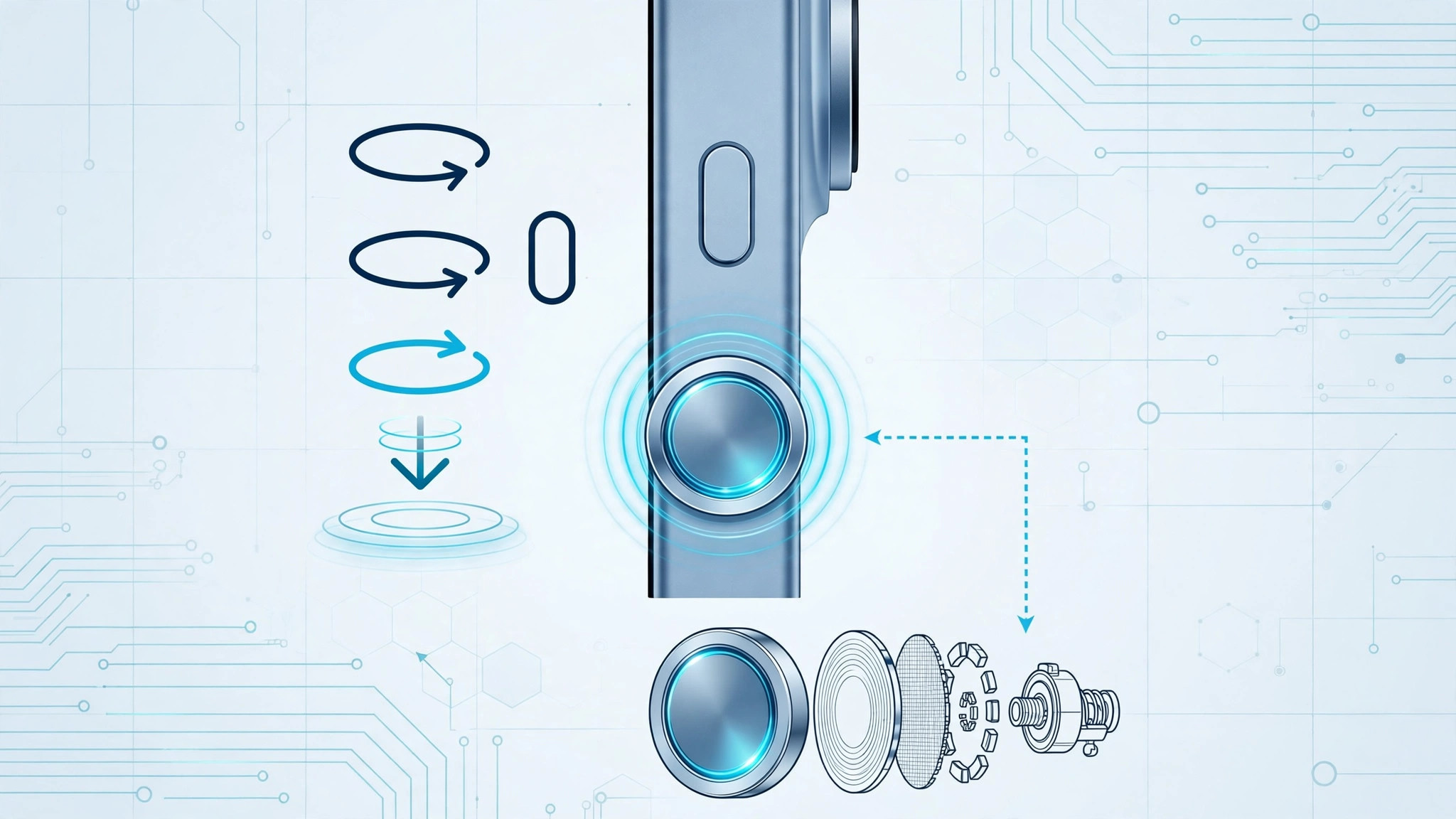
The Camera Control button on the iPhone 16 and iPhone 16 Pro is one of those ideas that sounds great on paper: a dedicated, sapphire-covered button on the lower-right edge that opens the camera with a click, takes a photo with another click, and lets you slide a finger across it to zoom or change settings. In practice, though, many owners discover a downside within days — the camera keeps launching itself at the slightest touch.
Out of the box, a single press opens the camera, and that hair-trigger means the Camera app pops open when you pick up the phone, pull it from a pocket or bag, or simply grip it a little too firmly. The good news: you can make the button far more reliable in about ten seconds by changing how it responds to presses.
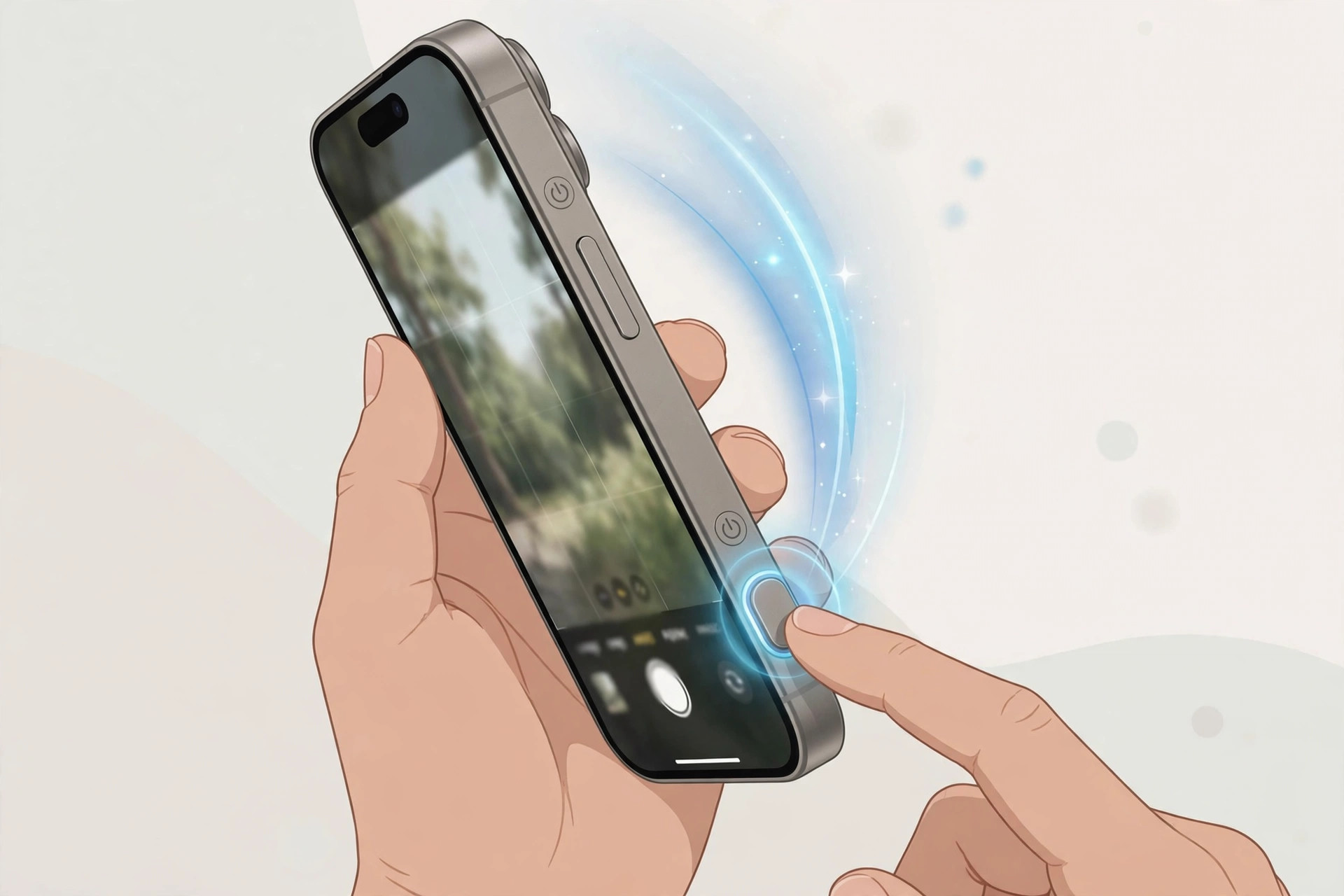
Switch the launch gesture from single click to double click
- Open the Settings app on your iPhone 16.
- Scroll down and tap Camera.
- Tap Camera Control.
- Change the launch gesture from Single Click to Double Click.
That is the core fix. From now on, the camera opens only when you deliberately press the button twice in quick succession. Accidental single presses — the kind that happen when the phone shifts in your pocket — are simply ignored, so false triggers effectively disappear.
Fine-tune the press feel
If double-click still does not feel quite right, iOS gives you more to adjust. Head to Settings > Accessibility, where you will find Camera Control options for click pressure and speed. If you have a light touch, try a lighter setting; if you press firmly, go firmer. Spend a minute testing: pick the phone up the way you normally do, slide it in and out of a pocket, grip it tightly. The goal is a setup where deliberate presses always register and accidental ones never do.
If it still doesn’t work
Still getting false triggers after switching to double-click? A bulky or poorly fitting case can press against the button — try using the phone without the case for a day to see if the problem vanishes. Also restart your iPhone and install the latest iOS update, since Apple refines button behavior in software updates. If the button itself feels stuck, mushy, or completely unresponsive, that points to a hardware issue — contact Apple Support or visit a store.
Frequently asked questions
Can I turn Camera Control off entirely?
Yes. On the same Settings > Camera > Camera Control screen, you can change what the button does or disable the camera launch altogether, if you would rather the button did nothing at all.
Won’t double-click slow me down when I need the camera fast?
Very slightly — but muscle memory adapts within a day or two. And it is a worthwhile trade: a camera that opens a fraction of a second later beats one that opened itself in your pocket and drained your battery.
Conclusion
The Camera Control button is genuinely useful once it stops firing by accident. Switching the launch gesture to double-click — and optionally tuning the pressure in Accessibility settings — turns it from a hair-trigger nuisance into a dependable camera shortcut. Try it for a day; you will wonder why single-click was ever the default. You may also like our guides on how to disable quick camera launch from the iPhone Lock Screen, why Spatial photo mode isn’t working in iOS 26, and how to take HDR screenshots on iPhone and iPad.
Sources: Apple Support, MacRumors, AppleInsider.





