
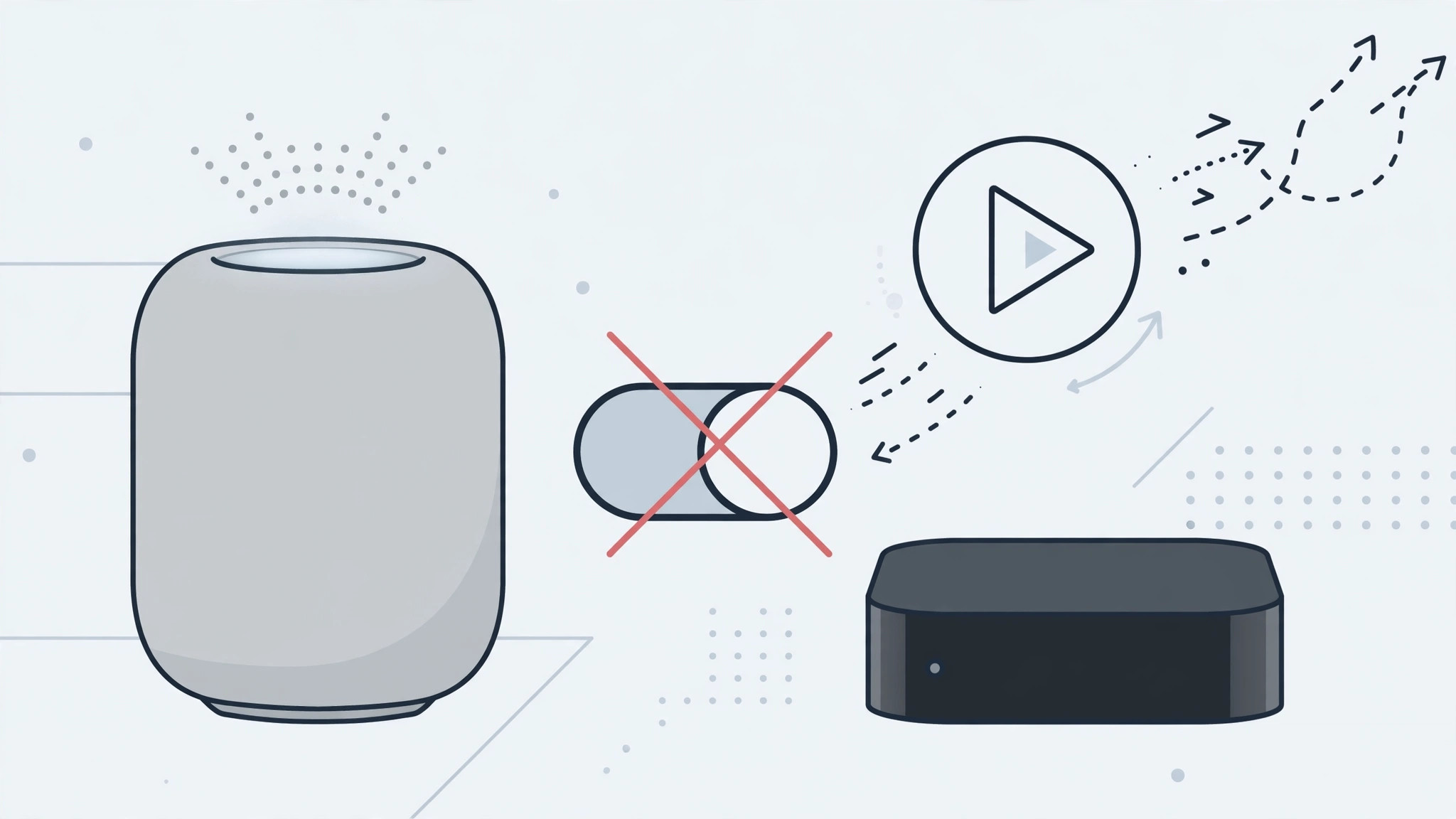
You walk into the living room listening to a podcast on your iPhone — and suddenly it starts blaring from the HomePod. Or you open a video and it jumps to the Apple TV without asking. That’s iOS 17’s automatic AirPlay handoff at work: when your iPhone notices you repeatedly send audio or video to the same speaker or TV, it starts doing it on its own.
Convenient for some, infuriating for others. If you’d rather stay in control of where your media plays, here’s how to turn off automatic AirPlay handoff on HomePod and Apple TV.
What automatic AirPlay handoff does
Mastering this one setting makes shared living spaces noticeably more peaceful — and it’s fully reversible any time you change your mind.
Starting with iOS 17, your iPhone learns your AirPlay habits. If you regularly hand audio to a HomePod or video to an Apple TV, iOS begins the handoff automatically whenever you’re nearby — no tap required. Apple’s AirPlay support guide describes the underlying Handoff features, and MacRumors has covered how the automatic behavior catches many users by surprise.
How to turn off autoplay handoff
- Open Settings on your iPhone.
- Go to General → AirPlay & Handoff.
- Find the Auto-AirPlay section. You’ll see options controlling when the iPhone hands media to TVs and speakers automatically.
- Set it to Never to fully disable automatic handoff, or choose Ask if you’d like a prompt each time instead of a silent takeover.
- The change applies immediately — no restart needed. From now on, media stays on your iPhone until you deliberately tap the AirPlay icon.
Why you might want “Ask” instead of “Never”
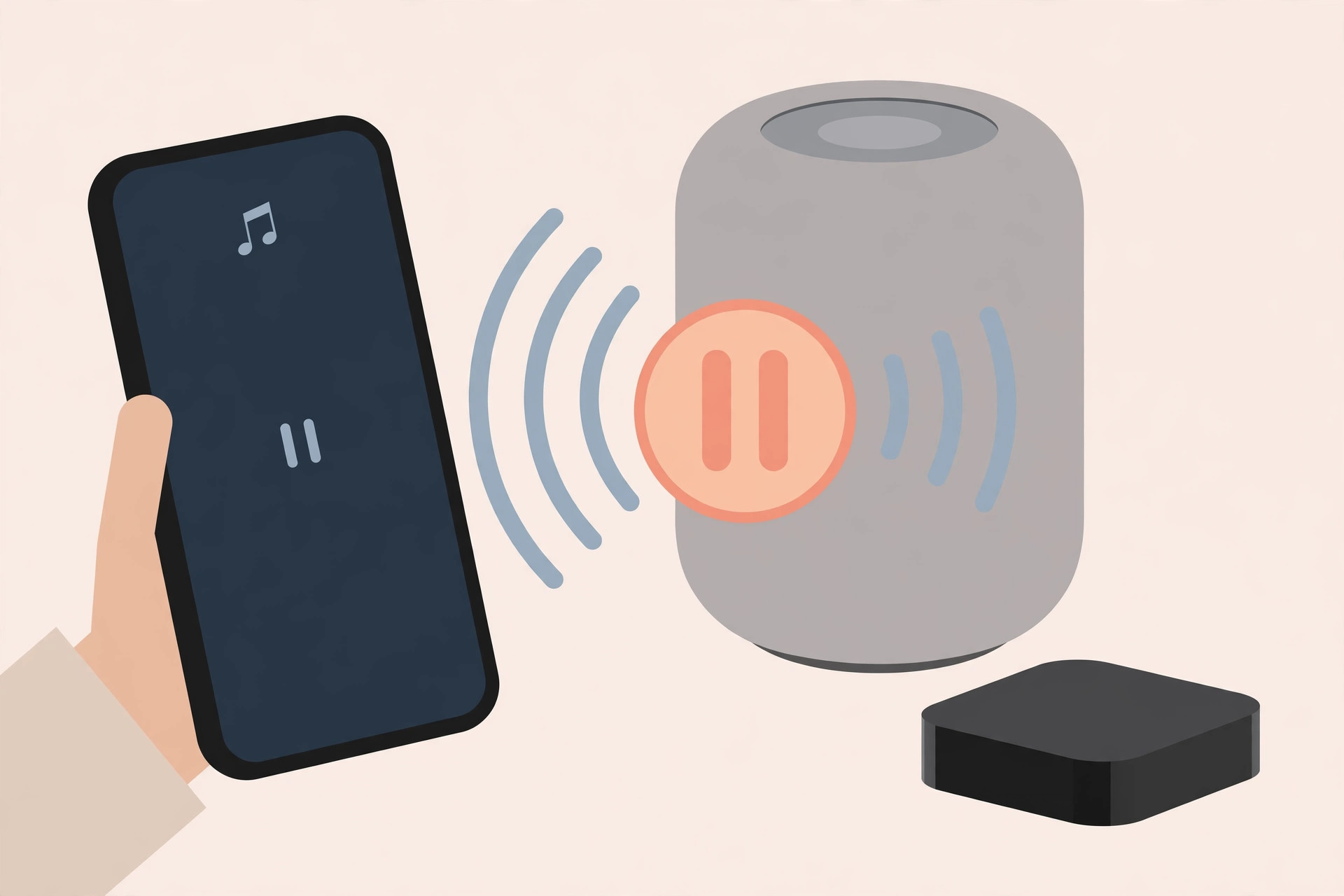
Fully disabling the feature is the nuclear option. The middle ground — Ask — gives you a quick confirmation prompt whenever your iPhone wants to hand off, so you keep the convenience for times you actually want it without the surprise takeovers. If you share a home with family, this also avoids your podcast hijacking the living room speaker mid-conversation.
If it still doesn’t work
If media still jumps to your HomePod or Apple TV after changing the setting, double-check you adjusted Auto-AirPlay and not just the general Handoff toggle — they’re separate options on the same screen. Also confirm the setting on the iPhone that’s actually playing the media; each device has its own preference. If you use SharePlay or have automatic audio switching between headphones and speakers, those are separate behaviors with their own toggles, so review them too.
Frequently asked questions
Does turning this off disable AirPlay completely?
No. You can still AirPlay manually any time by tapping the AirPlay icon in Control Center or inside apps. This setting only controls the automatic handoff.
Will this affect Handoff between my iPhone and Mac?
No. The Auto-AirPlay setting only governs media handoff to TVs and speakers. Continuity features like Handoff, Universal Clipboard, and call relaying are unaffected.
The bottom line
Automatic AirPlay handoff is a classic “helpful until it isn’t” feature. One trip to Settings → General → AirPlay & Handoff puts you back in charge — set Auto-AirPlay to Never for total peace, or Ask for the best of both worlds.





