
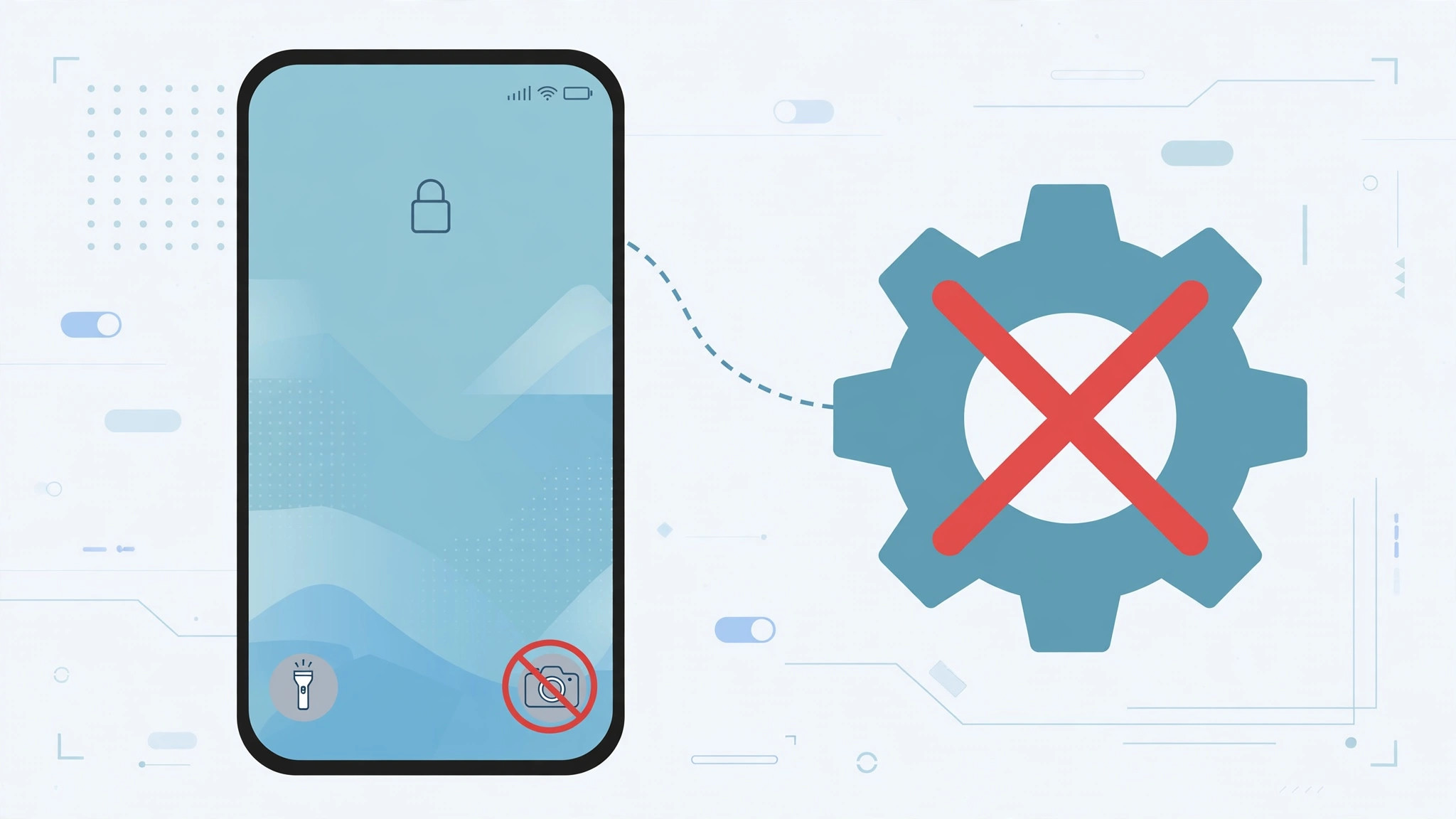
Few things are more annoying than pulling your iPhone from your pocket to find the Camera app open — again — because the lock-screen shortcut triggered accidentally. If you’re tired of phantom camera launches, here’s the honest truth about your options, including a new targeted toggle Apple added in iOS 26.1.
The honest truth: you can’t disable just the shortcut (until iOS 26.1)
Let’s be upfront: for years, iOS offered no way to disable only the lock-screen camera shortcut while keeping the Camera app usable. That’s by design — Apple treats the lock-screen camera as a core, always-available feature. Apple’s iPhone User Guide documents the lock-screen controls as fixed, and 9to5Mac has noted reader frustration with the lack of a toggle across many iOS versions.
Option 1: The new iOS 26.1 targeted toggle (recommended)
Starting with iOS 26.1, Apple finally added a dedicated switch for the accidental swipe:
- Open Settings → Camera.
- Turn off “Lock Screen Swipe to Open Camera.”
- That’s it — the swipe gesture no longer launches the camera, while the Camera app itself keeps working normally everywhere else.
This is the fix most people have been waiting for: it kills only the accidental trigger, not the camera. If you’re on iOS 26.1 or later, stop here.
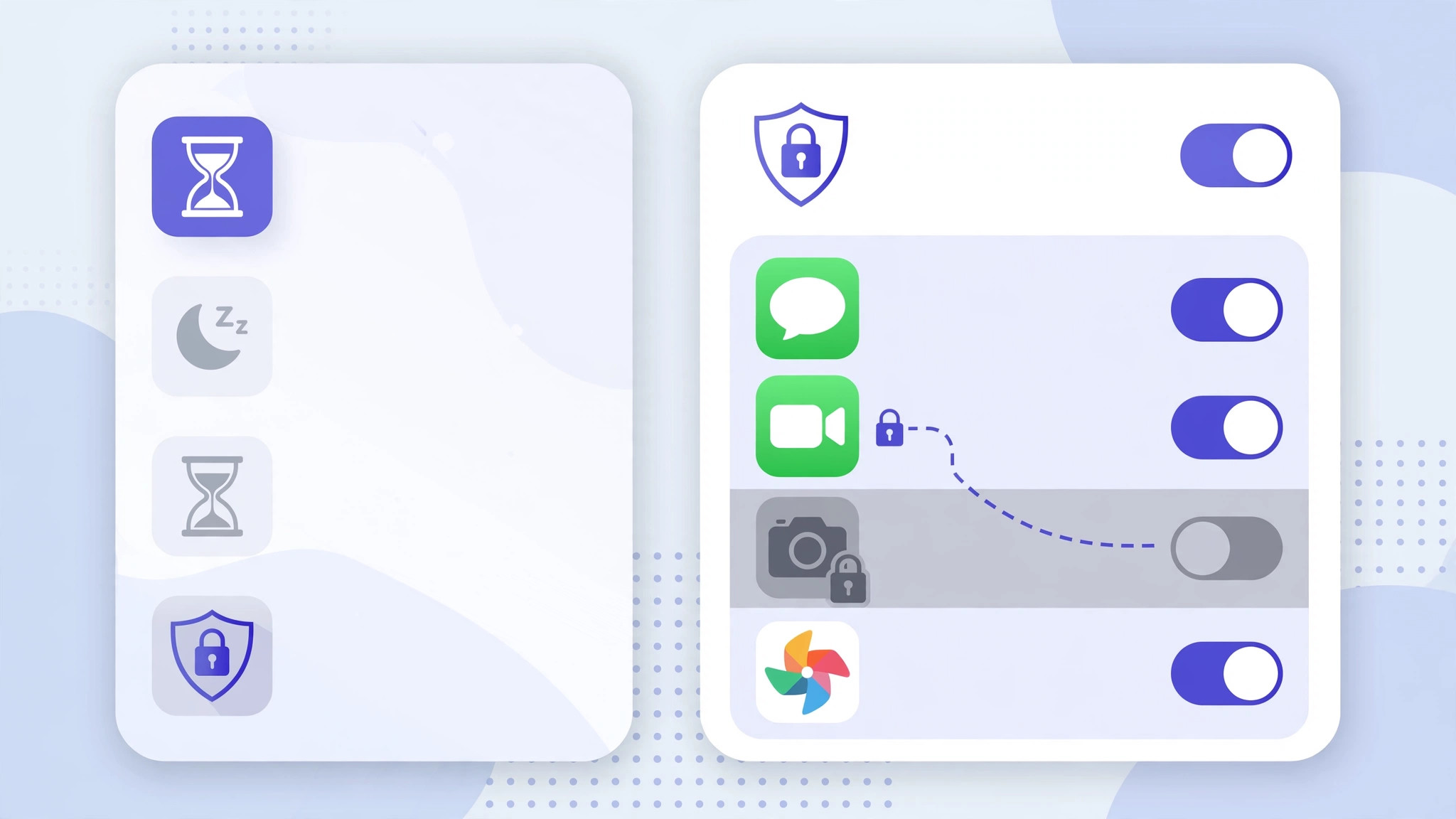
Option 2: Remove the Camera app entirely via Screen Time (nuclear option)
On older iOS versions without the 26.1 toggle, the only full workaround is all-or-nothing:
- Go to Settings → Screen Time → Content & Privacy Restrictions and enable restrictions.
- Tap Allowed Apps.
- Turn Camera OFF.
The lock-screen camera button disappears — but so does the Camera app everywhere else on the iPhone. This is really meant for parents, schools, and MDM-managed devices, not for someone who just wants fewer pocket launches. We mention it for completeness, not as a recommendation.
How this differs from our earlier guide
We previously covered disabling quick camera launch from the lock screen in general terms. This guide focuses specifically on what’s new: the iOS 26.1 targeted toggle and the honest explanation that no per-shortcut disable existed before it. If you want more lock-screen control, also see how to move lock screen widgets down in iOS 26 and our Liquid Glass lock screen clock guide.
If it still doesn’t work
If the swipe still opens the camera after toggling the 26.1 setting off, confirm you’re actually on iOS 26.1 or later (Settings → General → About). The toggle doesn’t exist on earlier releases. Also note the toggle targets the swipe gesture specifically; if your case or pocket is pressing the on-screen camera button through touch, a sturdier case may help more than any setting.
Frequently asked questions
Can I keep the camera button but disable only the swipe?
On iOS 26.1+, yes — that’s exactly what the “Lock Screen Swipe to Open Camera” toggle does. On older iOS, no; it’s the swipe plus button together, or nothing via Screen Time.
Does disabling the swipe affect the Camera app?
Not at all. The 26.1 toggle only kills the lock-screen swipe gesture. The Camera app, Control Center shortcut, and Action button (where available) all keep working.
The bottom line
For years the answer was “you can’t” — now, on iOS 26.1, the answer is one toggle in Settings → Camera. Update your iPhone, flip it off, and enjoy a pocket that stops taking pictures of itself.





