
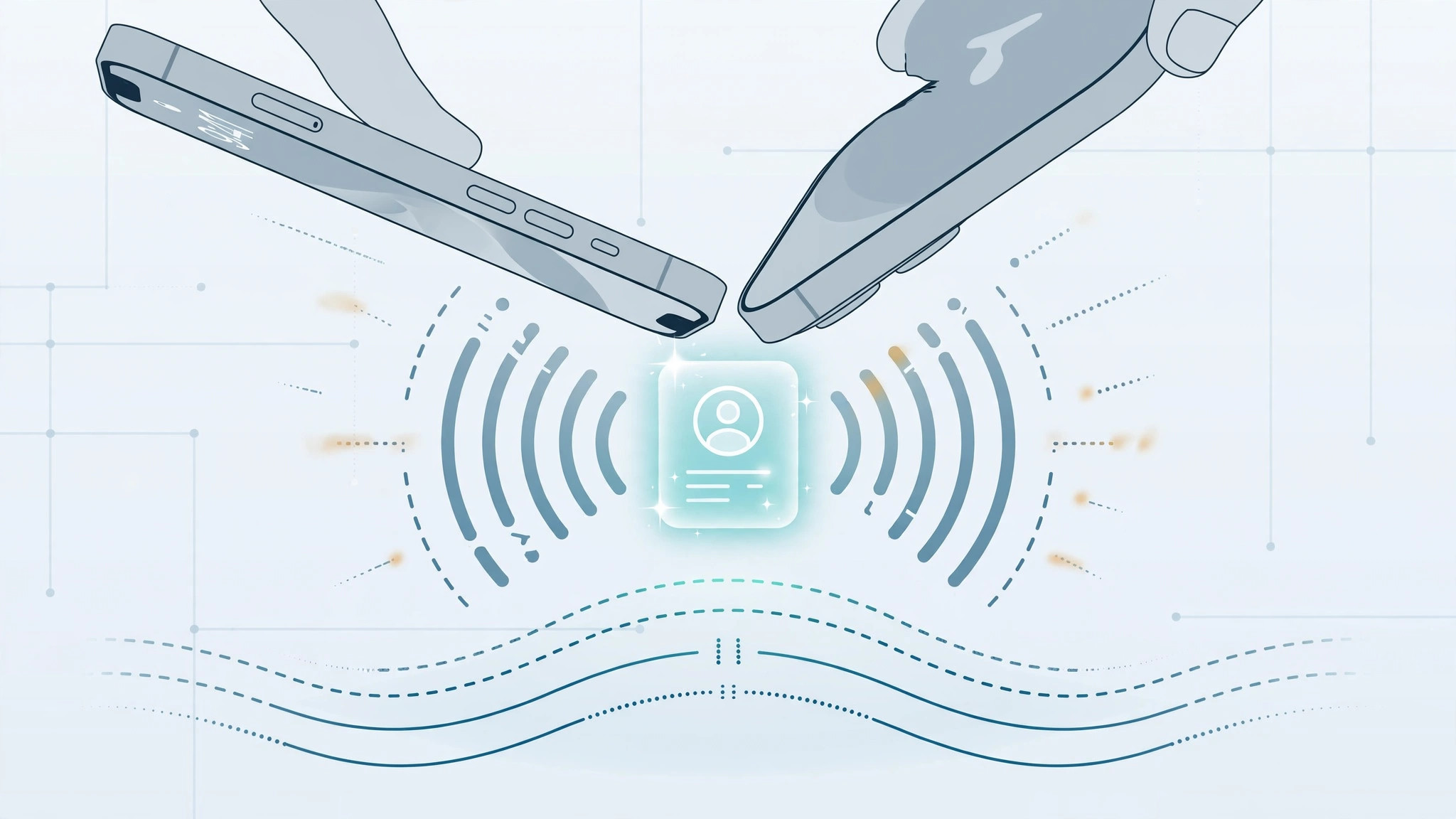
NameDrop — the feature that lets two iPhones swap contact details just by touching tops — feels like magic when it works. When it doesn’t, it’s usually not broken hardware or a deep iOS bug. It’s one of a handful of settings that must line up on both devices, including one toggle that’s remarkably easy to miss.
Here’s the full checklist to get NameDrop working again.
What both iPhones need for NameDrop
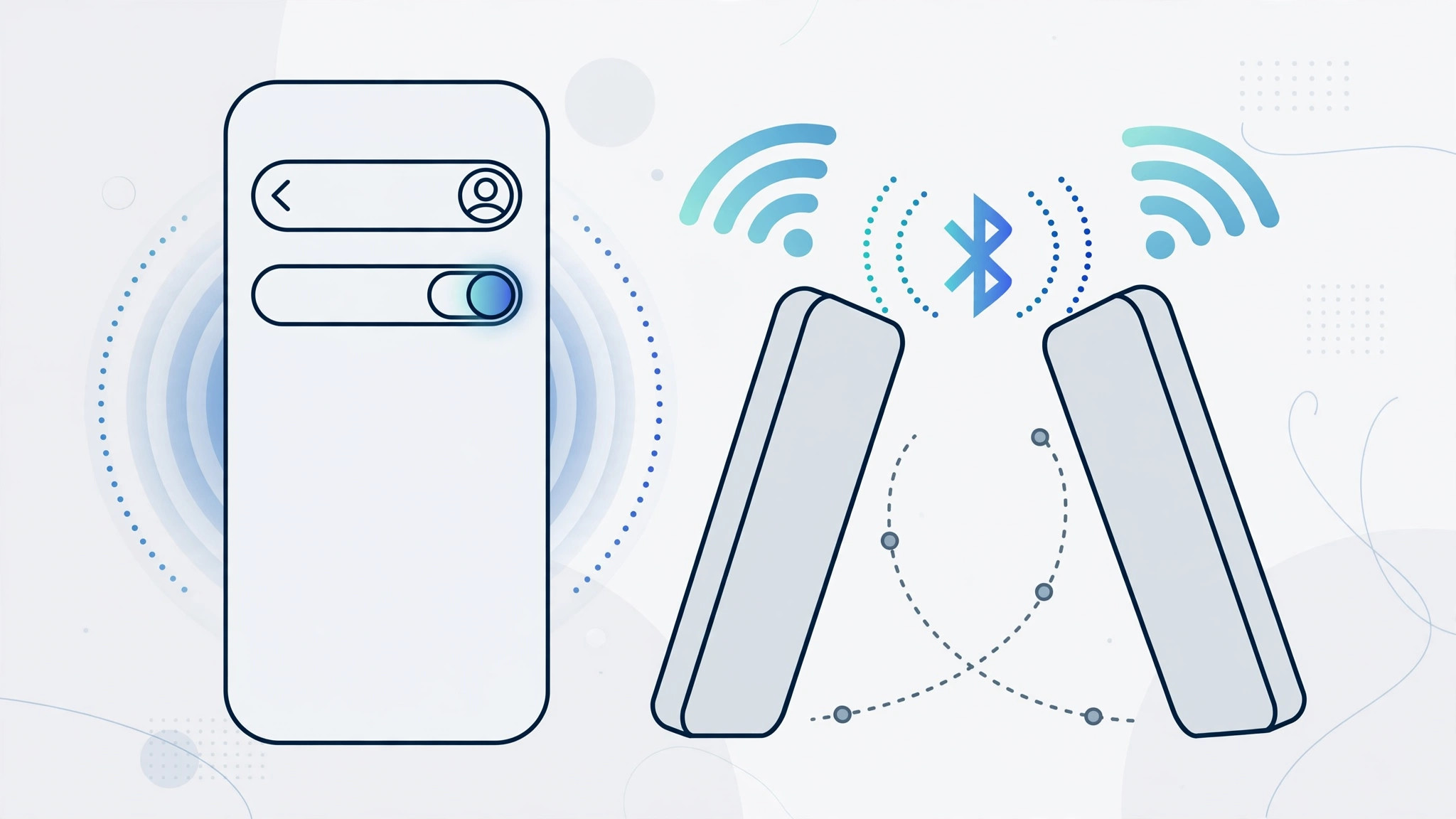
NameDrop has firm prerequisites. Both devices must run iOS 17 or later (an Apple Watch needs watchOS 10.1 or later). Both need Wi-Fi and Bluetooth turned on — the transfer uses a combination of the two. And critically, on both iPhones, Settings → General → AirDrop → “Bringing Devices Together” must be switched on. That last toggle is the easily-missed one, and it’s the most common reason NameDrop silently does nothing. Apple’s iPhone User Guide documents the AirDrop settings, and MacRumors has a thorough NameDrop troubleshooting rundown.
How to NameDrop correctly: the exact steps
- Update both iPhones to iOS 17 or later via Settings → General → Software Update.
- Enable Wi-Fi and Bluetooth on both devices (Control Center toggles are fine — they don’t need to join a network).
- On both iPhones, go to Settings → General → AirDrop and make sure “Bringing Devices Together” is on.
- If the other person isn’t in your contacts, set AirDrop receiving to “Everyone” or “Everyone for 10 Minutes.”
- Unlock both iPhones and hold them so the tops (near the earpiece) touch for a few seconds.
- When the NameDrop animation appears, choose Share or Receive Only on each device as appropriate.
What NameDrop will and won’t do
Two things people get wrong: NameDrop shares new contact info only — it won’t update an existing contact card, so delete the old entry first if details changed. And despite scary headlines, it always requires on-screen consent on both devices, so no stranger can silently siphon your number just by bumping phones.
If it still doesn’t work
Work through the stubborn cases in order: restart both iPhones, then try again. Turn off any active VPN, which can interfere with the local connection NameDrop relies on. Re-check the “Bringing Devices Together” toggle on both phones — it’s per-device. As a last resort, reset network settings via Settings → General → Transfer or Reset iPhone → Reset → Reset Network Settings (you’ll need to rejoin Wi-Fi networks afterward). If you’re also having trouble with related sharing features, see our guides on turning off all SharePlay features and setting up message sync between iPhone and Mac.
Frequently asked questions
Does NameDrop work with Android phones?
No. NameDrop is an Apple-to-Apple feature requiring iOS 17+ (or watchOS 10.1+) on both ends. It won’t trigger with Android devices.
Can someone steal my contact via NameDrop without permission?
No. Both iPhones must be unlocked, held together, and each person must explicitly choose Share or Receive Only on screen. Nothing transfers without consent.
The bottom line
NameDrop failures are almost always settings, not hardware: iOS 17 on both devices, Wi-Fi and Bluetooth on, and “Bringing Devices Together” enabled. Line those up, touch the tops together, and the magic works.





