

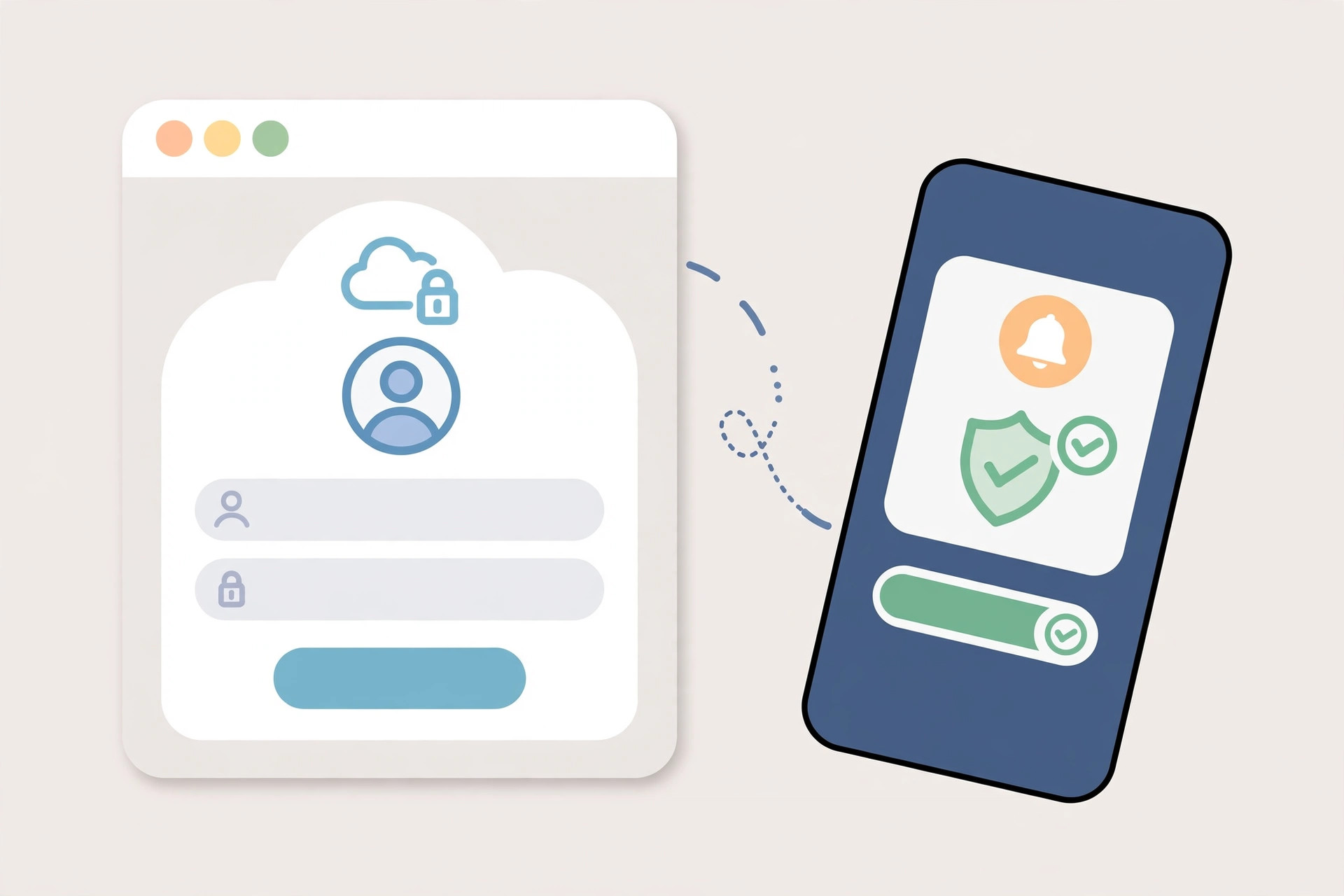
You open iCloud.com in a browser, sign in with your Apple Account and password — and instead of your notes, a message asks you to approve the sign-in on your iPhone. It feels like something went wrong, but nothing did. Since iOS 16.2 and macOS 13.1, Apple added an extra layer of protection for iCloud data on the web: opening it from an unfamiliar browser requires confirmation on a trusted device.
Think of it as a second lock on the door. Even if someone learned your Apple Account password, they still couldn’t open your iCloud Notes, Photos, or files from a random computer — your iPhone would have to approve it first. Here’s why it happens and how to control it.
Why the iPhone confirmation appears
Apple introduced a setting called “Access iCloud Data on the Web” to stop account hijacking. When it’s on, any sign-in to iCloud.com from a browser Apple doesn’t recognize triggers an approval request on your trusted devices — typically a notification on your iPhone asking you to allow it. Only after you tap approve does the browser session get access. Previously, the password alone was enough.
How to manage the setting step by step
- Open your Apple Account settings. On your iPhone, go to Settings and tap your name at the top. You can do this on any trusted Apple device — iPad or Mac works too.
- Go to iCloud. Tap iCloud to open the iCloud settings screen.
- Find “Access iCloud Data on the Web”. Toggle it to choose your behavior. On (recommended): signing in to iCloud.com from an unknown browser requires approval on a trusted device. Off: the old behavior — your Apple Account email and password alone open iCloud in any browser.
If it still doesn’t work
If the approval prompt never arrives on your iPhone, check that the phone is online, signed in to the same Apple Account, and able to receive notifications — the approval appears as a notification, so glance at Notification Center too. If you’ve lost access to all trusted devices, you’ll need Apple’s account recovery instead. For the official background, see Apple Support’s documentation on iCloud data security; MacRumors and 9to5Mac have also covered this protection since it launched.
While you’re reviewing Apple security settings, check related guides: how to stop Safari from suggesting passwords for websites on iPhone, set up message sync between iPhone and Mac, and verify your SIM card to avoid the cooling-off period.
Frequently asked questions
Can I turn off the iPhone confirmation for iCloud.com?
Yes. Toggle off “Access iCloud Data on the Web” under Settings → [your name] → iCloud. You’ll return to password-only web sign-ins — more convenient, but meaningfully less secure if your password ever leaks.
I don’t have my iPhone with me — can I still open iCloud Notes?
If the browser was previously approved, yes — trusted browsers stay trusted. Otherwise you’ll need a trusted device to approve the new session, or Apple’s account recovery if you have no trusted devices at all.
Conclusion
The iPhone confirmation when opening iCloud in a browser isn’t a glitch — it’s Apple making sure only you can open your iCloud data from the web. Keep “Access iCloud Data on the Web” switched on for the strongest protection, and only turn it off if you fully accept the trade-off. Either way, now you know exactly where the setting lives.





